WordPress.com Plugins on All Plans: What Changed in 2026
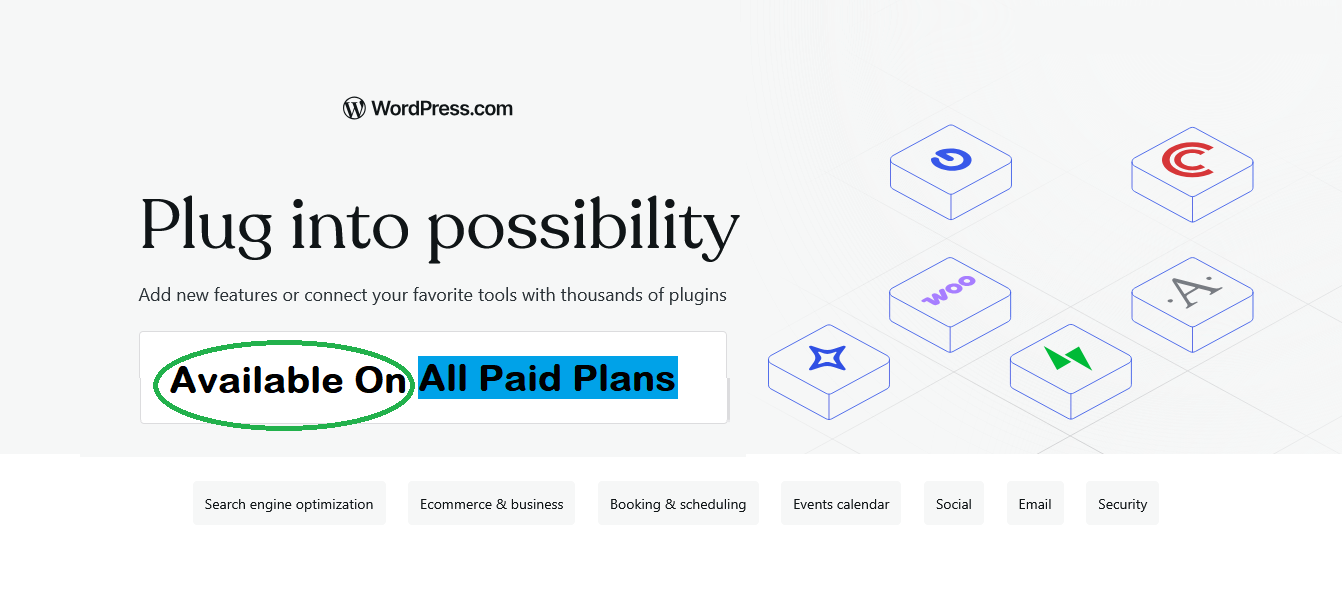
For years, this was the one thing holding WordPress.com back. Not anymore.
What You Need to Know Right Now
WordPress.com plugins on all plans just became a reality in 2026.
Every paid plan: Personal, Premium, Business, and Commerce now includes access to 50,000+ plugins from the WordPress Plugin Directory, Global Styles for site-wide design control, custom font uploads, and CSS customization.
If you’re already on a paid WordPress.com plan, these features are live in your dashboard. No upgrade required. No hidden fees. Just head to the Plugins section and start building.
This isn’t just a feature update. It’s a fundamental shift in how WordPress.com empowers creators, bloggers, and business owners to build exactly what they envision from day one.
→ Start building your site on WordPress.com — now with full plugin access
The Moment Everything Changed
Recently, I was helping a friend set up her pottery website on WordPress.com. She’d chosen the Personal plan because her budget was tight, but she had big dreams for her site: custom contact forms, email signup integrations, and an events calendar.
“Can I add a booking plugin?” she asked, scrolling through WordPress.com’s dashboard.
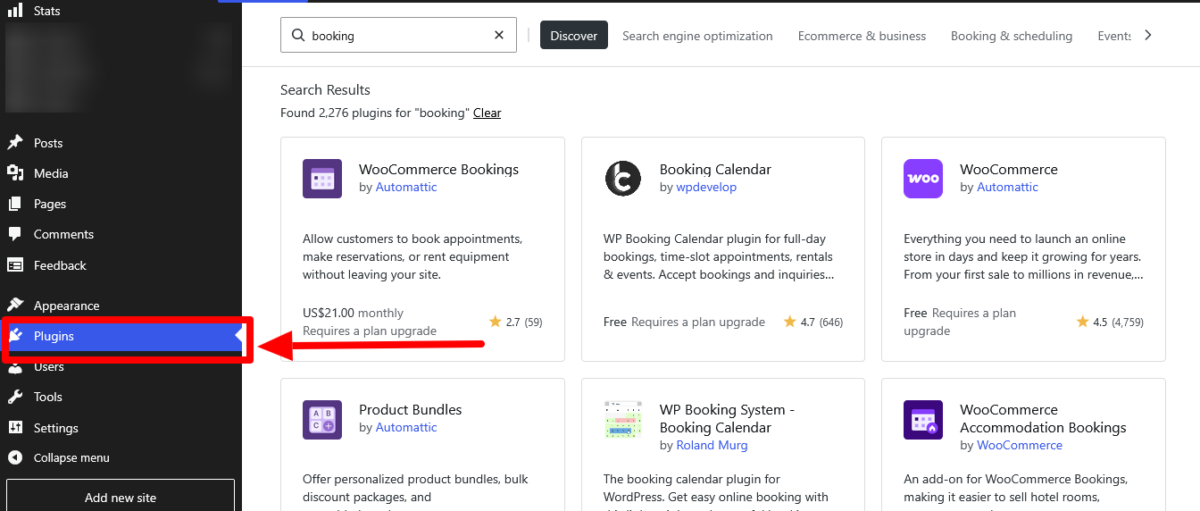
I opened my mouth to give her the bad news I’d delivered dozens of times before. But then I saw it. The Plugins menu. Right there in her Personal plan dashboard.
I literally stopped mid-sentence and refreshed the page because I thought my browser was glitching.
WordPress.com plugins on all plans weren’t just an announcement anymore. It was real. And it meant she could build her entire coaching platform without spending $300/year on the Business plan just to install a simple booking form.
She installed the Amelia Booking Plugin, set up her coaching sessions, and had her first client booked within 48 hours.
That’s the power of removing barriers.
→ Launch your WordPress.com site and unlock 50,000+ plugins today
What Comes with WordPress.com Plugins on All Plans
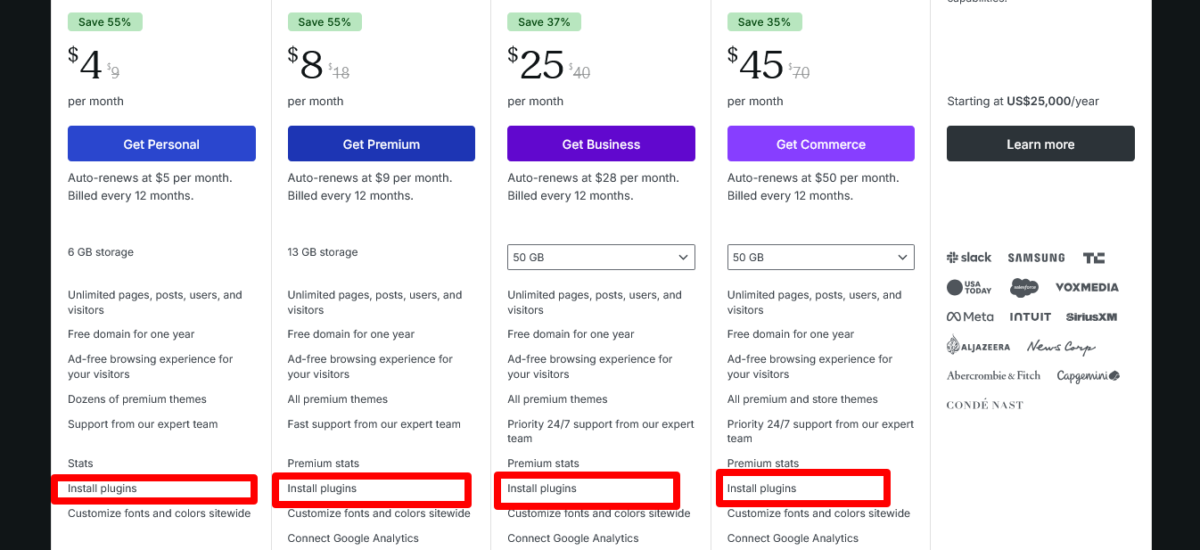
Let’s break down exactly what you get with this update. Because WordPress didn’t just unlock plugins, they handed you the keys to professional-grade website building.
Access to 50,000+ Plugins
Every paid plan can now install plugins from the WordPress Plugin Directory. This includes free plugins for:
- Contact forms (WPForms, Gravity Forms)
- SEO optimization (Rank Math, Yoast SEO)
- Email marketing integrations
- Social media feeds
- Booking and appointment systems
- Event calendars
- Portfolio galleries
- Membership sites
- Learning management systems
- And basically anything else you can imagine
You can also upload custom plugins or build your own. The only restrictions are plugins that could cause security or performance issues on the platform, and honestly, those restrictions protect your site more than they limit you.
Global Styles Control
This one’s huge for anyone who’s ever wanted to change their site’s color scheme without hunting through every single page.
Global Styles lets you control fonts, colors, spacing, and visual design across your entire site at once. Pick a new accent color, and it updates everywhere. Change your heading font, and every heading shifts instantly.
It’s the kind of design control that used to require custom CSS knowledge or hours of manual updates.
Custom Font Uploads
Want to use a specific font that matches your brand? Upload it. Want Google Fonts? Upload them. Want that quirky typeface you found on Creative Market? Upload it.
Your site should look like your site, not just another WordPress template.
Custom CSS
For those who like to tinker (I’m raising my hand here), you can now write custom CSS on any paid plan. This means you can fine-tune spacing, adjust colors, create custom hover effects, or override theme styles without needing the Business plan.
→ Build your site your way on WordPress.com (no upgrades needed)
Why This Matters for Different Creators

Bloggers and Content Creators
WordPress.com plugins on all plans means you can finally build the blog you’ve been envisioning without breaking the bank.
Install SEO plugins to optimize your content. Add social sharing buttons. Set up email capture forms. Create custom table of contents for long-form articles. All on the $4/month Personal plan.
I’ve been blogging professionally for years, and I can tell you that paying $300/year for basic functionality always felt like a barrier to entry.
That barrier just disappeared.
Freelancers and Consultants
You need a professional site, but you don’t need enterprise-level features. The Personal or Premium plan now gives you everything to showcase your work:
- Portfolio plugins for displaying your projects
- Contact forms for client inquiries
- Testimonial sliders for social proof
- Booking systems for scheduling consultations
- Payment integrations for collecting deposits
Build a complete professional presence without the enterprise price tag.
Small Business Owners
Running a local business? WordPress.com plugins on all plans open up practical tools:
- Google Maps integration to show your location
- Business hours plugins
- Service listing displays
- Customer review showcases
- Appointment booking for service-based businesses
The Premium plan ($8/month) now competes directly with dedicated small business website builders, but you get the flexibility of WordPress with the convenience of managed hosting.
Online Course Creators and Educators
Want to sell courses or create a membership site? The plugin ecosystem now supports this on Premium and higher plans:
- LearnDash or LifterLMS for course delivery
- MemberPress for membership management
- Quiz and assessment plugins
- Student progress tracking
- Certificate generation
You can build an entire learning platform without custom development.
→ Create a professional site on WordPress.com without the usual limits
Plugins I’d Install First (Based on My Testing)
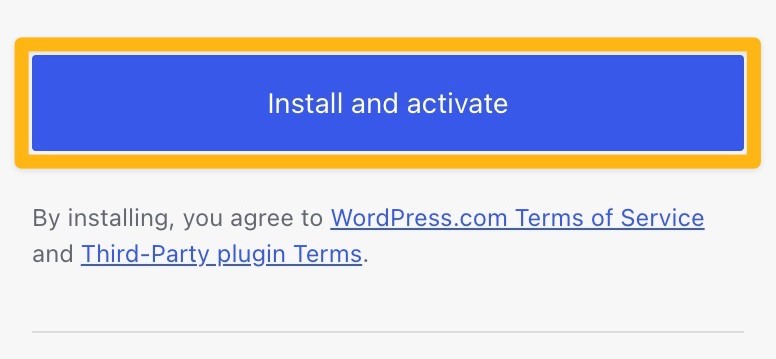
I spent a weekend testing plugins across different WordPress.com plans to see what works best. Here’s what made a difference:
For Every Plan (Including Personal)
Rank Math SEO
Lightweight, powerful, and easier to configure than most SEO plugins. It helps you optimize content, generates XML sitemaps, and gives you actionable recommendations.
WPForms Lite
Dead simple contact form builder. Drag-and-drop interface, spam protection, and it just works. The free version handles 90% of what most people need.
UpdraftPlus
Even though WordPress.com handles backups on Business plans and higher, having control over your own backups never hurts. The free version backs up to cloud storage.
For Content-Heavy Sites
Table of Contents Plus
If you write long-form content (like this article), auto-generated table of contents improves navigation and SEO.
Social Warfare or Grow by Mediavine
Beautiful social sharing buttons that actually get used. Position them strategically and watch your shares increase.
For Business Sites
Really Simple SSL
Your SSL certificate is included with WordPress.com, but this plugin handles any mixed content issues and forces HTTPS across your entire site.
WP Google Maps
Show your business location, add multiple markers, customize map styles. Essential for local businesses.
For Membership or Course Sites
MemberPress
Powerful membership plugin with great documentation. Works beautifully on Premium and higher plans.
LifterLMS
Full learning management system. Create courses, track student progress, issue certificates.
Don’t install everything at once. Start with essentials, test your site speed, then add more as you need them.
→ Get full plugin access on WordPress.com — no upgrade needed anymore
How to Use These New Features (Step-by-Step)
Getting started with WordPress.com plugins on all plans is straightforward, but let me walk you through it so you don’t waste time figuring it out.
Please note: I have explained all these steps thoroughly in the post, How to Install Plugins on WordPress.com (2026 Guide)
Installing Your First Plugin
- Log into your WordPress.com dashboard
- Click “Plugins” in the left sidebar
- Click “Add New”
- Search for the plugin you want (try “WPForms” to start)
- Click “Install Now”
- Click “Activate”
That’s it. The plugin is live on your site.
Accessing Global Styles
- In your dashboard, click “Appearance”
- Click “Editor”
- Click the “Styles” icon (looks like a paint palette)
- Choose colors, fonts, and spacing
- Hit “Save”
Changes apply across your entire site instantly.
Uploading Custom Fonts
- Go to “Appearance” > “Editor”
- Click “Styles” > “Typography”
- Click “Upload fonts”
- Upload your font files (.woff, .woff2, .ttf formats work)
- Select your uploaded font from the dropdown
Your custom font now appears in all your typography options.
Adding Custom CSS
- Go to “Appearance” > “Customize”
- Click “Additional CSS”
- Write your CSS code
- Preview changes live
- Click “Publish”
Your custom styles are now active.
→ Take full control of your site with WordPress.com today
What This Means for the WordPress.com Ecosystem
WordPress.com plugins on all plans aren’t just about unlocking features. It’s about democratizing web publishing.
When I started blogging years ago, I chose self-hosted WordPress specifically because I needed plugin flexibility. But self-hosting meant dealing with server management, security updates, backup configurations, and performance optimization.
It was exhausting.
WordPress.com always offered the convenience of managed hosting, automatic updates, built-in security, and reliable performance, but the tradeoff was limited customization on lower plans.
Now? You get both. Managed hosting convenience with plugin flexibility.
This Helps WordPress Grow
Making WordPress.com plugins on all plans accessible helps the entire WordPress ecosystem:
Plugin developers reach more users. When only Business plan users could install plugins, developers had a limited audience. Now, Personal and Premium plan users (the largest user segments) can discover and use their work.
Theme creators see their designs used more creatively. When users have Global Styles and custom fonts, they personalize themes in ways that keep them engaged longer.
Content creators build sustainable sites. Lower barriers mean more people can create professional sites, grow audiences, and eventually upgrade to higher plans as their needs expand.
It’s a rising tide that lifts all boats.
→ Turn your site into anything with WordPress.com plugins — now unlocked
Smart Ways to Use WordPress.com Plugins on All Plans
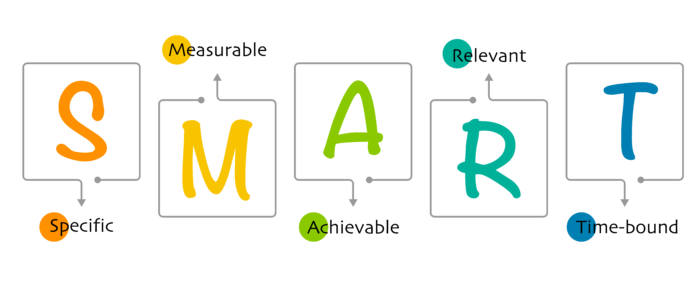
Now that you have access to plugins, here’s how to use them strategically:
Start with Strategy, Not Installation
Don’t install 20 plugins on day one. Map out what you actually need:
- What does my site need to do?
- What problems am I solving for visitors?
- What features will genuinely improve the user experience?
Then install only those plugins.
Monitor Your Site Speed
Plugins add functionality, but they can also add bloat. After installing any plugin:
- Test your site speed with GTmetrix or Google PageSpeed Insights
- Check loading times on mobile
- Navigate through your site like a visitor would
If things feel sluggish, you might need to optimize images, remove unnecessary plugins, or choose lighter alternatives.
Keep Plugins Updated
WordPress.com handles core updates automatically, but plugin updates are your responsibility:
- Check for updates weekly
- Read update notes before updating (especially on live sites)
- Test major updates on a staging site if you’re on the Business plan
Outdated plugins are security risks. Stay current.
Use Jetpack Features First
Before installing third-party plugins, check if Jetpack already handles it. WordPress.com includes Jetpack features across all plans:
- Spam protection (Akismet)
- Site stats and analytics
- Social media auto-posting
- Security scanning
- Contact forms (on Business+)
- Image CDN
Why install another plugin when the functionality is already built in?
Also Read: Jetpack Tools Every Blogger Should Be Using in 2026
Real Examples: What People Are Building
Since WordPress.com plugins have been available on all plans launched, I’ve been watching what people create. Here are some inspiring examples:
Photography Portfolio with Booking
Personal plan user installed Envira Gallery for stunning photo layouts and Amelia Booking for session scheduling. Total monthly cost: $4. Total value to her business: priceless.
Local Restaurant with Online Ordering
Premium plan user added WooCommerce for menu ordering, Google Maps for location, and hours/menus plugins. They’re processing orders directly through their site instead of paying third-party fees.
Yoga Studio with Class Schedules
Business plan user built a complete studio site with MindBody integration, class schedules, instructor bios, and member login areas. It looks like a $5,000 custom website, but costs a fraction.
Freelance Writer’s Portfolio
Personal plan user created a portfolio with Elementor, testimonial sliders, and a contact form. She’s landing higher-paying clients because her site finally matches her skill level.
These aren’t theoretical examples. These are real people building real businesses with WordPress.com plugins on all plans.
→ The plugins you’ve been waiting for are now on every WordPress.com plan
Questions You’re Probably Asking
“Will this slow down my site?”
Only if you install dozens of poorly coded plugins. Stick to well-maintained, popular plugins, and you’ll be fine. WordPress.com’s infrastructure is fast; plugins won’t break that unless you go overboard.
“Can I really build a business site on the Personal plan now?”
For many businesses, yes. If you need basic functionality, contact forms, SEO, Google Maps, social integration, Personal handles it. You might upgrade to Premium for video uploads or Business for advanced SEO tools, but Personal is a legitimate starting point now.
“What if I need a plugin that’s not allowed?”
WordPress.com blocks certain plugins for security or performance reasons. If you hit a restriction, you have two options: find an alternative plugin that’s allowed, or move to self-hosted WordPress. Most people never hit these restrictions.
“Should I switch from self-hosted WordPress to WordPress.com now?”
That depends. If you’re tired of managing updates, security, backups, and hosting configurations, WordPress.com might appeal to you. But if you need absolute control over every aspect of your site, self-hosted WordPress is still the way to go.
“How do I know which plugins to trust?”
Look for plugins with:
- High install counts (100,000+)
- Recent updates (within the last few months)
- Good ratings (4+ stars)
- Active support forums
- Clear documentation
Popular plugins like WPForms, Rank Math, and Elementor meet all these criteria.
Where WordPress.com Goes from Here
WordPress.com plugins on all plans set a new foundation for what’s possible. But this isn’t the end; it’s the beginning.
With WordPress 7.0 launching, we’re seeing:
- AI-powered content tools integrated into the editor
- Improved block-based design
- Better mobile optimization
- Enhanced performance across the platform
WordPress is betting on accessibility and power working together. Making plugins available on all paid plans proves they’re serious about removing barriers while maintaining quality.
As someone who’s been in this space for years, I’m actually excited about WordPress.com again. For a while, it felt like the platform was coasting.
Now it feels like they’re building.
Your Next Steps
If you’re on a WordPress.com paid plan, open your dashboard and explore the Plugins section. Even if you don’t install anything today, just seeing what’s available will spark ideas.
If you’re on the free plan and this convinced you to upgrade, start with Personal. Four dollars a month gets you a custom domain, ad-free experience, and now the entire plugin ecosystem. That’s hard to beat.
If you’re still on the fence, create a free WordPress.com site and explore. When you’re ready for plugins, upgrading takes two minutes.
The tools are here. WordPress.com plugins on all plans just handed you professional-grade website building capabilities at every price point.
What do you build with them? That’s entirely up to you.
FAQs
When did WordPress.com start offering plugins on all paid plans?
WordPress.com plugins on all plans launched on April 2, 2026. This includes Personal, Premium, Business, and Commerce plans.
Do I need to pay extra for plugin access?
No.
Plugin access, Global Styles, custom fonts, and CSS are included in every paid WordPress.com plan. If you’re already on a paid plan, these features are available now at no additional cost.
How many plugins can I install?
You can access 50,000+ plugins from the WordPress Plugin Directory. There’s no hard limit on installations, though installing too many plugins can impact site performance.
Focus on quality over quantity.
What’s the difference between Personal and Business plans now?
Personal ($4/month) includes plugins, Global Styles, custom fonts, CSS, 6 GB storage, and basic features. Business ($25/month) adds advanced SEO tools, 50 GB storage, daily backups, staging sites, SFTP/SSH access, and developer tools.
Personal works great for basic sites; Business is for professional sites needing advanced features.
Are Jetpack features still included?
Yes.
All WordPress.com paid plans include Jetpack security, performance, and growth tools. Higher plans (Business and Commerce) get additional Jetpack features like real-time backups and malware scanning.
Can I upload my own custom plugins?
Yes.
On any paid plan, you can upload plugins you’ve found elsewhere or build custom plugins yourself, as long as they comply with WordPress.com’s guidelines.
Will installing plugins affect my site’s speed?
It depends on the plugins. Well-coded, lightweight plugins won’t significantly impact performance. Bloated or poorly optimized plugins can slow your site.
Test your site speed after installing new plugins and remove any that cause issues.
What plugins are not allowed on WordPress.com?
WordPress.com blocks certain plugins that could cause security vulnerabilities or performance problems. These restrictions protect your site and the platform. Most popular, well-maintained plugins are allowed.
Check WordPress.com’s plugin directory to confirm specific plugins.
Can I build an online store with plugins on the Personal plan?
For basic product selling, yes. You can install payment plugins and simple shop builders. For full ecommerce functionality with zero transaction fees and advanced features, the Commerce plan is designed specifically for online stores.
How do I get started with WordPress.com plugins on all plans?
Log in to your WordPress.com dashboard, click “Plugins” in the sidebar, then “Add New.”
Search for the plugin you want, click “Install Now,” then “Activate.”
That’s it—the plugin is live on your site.
Disclosure: This post contains WordPress.com affiliate links. If you sign up through them, we may earn a small commission at no extra cost to you. We only recommend tools we trust.