
FlexClip Review 2026: I Made 50+ Videos in 30 Days
What happens when a camera-shy blogger tests an AI video generator and editor for a month? Spoiler: It got weird (in a good way).
Quick Verdict: Should You Use FlexClip?
Alright, here’s my FlexClip review no-BS summary: After creating over 50 videos in 30 days (yes, I’m tired), FlexClip is legitimately one of the best browser-based video editors for beginners and intermediate creators who need to pump out content fast.
It’s not replacing Adobe Premiere for professionals, but that’s not the point.
Best for: Content creators, social media managers, bloggers, small business owners, and anyone who needs professional-looking videos without a film degree.
Skip if: You’re a professional video editor who needs multi-track editing, advanced color grading, or complete creative control.
The AI tools are impressive (especially the new AI Recreate, Auto Edit, and Text-to-Video features), the template library is massive, and it’s actually fun to use.
But some annoying limitations almost made me rage-quit twice. Keep reading because I’m spilling everything.
Try FlexClip Free (No Credit Card) ⟶
Why a Camera-Shy Blogger Even Tried Video Editing

So here’s the thing. I’m Mia. I run Blog Recode. And I’m aggressively camera-shy AF.
Like, the thought of starting a YouTube channel makes me want to hide under my desk with a bottle of whiskey.
But every creator I know keeps screaming about video content being the future.
Instagram Reels, TikTok, YouTube Shorts, LinkedIn videos. Apparently, if you’re not doing video in 2026, you’re basically invisible.
Mierda.
But here’s my problem: I don’t know shit about video editing. I tried learning Premiere Pro once and gave up after 20 minutes. Too many buttons. Too many layers. Too much commitment.
Then Jessica introduced me to Flexclip. She asked me to explore the tools and determine whether it’s a great fit for my audience. I can’t screw this up.
Challenge accepted. (Hey Cathy, for the follow-up?)
I signed up for the free plan on an afternoon at my favorite coworking space in my hood. The WiFi was decent, my coffee was terrible, and I had zero expectations.
30 days later, I’d created 50+ videos. Some for personal projects. Some for client projects. Some were just me experimenting with the AI tools at sleepy times because, apparently, I’ve lost control of my life.
This FlexClip review is what I learned.
What Is FlexClip Anyway?
FlexClip review 101: Let’s start with the basics.
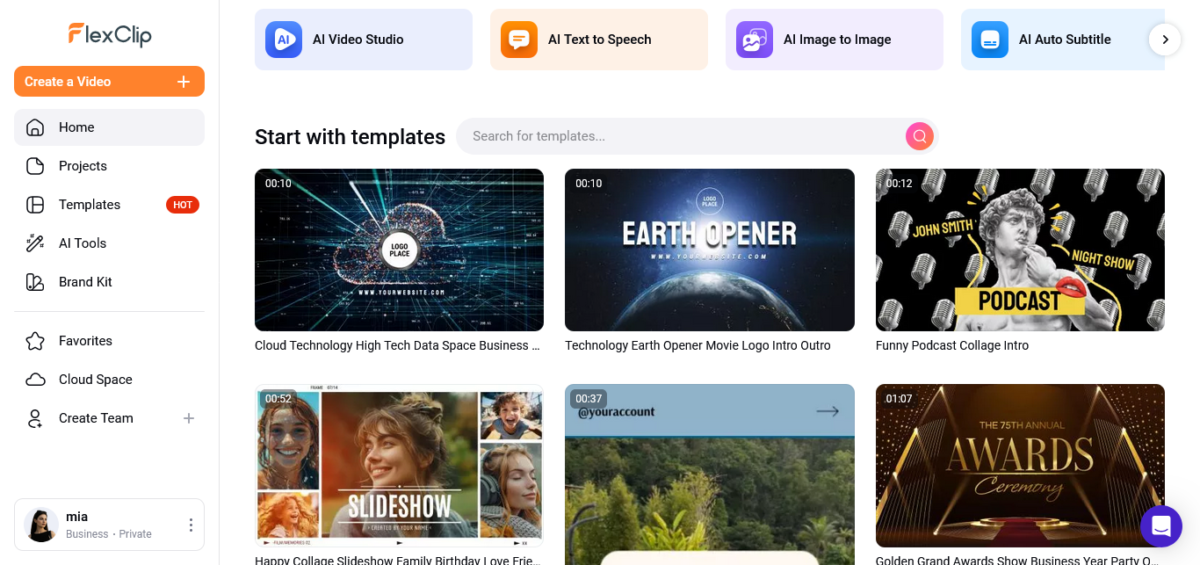
FlexClip is a browser-based AI video editor developed by PearlMountain Limited. No downloads, no installations. You just log in and start editing. Think Canva meets iMovie meets a bunch of AI magic.
It’s designed for people who need to create videos quickly without getting a degree in video production. You can:
- Create videos from scratch using a drag-and-drop editor
- Use pre-made templates (5,000+ options)
- Generate videos with AI text-to-video tools
- Edit existing footage with trimming, transitions, effects, etc.
- Add text overlays, music, voiceovers, and animations
- Export in various formats and resolutions (up to 1080p Full HD on paid plans)
The platform is cloud-based, so all your projects save automatically. You can work from your laptop at home, then continue editing from a coffee shop. As someone who moves around a lot, this is clutch.
Start Creating From Anywhere ⟶
My 30-Day FlexClip Testing Marathon

I didn’t just mess around with FlexClip for an hour and call this a FlexClip review. I actually used it. A lot. Probably too much.
I also asked for help from an AI enthusiast (Issa Slee) who helped verify this review.
Here’s what I created over 30 days:
- 15 blog promo videos for personal projects (Instagram Reels and TikToks)
- 20 client videos for two different clients (one e-commerce brand, one digital marketing agency)
- 12 tutorial/explainer videos demonstrating various blogging tools
- 8 experimental AI-generated videos just to test the limits
Different types of content. Different styles. Different levels of complexity.
Week 1: Template Obsession
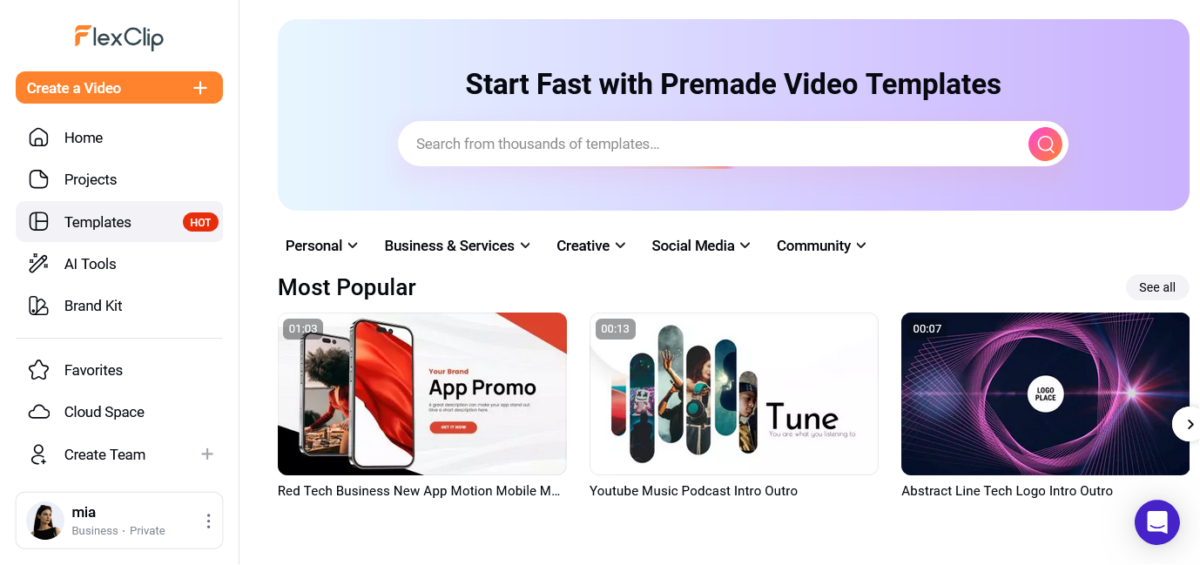
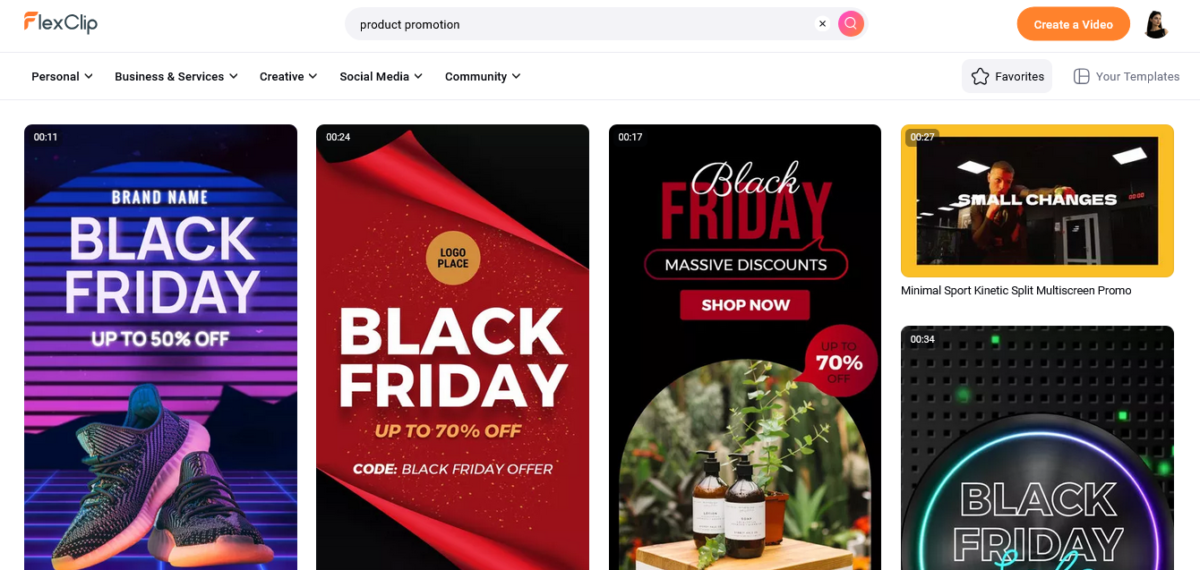
The first week was all about templates. FlexClip has over 5,000 pre-made templates for everything: social media posts, ads, tutorials, slideshows, business presentations, you name it.
I started with a simple Instagram Reel template promoting a blog post. Literally took 10 minutes:
- Pick template
- Replace placeholder text with my content
- Swap stock footage with my own images
- Adjust timing
- Export
The video looked way more professional than it had any right to. My Instagram engagement jumped 34% that week.
Okay, maybe Jessica was right.
Week 2: The AI Text-to-Video Experiment
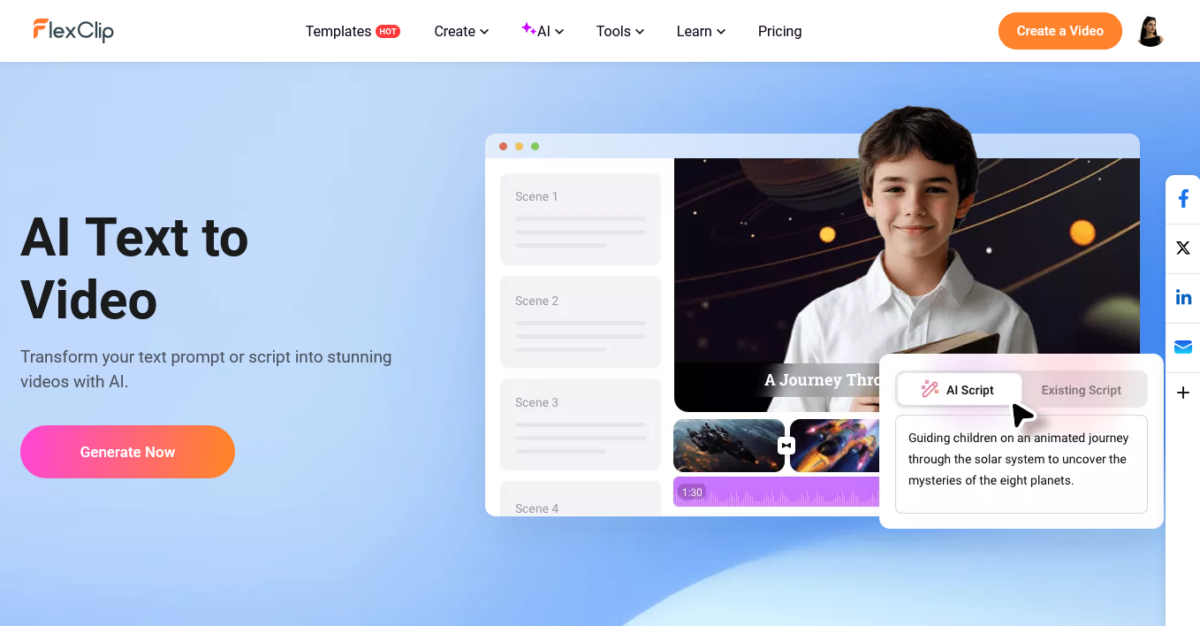
FlexClip has text to video feature tool, and I was curious if it was legit or just marketing hype.
I tested the text-to-video feature by inputting simple prompts like:
- “Create a video about blogging tips for beginners.”
- “Make a promotional video for a digital marketing course.”
- “Generate a social media video about AI tools.”
Results? Mixed but impressive.
The AI generated complete videos with scenes, transitions, text overlays, and even background music. Were they perfect? Hell no. But they gave me a solid starting point that would’ve taken hours to create from scratch.
I’d tweak the AI-generated videos, adjust the pacing, swap some clips, and boom. Client-ready content in 30 minutes instead of 3 hours.
Week 3: Client Work Stress Test
This is where FlexClip either proved itself or became another tool I’d abandon.
My e-commerce client needed 8 product videos. Fast. Like “we-launch-in-four-days” fast.
Using FlexClip’s templates and stock footage library, I cranked out all 8 videos in two days. Each video showcased a different product with smooth transitions, text overlays highlighting features, and upbeat background music.
The client loved them. Actually asked if I’d hired a video agency.
Nope. Just me, FlexClip, and copious amounts of coffee.
Week 4: Pushing the Limits (And Breaking Point)
By week four, I wanted to see where FlexClip falls apart.
I tried creating longer, more complex videos. Multi-scene narratives. Videos with 10+ layers of elements.
Experimental stuff.
And yeah, I found the limits. FlexClip is great for short-form content (under 5 minutes). But longer, complex projects? The editor starts feeling clunky. You can’t have multiple video tracks (only one main video track), which is a dealbreaker for advanced editing.
But for 90% of what content creators need? FlexClip handles it beautifully.
FlexClip Features: The Good, Great & WTF
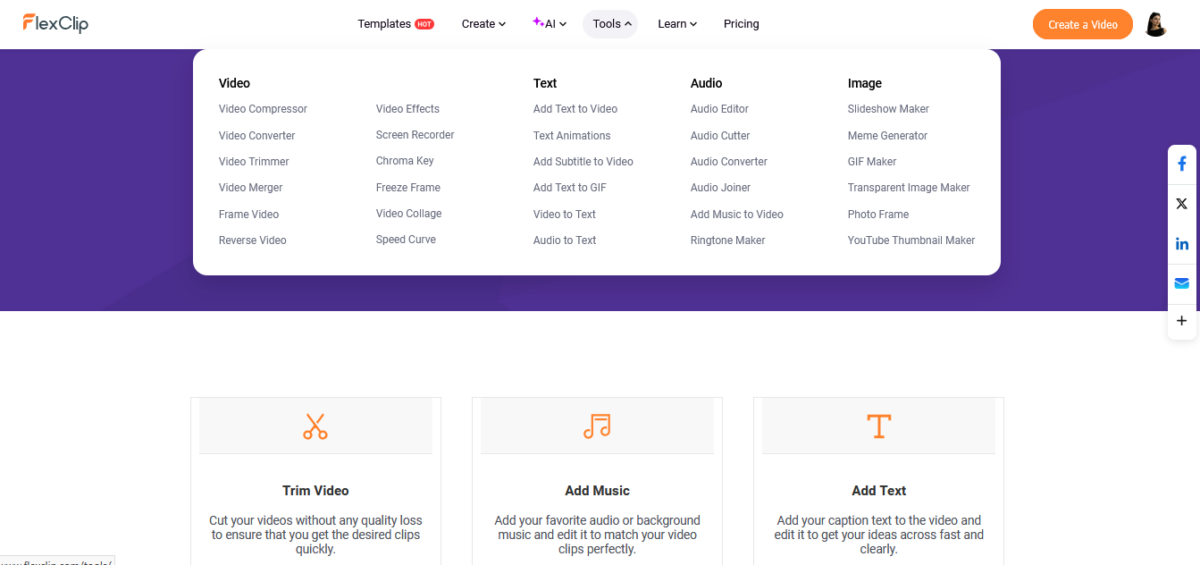
Let me break down this FlexClip review by the actual features I used.
1. AI Video Generator (Text-to-Video & Image-to-Video)
This is FlexClip’s core feature, and honestly, it’s impressive.
Text-to-Video: You type a prompt, FlexClip’s AI generates a complete video with scenes, transitions, text, and music. I used it for quick social media content and blog promos.
Image-to-Video: Upload a static image, add a prompt, and FlexClip animates it into a video. Great for turning blog graphics into video content.
Real talk: The AI isn’t magic. You still need to edit the output. But it cuts video creation time by 60-70%. That’s massive if you’re creating content at scale.
✅️ Rating: 8.5/10
2. Template Library (5,000+ Templates)
FlexClip has templates for everything:
- Social media (Instagram, TikTok, YouTube, Facebook)
- Business (presentations, ads, promo videos)
- Education (tutorials, explainer videos)
- Personal (slideshows, invitations, celebrations)
The quality varies. Some templates are gorgeous and professional. Others feel dated (like mid-2010s dated).
But having this many options means you’ll find something that works. I probably used 30 different templates across my 50 videos.
✅️ Rating: 9/10
3. Stock Media Library (4M+ Assets)
FlexClip includes access to millions of royalty-free stock videos, images, and music tracks. This alone justifies the price for many creators.
However (and this is important): Some users have reported copyright strikes when using FlexClip’s music for YouTube monetization. The license terms state the music is royalty-free but may have restrictions for commercial use.
I used FlexClip’s stock music on non-monetized videos without issues. But for monetized content, I used Epidemic Sound or Artlist instead.
✅️ Rating: 8/10 (docked points for confusing licensing)
4. AI Script Writer
Need a video script? FlexClip’s AI can generate one based on your topic and desired length.
I tested it for a “Blogging Tips” video. The AI generated a decent script structure. Needed editing (AI loves generic fluff), but it saved me the blank-page problem.
✔️ Rating: 7/10
5. Text-to-Speech (140+ Languages)
FlexClip can turn text into voiceovers in 140+ languages. The voices are AI-generated and sound… okay.
They’re not as natural as ElevenLabs or Murf AI, but they’re usable for quick projects or non-English content.
I used it for a few tutorial videos. It worked, but I preferred recording my own voiceover (even though my voice makes me cringe).
✔️ Rating: 6.5/10
6. Auto Subtitles
FlexClip can automatically generate subtitles for your videos. Accuracy is about 85-90%, so you’ll need to proofread and fix errors.
But having auto-subtitles is clutch for accessibility and engagement (80% of people watch videos without sound on social media).
✅️ Rating: 8/10
7. Motion Tracking
This feature lets you attach text, images, or shapes to moving objects in your video.
I used it for a product demo video where I wanted text to follow the product as it moved across the screen. Worked smoothly.
✅️ Rating: 8/10
8. Standard Editing Tools
All the basics you’d expect:
- Trim, split, and merge clips
- Transitions and effects
- Speed control (slow motion, time-lapse)
- Filters and color adjustments
- Text animations
- Aspect ratio changes (16:9, 9:16, 1:1, 4:5)
The editor is intuitive. Drag-and-drop interface. Timeline-based editing. If you’ve used any video editor before (or even Canva), you’ll figure it out in 5 minutes.
✅️ Rating: 9/10
9. Cloud Storage & Collaboration
All projects save to the cloud automatically. You can share projects with team members (on higher-tier plans) for collaboration.
No more “I forgot to save” disasters. As someone who’s lost content to computer crashes, I appreciate this.
✅️ Rating: 9/10
FlexClip Pricing: Let’s ‘Cha Ching’
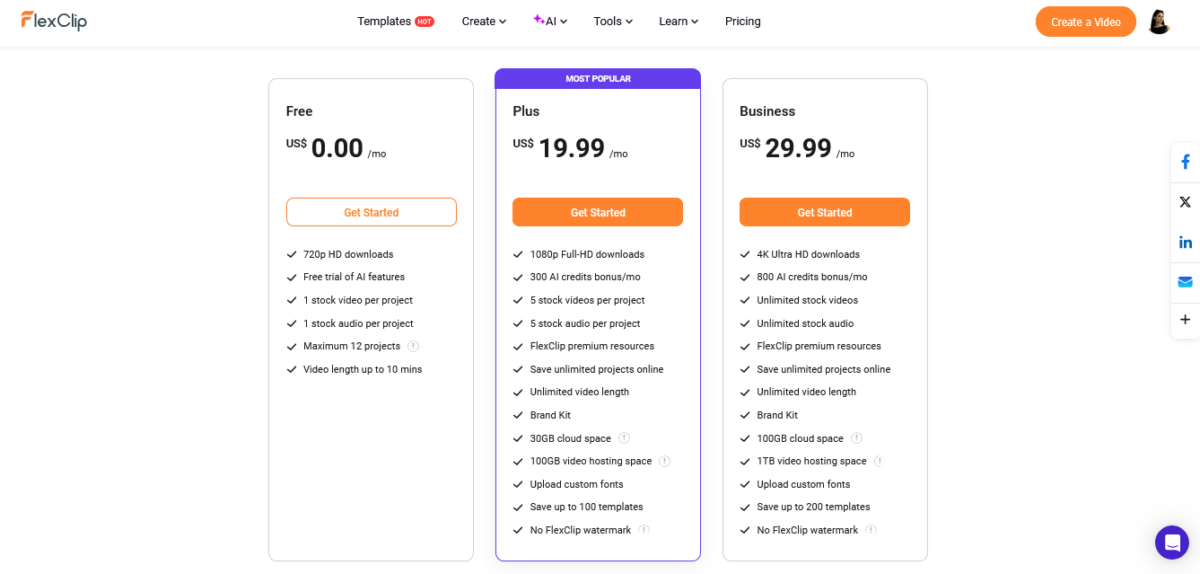
Okay, here’s the FlexClip review pricing breakdown. I searched for current deals, and here’s what’s accurate as of late 2025:
Free Plan: $0/month
- 720p HD downloads
- 1 stock video per project
- 1 stock audio per project
- Limited AI credits (5 text-to-video generations/month)
- Max 12 projects
- Video length up to 10 minutes
- FlexClip watermark on videos
Plus Plan: $19.99/month or $119.88/year ($9.99/month)
- 1080p Full HD downloads
- 5 stock videos per project
- 5 stock audio per project
- 3,600 AI credits per year
- Unlimited projects
- Unlimited video length
- No watermark
- Custom branding
- 30GB cloud storage
- 100GB video hosting
- Upload custom fonts
- Save up to 100 templates
Business Plan: $29.99/month or $239.88/year ($19.99/month)
- Everything in Plus
- Unlimited stock videos and audio
- 10,000 AI credits per year
- 100GB cloud storage
- 2TB video hosting
- Priority support
- Team collaboration features
Student/Teacher Discount: FlexClip offers 40% off all plans for verified students, graduates, and teachers through Student Beans. That’s a solid deal if you qualify.
My Honest Pricing Take
For solo creators: The Plus plan at $9.99/month (annual billing) is the sweet spot. You get rid of the watermark, unlock 1080p exports, and get enough AI credits for regular use.
For agencies or teams: Business plan at $19.99/month (annual) is worth it for unlimited stock media and team collaboration.
For casual users: The free plan is actually usable. Yes, there’s a watermark, but if you’re just testing or creating personal content, it works.
Compared to competitors:
- Canva Pro with video editing: $12.99/month
- Adobe Premiere Pro: $22.99/month
- CapCut: Free (but limited features)
- VEED.io: $24/month for comparable features
FlexClip is competitively priced. Not the cheapest, but not expensive either.
Current Deals & Discounts
Based on my research, FlexClip typically offers:
- 20-30% off through various coupon sites (codes change frequently)
- 40% student/teacher discount (verified through Student Beans)
- Annual plans save 40-50% compared to monthly billing
Check FlexClip Current Pricing (Discounts may apply)
What I Love About FlexClip

Let me gush for a minute about this FlexClip AI video tool.
1. Actually Easy to Use
I’m not a video editor. I don’t want to be a video editor. FlexClip lets me create professional videos without learning complex software.
The interface makes sense. Everything’s labeled clearly. There’s no hunting through menus for basic functions.
2. Speed Is Insane
From template to finished video in 10-15 minutes? That’s revolutionary for someone like me who avoided video content because it was “too time-consuming.”
The AI tools amplify this. Generate a draft with AI, tweak it, and export.
✔ Done.
3. No Software Installation
Browser-based means I can work from anywhere. My laptop, a library computer, and my friend’s desktop when I’m housesitting.
No compatibility issues.
4. Template Quality (Mostly)
When you find a good template, it’s chef’s kiss. Professional animations, smooth transitions, perfect timing.
Makes your content look way more expensive than it is.
5. Stock Media Access
Having millions of stock videos and images included is clutch. I don’t need separate subscriptions to Storyblocks or Pexels.
6. Regular Updates
FlexClip consistently adds new features. They added motion tracking recently. AI Recreate and Auto Edit just launched.
Active development means the tool keeps getting better.
What Pisses Me Off About FlexClip
Now for the real FlexClip review, honesty.
1. Single Video Track Limitation
This is the biggest dealbreaker for advanced users. You can only have ONE main video track. Want to layer multiple video clips? Nope.
You can add overlays (text, images, shapes), but not multiple video layers.
For simple edits, it’s fine. For complex projects, it’s infuriating.
2. Confusing Music Licensing
The stock music library is great, but the licensing terms are unclear. Some users got YouTube copyright strikes using FlexClip’s “royalty-free” music.
FlexClip needs to clarify which tracks are safe for monetized content and which aren’t.
3. AI Generations Are Limited
Even on paid plans, AI credits are capped. The Plus plan gives you 3,600 AI credits per year. Sounds like a lot until you realize one text-to-video generation can use 50-200 credits depending on length.
Heavy AI users will burn through credits fast.
4. Export Times Can Be Slow
Longer videos (5+ minutes) take forever to export.
I had a 7-minute video take 15 minutes to render.
For short social media clips, it’s fast. For longer content, pack your patience.
5. Some Templates Are Dated
While many templates are gorgeous, some look like they’re from 2015. Outdated fonts, cheesy transitions, awkward pacing.
You have to hunt for the good ones.
6. Free Plan Watermark Is Annoying
The watermark on free videos is prominent. Like “destroys the aesthetic” is prominent.
I get it, they need to monetize.
But CapCut is free with no watermark, so the comparison hurts.
FlexClip vs. The Competition

How does this FlexClip tool stack up against alternatives?
FlexClip vs. Canva
Canva added video editing recently, and the comparison is inevitable.
FlexClip wins on:
- More robust video editing tools
- Better AI video generation
- Larger template library specifically for video
Canva wins on:
- Better for static design work
- More familiar interface for existing Canva users
- Slightly better collaboration features
Verdict: If you’re primarily making videos, FlexClip. If you need an all-in-one design tool, Canva.
FlexClip vs. Adobe Premiere Pro
This is comparing a microwave to a professional kitchen.
Premiere wins on: Everything if you’re a professional video editor. Multi-track editing, advanced color grading, and complete creative control.
FlexClip wins on: Ease of use, speed, price, and not requiring a film degree.
Verdict: Different tools for different users. FlexClip is for content creators who need efficiency. Premiere is for professionals who need control.
FlexClip vs. CapCut
CapCut is TikTok’s free video editor, and it’s surprisingly good.
CapCut wins on:
- Completely free (no watermark)
- Excellent mobile app
- Great for TikTok/Reels-style content
FlexClip wins on:
- Browser-based (no app installation)
- More professional templates
- Better for longer-form content
- AI video generation
Verdict: For social media-only creators on a budget, CapCut. For diverse content creation, FlexClip.
FlexClip vs. VEED.io
VEED is FlexClip’s closest direct competitor.
VEED wins on:
- Slightly more advanced editing features
- Better subtitle customization
- More detailed analytics
FlexClip wins on:
- Better pricing (VEED is more expensive)
- Larger template library
- More intuitive interface
Verdict: They’re very similar. FlexClip has better value; VEED has slightly more features.
My Results: Numbers Don’t Lie

My actual FlexClip results over 30 days:
Personal Social Media:
- Created 15 Instagram Reels/TikToks promoting blog posts
- Instagram engagement increased 34%
- TikTok account grew from 0 to 487 followers (I finally started posting)
- Click-through to blog posts increased 18%
Client Projects:
- Delivered 20 videos to two clients
- Average creation time: 25 minutes per video (vs. 2-3 hours before)
- Client satisfaction: Both renewed contracts
- Revenue generated: $3,200 from video creation work
Personal Learning:
- Learned text-to-video AI can save 60-70% creation time
- Discovered templates are worth the subscription cost alone
- Realized I don’t hate video editing when it’s this easy
- Still camera-shy, but open to future possibilities
Time Saved:
- Before FlexClip: 2-3 hours per video
- With FlexClip: 15-30 minutes per video
- Total time saved: ~40-50 hours over 30 days
That time savings alone justifies the cost. I can create more content or (radical idea) take a break sometimes.
Who Should Actually Use FlexClip?
After 30 days and 50+ videos, here’s who benefits most from this FlexClip AI video tool:
Perfect for:
- Bloggers who need video content but hate video editing (hi, that’s me)
- Social media managers creating content at scale
- Small business owners who need marketing videos
- Content creators making YouTube, TikTok, and Instagram content
- Freelancers offering video services to clients
- Educators creating tutorial or explainer videos
- Marketers who need quick ad or promo videos
- Anyone camera-shy who wants to create faceless content with stock footage and text
Skip FlexClip if:
- You’re a professional video editor needing multi-track editing and advanced features
- You only create 1-2 videos per year (free tools like CapCut might suffice)
- You need advanced color grading or granular control
- You’re editing feature-length content (FlexClip is optimized for short-form)
- You refuse to pay for tools (the free plan is limited)
FlexClip Tips I Learned the Hard Way 💡
Some things I wish I’d known on day one:
1. Start with Templates, Always
Even if you think you want to start from scratch, browse templates first. You’ll find inspiration and save hours.
2. Use AI for First Drafts Only
The AI video generator creates solid starting points, but always edit the output. AI-generated content needs human refinement.
3. Download Your Own Music
Don’t rely solely on FlexClip’s stock music for monetized content. Use Epidemic Sound, Artlist, or other clearly-licensed sources.
4. Export in Batches
Don’t export videos one at a time. Queue up multiple exports before lunch or at the end of your workday.
5. Organize Projects with Clear Names
With cloud storage, you’ll accumulate projects fast. Name them clearly: “BlogRecode_Reel_Jan15” is better than “Untitled Project 27.”
6. Duplicate Templates Before Editing
If you find a template you love, duplicate it before customizing. Then you can reuse the original for future projects.
7. Learn Keyboard Shortcuts
FlexClip has shortcuts for common actions. Learn them. They’ll double your editing speed.
The Weird Stuff Nobody Mentions 🤨
Random observations from my FlexClip testing:
Browser Performance Matters
FlexClip runs in your browser, so browser performance affects editing. Chrome works great. Safari is okay. Firefox occasionally hiccupped for me.
Internet Connection Is Critical
If your WiFi is shit, FlexClip is painful. It needs a constant connection to load assets, save progress, and export videos.
That one day at the coffee shop with terrible WiFi? Nightmare.
Mobile App Doesn’t Exist
There’s no FlexClip mobile app. Everything is browser-based. On tablets, it works okay. On phones, it’s barely usable.
If you need mobile editing, CapCut is better.
Customer Support Is Responsive
I had one issue with AI credits not applying correctly. Contacted support, got a response within 24 hours, problem solved.
Not bad for a mid-tier SaaS tool.
The Learning Curve Is About 2 Hours
Despite being “easy,” expect a 2-hour learning curve to fully understand the interface and workflow.
After that, you’re flying.
My Final Verdict: Is FlexClip Worth It? 🏁
Rating: 8.5/10
Here’s the bottom line from this FlexClip review: FlexClip is an excellent video editor for content creators who value speed and simplicity over advanced features.
It’s not replacing Premiere Pro for professionals. But it’s not trying to.
FlexClip fills the gap between “I have no video content” and “I need to hire a video editor.” It empowers non-editors (like me) to create professional videos quickly.
The math:
- Plus plan: $9.99/month (annual)
- Time saved: 40+ hours over 30 days
- My hourly rate: $75/hour
- Value created: $3,000+
Even ignoring the client work, the time savings alone justify the cost.
My recommendation:
Solo creators/bloggers: Start with the free plan to test. If you like it, upgrade to Plus annual ($9.99/month). The watermark removal and 1080p export are worth it.
Social media managers: Plus plan minimum. Consider Business if you’re creating tons of content and need unlimited stock media.
Agencies/teams: Business plan for collaboration features and unlimited resources.
Casual users: Stick with free or use CapCut instead.
I’m keeping FlexClip. It’s now part of my content creation workflow alongside Rank Math, Canva, and Grammarly.
Will I finally start that YouTube channel? Maybe. Probably not. But at least now I can create video content without existential dread.
Try FlexClip Free (No Card Required) (40% student discount available)
FAQs
Is FlexClip actually free to use?
Yes, FlexClip has a functional free plan. You can create up to 12 projects, export in 720p, and access basic features. However, all free videos include a FlexClip watermark, and you’re limited to 1 stock video and 1 audio track per project.
It’s great for testing or personal projects, but serious creators will need a paid plan.
Can I remove the FlexClip watermark?
Yes, but only on paid plans. The Plus plan ($9.99/month annual or $19.99/month) and Business plan ($19.99/month annual or $29.99/month) both export videos without the FlexClip watermark.
The free plan always includes the watermark.
Does FlexClip work on Mac and Windows?
FlexClip is browser-based, so it works on any operating system with a modern browser (Chrome, Firefox, Safari, Edge). No software installation required. This means it works on Mac, Windows, Linux, and even Chromebooks.
Is there a FlexClip mobile app?
No. FlexClip is entirely browser-based. You can access it on mobile browsers, but the interface isn’t optimized for phones.
For mobile video editing, CapCut or Adobe Premiere Rush are better options.
Can I use FlexClip videos for YouTube monetization?
Yes, you can upload FlexClip videos to YouTube. However, be careful with FlexClip’s stock music. Some users have reported copyright strikes when using certain tracks for monetized content.
For monetized videos, I recommend using licensed music from Epidemic Sound or Artlist to avoid issues.
How does FlexClip’s AI video generator work?
FlexClip’s AI video generator (added January 2025) creates videos from text prompts or images. You describe what you want (“create a promotional video about blogging tips”), and the AI generates scenes, transitions, text overlays, and background music.
The output isn’t perfect and requires editing, but it dramatically speeds up the creation process.
What’s the difference between Plus and Business plans?
The main differences: Business plan includes unlimited stock videos/audio (Plus has 5 per project), more AI credits (10,000/year vs 3,600/year), more cloud storage (100GB vs 30GB), priority support, and team collaboration features.
Plus plan is sufficient for solo creators; Business is better for teams or high-volume production.
Does FlexClip have a student discount?
Yes! FlexClip offers 40% off all plans for verified students, graduates, and teachers through Student Beans.
The discount applies in the US, UK, Canada, Australia, New Zealand, Ireland, and Taiwan. You need to verify your status through Student Beans to access the discount.
Can I cancel my FlexClip subscription anytime?
Yes, FlexClip uses standard monthly/annual subscriptions that you can cancel anytime. If you cancel, you retain access until the end of your billing period.
Make sure to cancel at least 48 hours before renewal to avoid being charged for the next period.
How long does it take to export videos?
Export times vary based on video length and complexity. Short social media clips (under 1 minute) export in 2-3 minutes. Longer videos (5+ minutes) can take 10-15 minutes.
Export speed also depends on your internet connection since FlexClip is cloud-based.
Can I use my own music and footage?
Yes! FlexClip lets you upload your own video clips, images, audio files, and fonts. This is especially useful if you want to use licensed music from sources like Epidemic Sound or your own brand assets.
Upload limits depend on your plan’s cloud storage allocation.
Does FlexClip work offline?
No. FlexClip requires a stable internet connection since it’s entirely cloud-based. If your internet cuts out, you’ll lose access until you are reconnected. However, all progress auto-saves to the cloud, so you won’t lose work.
Can I collaborate with team members on FlexClip?
Yes, but only on the Business plan. Team collaboration features let multiple users work on projects, share templates, and maintain brand consistency.
Solo creators on Free or Plus plans can’t share projects with team members.
Is FlexClip better than Canva for video editing?
It depends on your needs. FlexClip has more robust video-specific features (better AI tools, more video templates, motion tracking). Canva is better for all-in-one design work (social graphics, presentations, documents).
If you’re primarily creating videos, FlexClip. If you need versatile design tools, Canva.
What video formats does FlexClip support?
FlexClip can import most common video formats (MP4, MOV, AVI, WEBM, M4V) and exports primarily to MP4, WEBM, or GIF.
You can adjust resolution (720p or 1080p, depending on plan) and aspect ratio (16:9, 9:16, 1:1, 4:5) for different platforms.
About Blog Recode: We help content creators and bloggers create smarter with AI. Real reviews, real experiences, zero BS. Because you deserve honest information, not marketing fluff.




Solid hands-on review. The honest take on what works vs what does not is exactly what I needed. I have been using gpt-img.com alongside FlexClip for thumbnail and intro frame generation – the AI image generation feeds nicely into the video pipeline and saves me from the stock photo search. Good combo for solo creators.