Best WordPress.com Plugins 2026 (Available on All Paid Plans)
Remember when plugins were locked behind upgrades? Yeah… not anymore. They’re now on all WordPress.com paid plans. Let’s load your blog up with the best.
Quick Heads Up
The best WordPress plugins for bloggers are now available on every WordPress.com paid plan: Personal, Premium, Business, and Commerce. No more waiting until you can afford the Business plan to access essential blogging tools.
Here’s the short version: You need plugins for SEO, content creation, reader engagement, performance, and analytics. But you don’t need 50+ different plugins. You need the right 8-12 plugins working together without conflicts.
This guide covers the plugins that truly make a difference for creators/bloggers in 2026, based on real testing and years of blogging experience. Not generic listicles. Not affiliate spam. Just the tools that help you publish better content, grow your audience, and build something sustainable.
Let’s get into it.
Why Shortlist the best WordPress.com Plugins
Six months ago, I was helping a client launch her wellness blog on WordPress.com. She’d been writing for weeks; solid content, great photography, genuine expertise. But her traffic was stuck at 50 or fewer visitors a day.
“I’m doing everything the courses told me to do,” she said, frustrated. “Why isn’t it working?”
I looked at her setup. Beautiful design. Clear writing. Zero plugins because she was on the free plan and hadn’t realized plugins could solve half her problems.
No SEO optimization. No image compression. No email capture. No social sharing. No analytics beyond “yesterday I had 12 views.”
She was blogging with one hand tied behind her back.
We upgraded her to the Personal plan ($4/month), installed five plugins, and spent 30 minutes configuring them. Within two weeks, her traffic doubled.
Within a month, she had 300 daily visitors and was growing.
Same content. Same writing. Different tools.
That’s the power of using the best WordPress plugins for bloggers. They don’t replace good content, but they amplify it in ways manual effort never could.
Start using these plugins on WordPress.com and upgrade your blog instantly →
What Has Changed About WordPress.com Plugins
Before recent updates, WordPress.com had a major limitation: plugins were only available on higher-tier plans, such as Business. For hobby bloggers and beginners, that was a real barrier.
You could write brilliant content on the Personal or Premium plan, but you couldn’t optimize it properly. You couldn’t capture emails efficiently. You couldn’t compress images automatically. You were stuck with whatever WordPress.com provided out of the box, which is good, but not great.
Now? The best WordPress.com Plugins for bloggers work on the $4/month Personal plan.
I wrote about it here: WordPress.com Plugins on All Plans: What Changed in 2026
This democratizes professional blogging. You don’t need a huge budget to access the tools professional bloggers use. You just need to know which plugins actually matter.
Start building a better blog with WordPress.com plugins today →
Essential Plugin Categories Every Blogger Needs
Before we dive into specific recommendations, let’s understand what types of plugins actually move the needle for bloggers.
1. SEO Plugins
Help your content rank in Google. Without SEO, you’re publishing into the void, hoping people stumble across you. With SEO, you’re systematically targeting keywords your audience actually searches for.
2. Performance Plugins
Speed matters. Google uses it as a ranking factor. Readers bounce from slow sites. Performance plugins compress images, enable caching, and make your blog load faster.
3. Engagement Plugins
Keep readers on your site longer and get them to come back. Social sharing, related posts, comment management, anything that turns one-time visitors into regular readers.
4. Email Capture Plugins
Your email list is the only audience you truly own. Social media algorithms change. Google rankings fluctuate. Your email list is yours forever.
5. Analytics Plugins
You can’t improve what you don’t measure. Analytics show what’s working, what’s not, and where to focus your energy.
6. Content Creation Plugins
Tools that make writing, formatting, and publishing easier. Table of contents generators, recipe cards for food bloggers, affiliate link managers, whatever helps you create better content faster.
Add these plugins to your WordPress.com site and see the difference →
Best WordPress.com Plugins for Bloggers (Tested and Ranked)
Here are the plugins I honestly use and recommend. These work on WordPress.com Personal plans and up.
For SEO: Rank Math or Yoast SEO

What They Do:
SEO plugins add meta descriptions, optimize titles, generate XML sitemaps, add schema markup, and give you real-time feedback on how well your content is optimized for search.
Rank Math (My Pick)
- Cleaner interface than Yoast
- More features in the free version
- Built-in schema markup for rich snippets
- Keyword tracking
- 404 error monitoring
- Redirect manager
Why Bloggers Need This:
Writing great content isn’t enough if nobody can find it. Rank Math acts like an SEO checklist before you hit publish. It tells you exactly what to fix to give your post the best chance of ranking.
Practical Use:
Before publishing, Rank Math shows you if your focus keyword appears in your title, first paragraph, headings, and meta description. It checks readability. It suggests improvements. Following its recommendations doesn’t guarantee ranking, but ignoring them almost guarantees you won’t.
Yoast SEO (The Alternative)
If you prefer Yoast, it does essentially the same job. It’s more established, which means more documentation and support. The free version is excellent for basic blogging needs.
My Take:
Start with whichever interface you find more intuitive. Both work beautifully on WordPress.com. I prefer Rank Math because it gives me more control without upgrading to premium.
For Performance: Imagify or Smush
What They Do:
Image optimization plugins compress your images without noticeable quality loss. Smaller images = faster loading = better SEO and user experience.
Imagify (My Pick)
- Automatically compresses images on upload
- Three compression levels (normal, aggressive, ultra)
- Can compress images in bulk
- WebP format support
- Works seamlessly on WordPress.com
Why Bloggers Need This:
Images are usually the biggest files on blog posts. A single uncompressed photo can be 5 MB. Multiply that by 10 images per post, and your page weighs 50 MB. Nobody’s waiting for that to load.
Imagify compresses that 5 MB image down to 200-300 KB with no visible quality difference.
Practical Use:
Install Imagify, set compression to “normal,” and enable automatic optimization. Done. Every image you upload from that point forward gets compressed automatically. Run bulk optimization once to handle existing images.
Smush (The Alternative)
Free with generous limits. Great UI. Slightly less aggressive compression than Imagify, but still excellent.
My Take:
Both work great. Imagify’s free tier gives you 25 MB/month of compression, which handles about 50-100 images depending on size. For most bloggers publishing 2-4 posts per week, that’s plenty.
For Email Capture: MailPoet or Mailchimp for WordPress

What They Do:
Email plugins let you build signup forms, collect subscriber emails, send newsletters, and manage your email list directly from WordPress.
MailPoet
- Native WordPress email solution
- Create forms, manage subscribers, send emails, all in one plugin
- Free for up to 1,000 subscribers
- Drag-and-drop email builder
- Automated welcome emails
- Post notification emails (send new posts to subscribers automatically)
Why Bloggers Need This:
Social media followers aren’t really yours; the platform owns that relationship. Email subscribers are yours forever. Building an email list from day one is the smartest long-term strategy for any blogger.
Practical Use:
Create a simple signup form (“Get my weekly newsletter”) and place it in your sidebar or at the end of posts. Set up an automated welcome email thanking new subscribers. Enable post notifications so your list gets notified when you publish.
Mailchimp for WordPress (The Alternative)
If you’re already using Mailchimp for email marketing, their WordPress plugin integrates seamlessly. Free for up to 500 subscribers.
My Take:
MailPoet is perfect for beginners because everything happens inside WordPress. No bouncing between platforms. Mailchimp is better if you need advanced segmentation or automation as you grow.
For Monetization: WooCommerce
What It Does:
WooCommerce transforms your WordPress.com blog into a complete online store. Sell physical products, digital downloads, courses, memberships, or anything else your audience wants to buy.
Why Bloggers Need This:
Affiliate links are great, but you know what’s better? Actually selling products and keeping 100% of the profit (minus payment processing). If your blog has an engaged audience, WooCommerce lets you monetize that trust directly.
Practical Use:
Food blogger? Sell your recipe eBook or custom spice blends.
Fitness blogger? Sell workout plans or branded gear.
Parenting blogger? Sell printables, guides, or online courses.
Travel blogger? Sell itineraries, photo presets, or consulting sessions.
Key Features:
- Built-in shopping cart and checkout
- Accepts credit cards, PayPal, Stripe
- Inventory management
- Shipping options
- Product variations (sizes, colors, etc.)
- Digital download delivery
- Subscription products
- Detailed sales analytics
Real Talk:
WooCommerce works on all WordPress.com paid plans, but it makes the most sense on the Commerce plan ($45/month), where you get 0% transaction fees. On Personal and Premium plans, WordPress.com takes a small percentage of each sale.
For most bloggers, start with affiliate marketing and sponsored content. Once you’re making $500-1000/month from those, then consider adding products with WooCommerce. Don’t build a store before you have an audience to sell to.
My Take:
WooCommerce powers 28% of all online stores worldwide. It’s not some random plugin; it’s the standard for WordPress e-commerce. If you have something worth selling and people who trust you enough to buy it, WooCommerce is how you do it without giving 30% to a marketplace platform.
WordPress.com Secret Weapon: Jetpack (Already Installed)
What It Does:
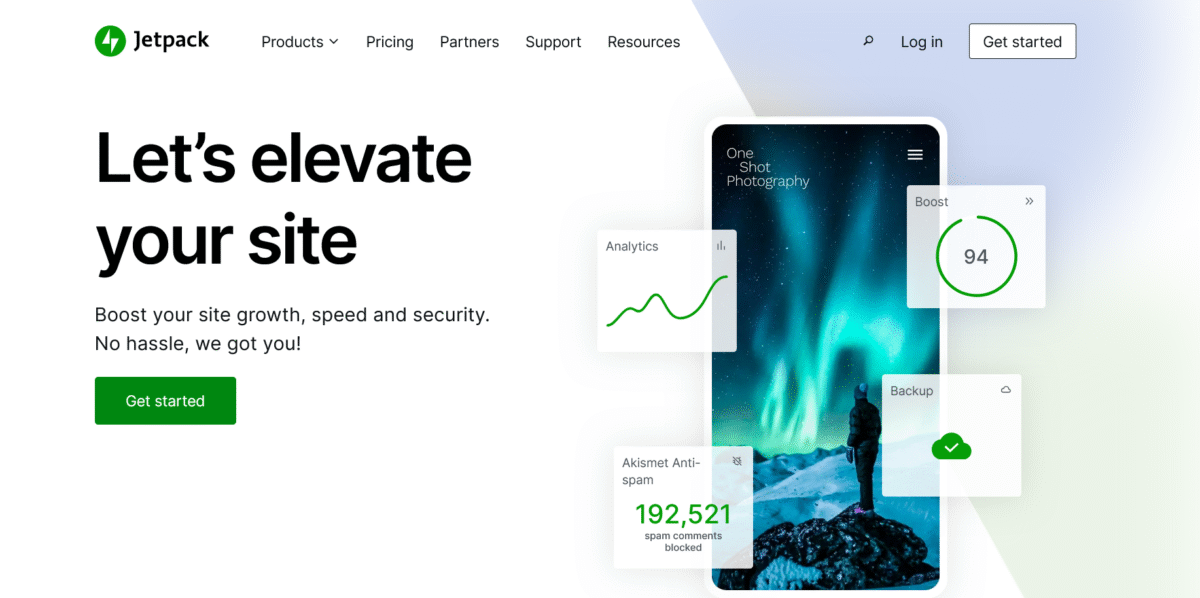
Jetpack isn’t a plugin you install, it’s already built into every WordPress.com plan. It’s a suite of tools covering security, performance, analytics, social sharing, backups, and more.
Why This Matters:
Most bloggers install Jetpack on self-hosted WordPress and don’t realize WordPress.com users already have the core features active. You’re probably using Jetpack features right now without knowing it.
What’s Included Automatically (All Plans):
- Akismet spam protection: Filters 99.99% of spam comments
- Site stats: Built-in analytics showing traffic, popular posts, referrers
- Content Delivery Network (CDN): Serves images faster globally
- Brute force attack protection: Blocks hacking attempts on your login
- Downtime monitoring: Emails you if your site goes down
- Social sharing: Auto-share new posts to Facebook, Twitter, etc.
- Related posts: Shows similar content to keep readers on your site
What Comes with Business/Commerce Plans:
- Real-time backups: Every change is backed up automatically
- Malware scanning: Daily security scans
- Spam filtering for forms: Not just comments
- Search optimization: Faster, better search functionality
Practical Use:
You don’t need to “set up” Jetpack on WordPress.com—it’s working behind the scenes. But you should configure it properly:
- Go to Jetpack → Settings
- Enable Photon (image CDN) if it’s not already on
- Set up social sharing to auto-post to your networks
- Configure site stats to track what you care about
- Enable related posts to increase pageviews
Hidden Gem:
Jetpack’s image CDN (Photon) is free and automatically optimizes images, resizes them for different devices, and serves them from a global network. I’ve seen this alone improve load times by 40-50%. Most bloggers don’t even know it’s there.
What You Don’t Need:
Jetpack includes dozens of features. You don’t need all of them. Don’t enable features just because they’re there, activate only what solves actual problems for your blog.
My Take:
On self-hosted WordPress, Jetpack is controversial because it can slow sites down if you enable every feature. On WordPress.com, it’s integrated at the platform level and just works. The spam protection alone saves hours per week. The CDN improves site speed. The stats are clearer than Google Analytics for most casual needs.
Think of Jetpack as your WordPress.com blog’s nervous system. You don’t see it, but it’s constantly working to keep everything running smoothly.
For Social Sharing: Social Warfare or Grow by Mediavine

What They Do:
Add social sharing buttons to your posts so readers can easily share your content on Facebook, Twitter, Pinterest, LinkedIn, etc.
Social Warfare
- Beautiful, customizable share buttons
- Share counts (shows how many times content has been shared)
- Click-to-tweet quotes
- Pinterest-specific image optimization
- Mobile-optimized
Why Bloggers Need This:
One person reading your post is good. That person sharing it with their 500 followers is better. Social sharing buttons make sharing frictionless.
Practical Use:
Add share buttons at the top and bottom of posts. For visual content (recipes, DIY, fashion), enable the Pinterest hover button so readers can pin individual images.
Grow by Mediavine (The Alternative)
Free, lightweight, created by the team behind Mediavine ads. No configuration needed, just install and activate.
My Take:
Grow is simpler. Social Warfare is more customizable. If you want it to work immediately with zero setup, use Grow. If you want control over button placement and style, use Social Warfare.
For Analytics: Google Site Kit or MonsterInsights

What They Do:
Connect Google Analytics to your WordPress dashboard so you can see traffic, popular posts, traffic sources, and user behavior without leaving WordPress.
Google Site Kit
- Official Google plugin
- Shows Google Analytics, Search Console, PageSpeed Insights, and AdSense in one dashboard
- Free
- One-click setup
- Displays key metrics right in WordPress
Why Bloggers Need This:
You need to know what’s working. Which posts get traffic? Where do readers come from? How long do they stay? What do they click? Analytics answer these questions.
Practical Use:
After publishing, check which posts get the most traffic. Double down on those topics. Look at traffic sources; if Pinterest drives 40% of your traffic, focus more on creating Pinterest-friendly content.
MonsterInsights (The Alternative)
More beginner-friendly interface. Shows top posts, traffic sources, and user behavior in easy-to-understand dashboards. Free version covers basics; premium adds e-commerce tracking and advanced features.
My Take:
Google Site Kit is free and directly from Google, so it’s always up to date. MonsterInsights presents data more beautifully, but costs money for full features. Start with Google Site Kit.
For Content: Table of Contents Plus or Easy Table of Contents
What They Do:
Automatically generate a clickable table of contents for long blog posts based on your headings.
Easy Table of Contents
- Auto-generates TOC from H2, H3 headings
- Smooth scroll to sections
- Customizable appearance
- Can exclude specific headings
- Mobile-friendly
Why Bloggers Need This:
Long-form content (1,500+ words) benefits from navigation. Table of contents helps readers jump to sections they care about. Google also uses the TOC structure for featured snippets.
Practical Use:
Write your post using proper heading structure (H2 for main sections, H3 for subsections). The plugin automatically creates a TOC at the top of your post. Readers can click any section to jump there.
My Take:
Essential for tutorial content, how-to guides, listicles, and comprehensive guides. Not necessary for short posts (under 800 words).
For Affiliate Bloggers: Pretty Links or ThirstyAffiliates

What They Do:
Manage affiliate links, create short branded links, track clicks, and organize your monetization strategy.
Pretty Links
- Turn long, ugly affiliate links into short, branded ones
- Track clicks and conversions
- Auto-link keywords to affiliate products
- Organize links by category
- Link replacement (change one link across all posts instantly)
Why Bloggers Need This:
If you monetize through affiliate marketing, managing dozens or hundreds of links manually is painful. Pretty Links centralizes everything and gives you analytics on what people actually click.
Practical Use:
Instead of linking to https://example.com/products?affiliate=12345&campaign=spring&source=blog you create yourblog.com/recommends/product-name. Cleaner, more trustworthy, easier to remember.
ThirstyAffiliates (The Alternative)
Very similar feature set. Slight UI differences. Both excellent.
My Take:
If you’re serious about affiliate income, pick one and use it consistently. The link management and tracking alone pay for themselves.
Your blog + these plugins = dangerous combo. Try them on WordPress.com →
Plugins You DON’T Need (Despite What Everyone Says)
Let’s talk about plugins that bloggers often install but don’t really need on WordPress.com.
Caching Plugins (WP Rocket, W3 Total Cache)
Why You Don’t Need Them on WordPress.com:
WordPress.com handles caching at the server level. It’s already optimized. Installing additional caching plugins can actually cause conflicts.
What to Do Instead:
Focus on image optimization and clean code. Let WordPress.com handle caching.
Security Plugins (Wordfence, Sucuri)
Why You Don’t Need Them on WordPress.com:
WordPress.com provides security, malware scanning, and DDoS protection automatically. Jetpack Security (included in your plan) handles brute force protection.
What to Do Instead:
Use strong passwords and keep plugins updated. WordPress.com handles the rest.
Backup Plugins (UpdraftPlus, BackupBuddy)
Why You Might Not Need Them:
Business and Commerce plans include automatic daily backups with one-click restore. Personal and Premium plans don’t have built-in backups, so UpdraftPlus makes sense as cheap insurance.
What to Do:
On Personal/Premium: Install UpdraftPlus and back up to Google Drive or Dropbox weekly.
On Business/Commerce: Backups are included; no plugin needed.
How to Set Up Your Blogging Plugin Stack
Here’s the workflow I use when setting up a new blog on WordPress.com.
Phase 1: The Foundation (Day 1)
Install these immediately:
- Rank Math (SEO)
- Imagify (image compression)
- Google Site Kit (analytics)
Configure each one following its setup wizards. These three give you SEO, performance, and analytics, the absolute essentials.
Phase 2: Growth Tools (Week 1-2)
Once you’ve published a few posts:
- MailPoet (email capture)
- Social Warfare or Grow (social sharing)
Add signup forms to your sidebar and post endings. Add social share buttons to posts.
Phase 3: Content Enhancement (Month 1)
After you understand your content patterns:
- Easy Table of Contents (if you write long-form content)
- Pretty Links (if you use affiliate links)
Phase 4: Optimization (Ongoing)
As you identify specific needs:
- Additional plugins for your niche (recipe cards for food blogs, booking systems for service blogs, etc.)
Total Plugin Count: 5-10 plugins, depending on your blog type.
These plugins are now on all plans… go ahead, try your favorites →
Smart Plugin Management for Bloggers
Having the best WordPress plugins for bloggers doesn’t help if you install 50 of them and break your site.
The Rules I Follow
1. Install One Plugin at a Time
Install, configure, test. Don’t install five plugins in one session and then wonder which one broke something.
2. Check Your Site Speed After Each Installation
Use GT Metrix or Google PageSpeed Insights. If a plugin tanks your speed, remove it and find an alternative.
3. Delete, Don’t Just Deactivate
Inactive plugins still create security risks. If you’re not using it, delete it completely.
4. Update Regularly
Outdated plugins are the #1 security vulnerability. Check for updates weekly.
5. Read Reviews Before Installing
Look for:
- 4+ star rating
- 100,000+ installations
- Recent updates (within 3 months)
- Active support forum
6. Start with Free Versions
Most premium plugins offer free versions with core features. Test the free version before paying for the premium.
Plugin Combinations That Work Great Together
Some plugins complement each other perfectly.
For SEO-Focused Bloggers
- Rank Math (SEO)
- Imagify (performance)
- Easy Table of Contents (featured snippets)
- Google Site Kit (tracking results)
For Social-Heavy Bloggers
- Rank Math (SEO)
- Social Warfare (sharing)
- MailPoet (email capture from social traffic)
- MonsterInsights (track social referrals)
For Affiliate Bloggers
- Rank Math (SEO for product reviews)
- Pretty Links (affiliate management)
- MailPoet (email promotions)
- Google Site Kit (conversion tracking)
For Food Bloggers
- Rank Math (SEO)
- WP Recipe Maker (recipe cards with schema markup)
- Imagify (compress food photography)
- Pinterest-specific social sharing
Troubleshooting Common Plugin Problems
“My Site Slowed Down After Installing Plugins”
Likely Cause: Too many plugins or one poorly-coded plugin.
Fix:
- Deactivate all plugins
- Test site speed
- Reactivate plugins one at a time
- Test speed after each activation
- The plugin that causes the slowdown is your problem
Replace it with a lighter alternative or remove it if it’s not essential.
“Plugins Aren’t Showing Up in My Dashboard”
Likely Cause: You’re on the free plan.
Fix:
Upgrade to any paid plan (Personal, Premium, Business, or Commerce). Plugins are only available on paid plans.
“I installed an SEO plugin, but nothing changed.”
Likely Cause: SEO takes time. Also, you need to actually configure the plugin.
Fix:
- Complete the setup wizard
- Optimize your existing posts using the plugin’s recommendations
- Publish new content following SEO best practices
- Wait 2-4 weeks for Google to recrawl and reindex
SEO is a marathon, not a sprint.
“My Email Form Looks Ugly”
Likely Cause: Default styling doesn’t match your theme.
Fix:
Most email plugins include multiple form templates. Try different designs. If needed, use custom CSS to match your brand colors.
Budget-Friendly Plugin Strategy
Not ready to pay for premium plugins? Here’s how to build a professional blog using only free plugins.
The $0 Plugin Stack
- Rank Math (SEO – free version is excellent)
- Imagify (25 MB/month free)
- Grow by Mediavine (social sharing – totally free)
- MailPoet (free up to 1,000 subscribers)
- Google Site Kit (free Google Analytics)
- Easy Table of Contents (free)
Total Monthly Cost: $0 (plus your $4/month WordPress.com Personal plan)
This gives you everything you need to build, optimize, and grow a blog. Premium plugins add convenience and advanced features, but you can absolutely succeed with free plugins if you’re bootstrapping.
Add these plugins to your WordPress.com site and see the difference →
When to Upgrade to Premium Plugins
Free plugins work great. Premium plugins offer more. Here’s when the upgrade makes sense.
Upgrade Your SEO Plugin When:
- You manage 10+ sites (premium licenses cover multiple sites)
- You need advanced schema markup for rich snippets
- You want white-label reporting for clients
Upgrade Your Image Plugin When:
- You publish 100+ images/month and hit free tier limits
- You need PDF compression or SVG optimization
- You want automatic WebP generation
Upgrade Your Email Plugin When:
- You exceed 1,000 subscribers
- You need advanced automation (drip campaigns, segmentation)
- You want detailed analytics on open rates and click rates
Upgrade Your Analytics Plugin When:
- You need e-commerce tracking
- You want form tracking
- You need custom dimensions or events
The Rule:
Upgrade when free versions limit your growth, not before.
Your Next Steps
You now know the best WordPress.com plugins for bloggers and how to use them without breaking your site.
Here’s what to do right now:
If you’re on WordPress.com Personal plan or higher:
- Install Rank Math for SEO
- Install Imagify for images
- Install Google Site Kit for analytics
- Publish 5 posts using these tools
- Add email capture after you have content worth subscribing to
If you’re still on the free plan:
- Decide if blogging is serious enough to invest $4/month
- If yes, upgrade to Personal
- Follow the steps above
- If not, that’s fine too. Focus on creating great content first
If you’re overwhelmed:
Start with just Rank Math. Get comfortable with basic SEO. Add other plugins one at a time as you understand what you need.
The best WordPress plugins for bloggers don’t replace good writing, consistent publishing, or genuine expertise. They amplify those things. They remove friction. They automate tedious tasks so you can focus on creating content worth reading.
Tools matter. But they’re tools, not magic. Use them wisely.
FAQs
How many plugins should a blogger have?
Most bloggers need 8-12 plugins total. More than 20 plugins are usually excessive and can slow down your site. Focus on quality over quantity, install only plugins that solve real problems for your blog.
Can I use WordPress plugins on the Personal plan?
Yes!
As of April 2026, all WordPress.com paid plans (Personal, Premium, Business, and Commerce) can install plugins. The Personal plan ($4/month) gives you access to 50,000+ plugins from the WordPress Plugin Directory.
What’s the first plugin every blogger should install?
An SEO plugin (Rank Math or Yoast SEO). Without SEO, nobody will find your content through Google. SEO plugins help you optimize every post for search engines from day one.
Are free WordPress plugins safe?
Free plugins from the WordPress Plugin Directory are generally safe. Look for plugins with 100,000+ installations, recent updates (within 3 months), and 4+ star ratings.
Avoid downloading plugins from random websites.
Will plugins slow down my WordPress.com blog?
Well-coded plugins have minimal impact. Poorly coded plugins can slow things down significantly. Test your site speed after installing each plugin and remove any that cause major slowdowns.
Do I need both an SEO plugin and an analytics plugin?
Yes.
SEO plugins (Rank Math, Yoast) help you optimize content. Analytics plugins (Google Site Kit, MonsterInsights) show you if that optimization is working. They serve different purposes.
Can I run a successful blog without plugins?
On WordPress.com, yes, but you’ll work much harder. Plugins automate SEO, image compression, email capture, and analytics. Doing all of that manually is possible, but inefficient.
Plugins are worth the $4/month upgrade.
What’s the difference between Rank Math and Yoast SEO?
Both are excellent SEO plugins. Rank Math offers more features in the free version. Yoast has been around longer and has more documentation.
Choose whichever interface you find more intuitive; both work great.
Should bloggers use page builders like Elementor?
For typical blog posts, no.
WordPress’s default editor (Gutenberg) handles blog posts beautifully. Page builders make sense for custom landing pages or sales pages, but they add unnecessary complexity to regular blogging.
How do I know if a plugin is causing problems?
Deactivate all plugins, then reactivate them one at a time. Test your site after each activation. When you find the plugin that causes issues, either configure it differently, find an alternative, or remove it.
What plugins do professional bloggers actually use?
Most successful bloggers use: an SEO plugin, image optimization, email capture, analytics, and social sharing. Beyond those core five, plugin needs vary by niche.
Food bloggers need recipe cards. Affiliate bloggers need link management. Keep it specific to your needs.
Do WordPress.com plans include any plugins automatically?
Yes.
Jetpack features (security, performance, stats) are built into all WordPress.com plans. Akismet (spam protection) is also included. You don’t need to install these separately; they’re already working.
Quick heads up: some links here are affiliate links to WordPress.com. If you sign up through them, we may earn a small commission at no extra cost to you. It basically fuels our coffee… and our plugin testing habits ☕