WordPress Blogging Mistakes Bloggers Make & Fixes 2026
Some truth bullets about what’s sabotaging your WordPress blog (and the surprisingly simple fixes)
Disclosure: This article is sponsored by WordPress.com, but every opinion, rant, and embarrassing story you’re about to read is 100% mine.
Recently, I was assisting Ayumi (You know her, she’s made me her support in troubleshooting), that girl, why her blog wasn’t ranking. Turns out, she’d been blocking search engines for three months without realizing it. THREE MONTHS of killer content that Google never saw.
And honestly? I’ve been there. We’ve all been there.
WordPress blogging mistakes are like that spinach in your teeth; nobody tells you about them until way too much damage is done.
You think you’re doing everything right, publishing consistently, writing solid content, but your traffic’s flatlining deeper than my relationship, and you have no idea why.
Here’s what nobody mentions in those “start a blog in 10 minutes” tutorials: WordPress gives you enough rope to hang yourself. The platform is powerful as hell, but that power comes with a million ways to accidentally screw things up.
After years of blogging, freelancing for clients, and working at a digital marketing agency where I saw every WordPress disaster imaginable, I’ve compiled the mistakes that keep showing up.
Not the obvious stuff like “write good content” (duh), but the sneaky technical nightmares that silently murder your traffic while you’re wondering why your brilliant posts aren’t ranking.
Let’s fix this mess.
“I’ll Just Use Free Hosting” Mess
Look, I get it. Starting a blog can feel expensive, and free hosting sounds appealing.
Except it’s not. Hun, I mean it.
I watched a client lose six months of content when their free host shut down with 24 hours’ notice. No backups. No warning. Just poof, gone. It’s called ‘something *****server’.
Free or cheap hosting creates problems that cost you way more than the money you “saved.” Your site loads slower than a drunk snail. It crashes when you actually get traffic (ironic, right?). And good luck getting support when something breaks when you’re high.
Here’s what works: Invest in decent hosting from the start. I run on WordPress.com, WPX hosting, and I’ve tested everything from Kinsta to Bluehost to FastComet for clients. WordPress.com offers solid managed hosting starting at $4/month with their Personal plan, which includes hosting, security, and automatic updates, no tech headaches.
Please note: WordPress.com now offers themes/plugins on paid plans. Thanks, Nick, for the update.
Nick Rasmussen from Automattic has been an incredible support to us as WordPress.com affiliates. He’s not just responsive and knowledgeable, he genuinely cares about helping partners succeed. Anytime we’ve had questions about campaigns, tracking, or how to better promote WordPress.com, Nick has always taken the time to guide us with clarity and patience. It’s rare to find someone so approachable and invested in the success of the community, and his support has made our experience promoting WordPress.com both smoother and more rewarding.
Thanks Nick.
Personal plan includes a free domain for the first year, plugins on all paid plans (game-changer), and 24/7 expert support. For $5.50/month, the Premium plan adds more storage and premium themes.
Start with reliable WordPress.com hosting →
Let’s talk: spending $50-100/year on hosting is cheaper than rebuilding your entire site after a free host tanks.
Installing Every Plugin That Looks Cool
I once had 42 plugins installed. FORTY-TWO.
My site loaded like it was running through molasses. Pages took 8+ seconds to load. Google basically ghosted me in search results.
Here’s the thing about plugins: each one is another potential point of failure. More code to maintain. More compatibility issues. More security vulnerabilities. And definitely slower load times.
The fix: Audit your plugins ruthlessly. Ask yourself: “Do I actually need this, or does it just seem useful?” If you haven’t used a plugin in 30 days, kill it.
Keep these essentials:
- An SEO plugin (Rank Math or SureRank)
- Security (Wordfence or similar)
- Backup solution (because disasters happen)
- Caching for speed
- Anti-spam (Akismet works great)
Everything else? Only if it directly impacts your revenue or user experience.
On WordPress.com paid plans, you get access to thousands of plugins, but that doesn’t mean you should install them all.
Be selective. Play hard to get.
Ignoring Mobile (Yeah, Still a Thing)

Over 60% of web traffic comes from mobile devices in 2026. Yet I still see blogs that look like dumpsites on phones.
Buttons too close together. Text too small to read. Images breaking the layout. Navigation menus that don’t work on touchscreens.
I tested a client’s site last month, looked gorgeous on desktop, but on mobile? Absolute chaos. Their bounce rate was 78%. Seventy-eight percent of mobile visitors left immediately.
How to fix this now:
- Open your site on your phone right now (seriously, do it)
- Try to navigate, read a post, and click links
- If anything feels janky, fix it before publishing another post
Choose a responsive theme that’s actually tested on mobile. WordPress.com themes are mobile-optimized by default, which saves you from this headache. Test every new post on multiple devices before hitting publish.
Google’s mobile-first indexing means they’re judging your site primarily on mobile performance. If it sucks on phones, your rankings suffer.
Permalink Catastrophe

Raise your hand if you started your blog with permalinks set to some nonsense like yoursite.com/?p=123.
Now keep it raised if you later change your permalink structure and break every single link on your site.
Yeah, that was me in 2019. I spent three days creating redirects to fix the damage.
Default WordPress permalinks are SEO poison. They tell search engines and humans absolutely nothing about your content. But changing them after you’ve published content creates broken links everywhere.
The right move: Set your permalinks to “Post name” (Settings → Permalinks → Post name) BEFORE publishing your first post. This creates clean URLs like yoursite.com/wordpress-blogging-mistakes instead of random numbers.
Already have content with bad permalinks? You’ll need to set up 301 redirects for every changed URL. It’s tedious as hell, but necessary to preserve your SEO juice and not send visitors to 404 errors.
Pro tip: If you’re just starting, WordPress.com’s default permalink structure is already optimized. One less thing to worry about.
Skipping Backups Until It’s Too Late
Nothing, and I mean NOTHING, makes you religious faster than losing your entire blog with no backup.
This shit hit me when a plugin update crashed my database at 11 PM on a Saturday (Whiskey time). No backup. Just panic and rage-googling “how to restore WordPress database.”
You know what’s worse than spending 30 minutes setting up backups? Spending 30 hours trying to rebuild your site from memory.
Backup strategy that actually works:
- Automatic daily backups (weekly minimum for smaller blogs)
- Store backups off-site (not just on your server)
- Test your backups occasionally to make sure they work
- Keep at least 30 days of backup history
WordPress.com plans include automatic backups and one-click restore. For self-hosted sites, use plugins like UpdraftPlus or VaultPress. Set it up once, sleep better forever.
Seriously, do this today. Right after reading this article.
Image Optimization? What’s That?
Here’s a fun mistake: uploading 5MB photos directly from your phone because you’re too lazy to compress them first.
Result? Your blog loads slower than a government website. Visitors bounce before your content even appears. Google sees the terrible page speed and ranks you lower.
I’ve seen food bloggers upload raw DSLR files at 8000×6000 pixels for a blog post that displays images at 800 pixels wide. That’s like using a firehose to water a single plant.
Quick fixes:
- Resize images BEFORE uploading (700-1000px wide is usually plenty)
- Compress files using tools like TinyPNG or Squoosh
- Use image optimization plugins (FastPixel, ShortPixel, EWWW)
- Enable lazy loading so images only load when visible
- Consider the WebP format for even smaller file sizes
Pro tip: Most WordPress themes (including WordPress.com themes) handle responsive images automatically. You just need to give them properly sized files to work with.
Not Understanding Categories vs. Tags
I once consulted for someone who had 200+ tags and 50+ categories. For a blog with 80 posts.
That’s not organization, that’s chaos wearing a filing cabinet costume. Hellooooooo…🧏
Here’s the deal:
- Categories = broad topics (4-8 maximum)
- Tags = specific details within those topics (use sparingly)
Think of categories like book chapters and tags like index entries. You don’t need 50 chapters in a 200-page book.
Too many categories and tags create thin, duplicate content that confuses search engines. It dilutes your SEO authority across dozens of archive pages instead of consolidating it where it matters.
The fix: Ruthlessly consolidate. Merge similar categories. Delete tags that only appear on one or two posts. Keep it simple and hierarchical.
Forgetting About Internal Linking

You spend hours writing an amazing post about content strategy. You publish it. And then… You never link to it from anywhere else on your site.
Congratulations, you just created an orphan page that Google will probably never find.
Internal linking is how you guide both readers and search engines through your content. It shows what’s related, what’s important, and how your content connects.
Yet most bloggers treat each post like an island.
Start doing this:
- Link 3-5 times within each new post to relevant older content
- Go back to older posts and add links to new content
- Create pillar posts that link to related subtopics
- Use descriptive anchor text (not “click here”)
Tools like Link Genius, Link Whisper, or Rank Math can suggest internal linking opportunities, but honestly, you can do this manually.
Just think: “What else have I written that relates to this?”
WordPress.com’s built-in editor makes internal linking dead simple; just type “/link” and search your existing posts.
“I’ll Do SEO Later” Approach

Translation: “I’ll never do SEO and then wonder why nobody finds my blog.”
SEO isn’t some advanced wizardry you tackle once you’re “successful.” It’s basic hygiene you implement from day one.
I see talented writers publishing incredible content that nobody will ever read because they:
- Don’t research keywords before writing
- Ignore meta descriptions
- Never optimize images with alt text
- Write headlines for themselves, not searchers
- Forget about featured snippets
Minimum SEO checklist for every post:
- Target one main keyword (appears in title, first paragraph, H2s)
- Write a compelling meta description with your keyword
- Add alt text to images
- Use H2 and H3 headings with keyword variations
- Include 2-3 internal links
- Add at least one external link to authoritative sources
Use Rank Math or SureRank to guide you. These plugins literally tell you what’s missing. Follow their suggestions.
WordPress.com integrates with popular SEO plugins on all paid plans. No excuses.
Writing Without a Content Strategy
Publishing whenever you feel like it. Writing about whatever’s on your mind that day. No planning, no consistency, no goals.
This is called “random blogging dude,” and it gets random results.
I spent my first year blogging this way. Published 50+ posts about completely unrelated topics. My traffic? Pathetic. My authority? Nonexistent.
Better approach:
- Define your niche (specific is better than broad)
- Research what your audience actually searches for
- Create content clusters around main topics
- Publish consistently (schedule matters less than reliability)
- Track what works and double down on it
You don’t need to plan six months ahead. But having at least 4-6 post ideas queued up keeps you consistent instead of scrambling for topics.
I do AI Blogging and want you to say hello to WordPress AI
Obsessing Over Design Instead of Content
I’ve seen bloggers spend three months perfecting their logo while publishing zero content.
Guys. Your readers don’t care if your site has the perfect shade of blue. They care if your content solves their problems.
The pretty design is nice. Helpful content pays the bills.
I started with a basic theme and focused entirely on publishing solid content. Once I had traffic and knew what resonated, THEN I invested in design improvements. (Which is none, my logo is basic AF)
Priority order:
- Publish valuable content consistently
- Make sure it’s readable (decent typography, clean layout)
- Optimize for speed and mobile
- Fine-tune design elements
WordPress.com offers thousands of professionally designed themes. Pick one that’s clean and readable, then move on. You can always upgrade later.
Also Read: Best WooCommerce Themes for High-Converting Stores 2026
Not Setting Up Analytics
Flying blind is expensive.
If you don’t know which content performs, which sources drive traffic, or where visitors drop off, you’re just guessing. And guessing wastes time.
I didn’t install Google Analytics for my first three months of blogging. Just assumed I was doing fine. Then I finally checked and… crickets. My traffic was more embarrassing than my ex when drunk, and I had no data to understand why.
Track these basics:
- Which posts get the most traffic
- Where traffic comes from (search, social, direct)
- How long do people stay on your site
- What devices do they use
- Bounce rates per page
Google Analytics 4 is free. Set it up today. WordPress.com integrates with GA4 on Premium plans and above.
Once you have data, use it. Double down on topics that perform. Fix or delete content that doesn’t.
Allowing Spam Comments to Multiply
Nothing screams “abandoned blog” like 70+ spam comments selling viagra, porn, and knock-off watches.
Unmoderated spam damages your credibility and can even hurt SEO if search engines index those garbage comments as part of your content.
Solutions:
- Require comment approval (Settings → Discussion)
- Use Akismet or a similar anti-spam plugin (included with WordPress.com)
- Enable CAPTCHA for comment submission
- Consider disabling comments on old posts (where spam accumulates)
Or do what I did: turn off comments entirely. Controversial, but it eliminated spam, saved moderation time, and moved conversations to social media where I actually wanted them.
Security “It Won’t Happen to Me” Delusion

“I’m too small for hackers to target.”
Wrong. Hackers use automated bots that attack everything. Your blog’s size doesn’t matter.
I’ve seen small personal blogs get hacked and used to send spam emails, host malware, or redirect visitors to shady sites. It’s not about targeting you specifically; it’s about exploiting vulnerabilities at scale.
Basic security measures:
- Keep WordPress core, themes, and plugins updated
- Use strong passwords (20+ characters, random)
- Enable two-factor authentication
- Install a security plugin (Wordfence, Sucuri)
- Limit login attempts
- Regular security scans
WordPress.com handles security, updates, and monitoring automatically on all plans. It’s one of the biggest advantages of managed hosting: you’re protected by default.
For self-hosted sites, this is YOUR responsibility. Don’t skip it.
Using Outdated or Bloated Themes
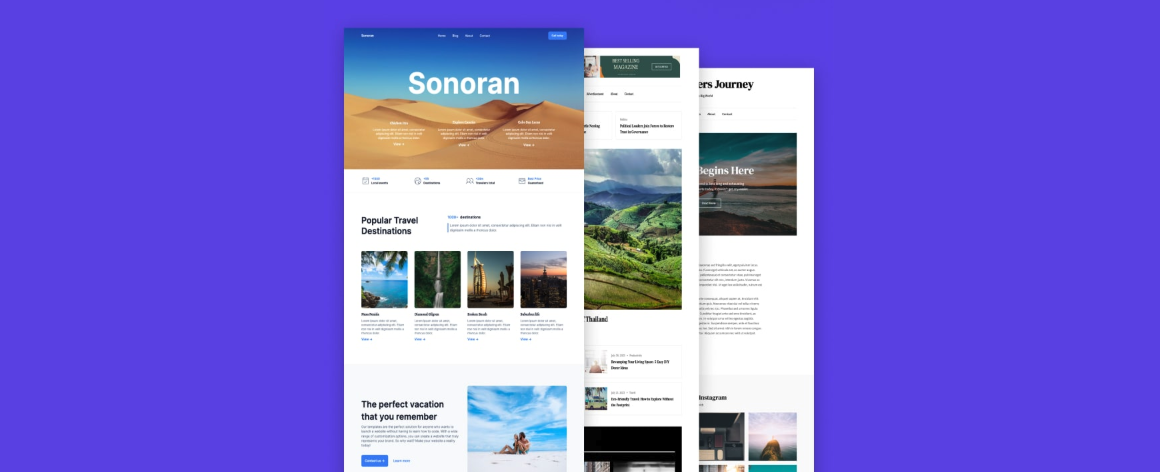
That theme with 100+ customization options, built-in page builder, demo content for 18 different industries, and 93 included plugins?
Yeah, it’s probably destroying your site speed.
Bloated “multipurpose” themes are popular because they promise everything. But they load massive amounts of code you’ll never use, creating performance issues and security vulnerabilities.
I tested a popular multipurpose theme once, 40+ HTTP requests just to load the homepage. Ridiculous.
Better choice:
- Lightweight, focused themes built for your specific use case
- Regular updates from developers who give a damn
- Good reviews and active support
- Fast load times out of the box
WordPress.com’s curated theme library focuses on quality over quantity. Themes are optimized, regularly updated, and supported. Less choice can be liberating.
Not Learning the Basics of WordPress
Treating WordPress like a black box means you’re one plugin conflict away from panic mode.
You don’t need to become a developer. But understanding the basics, how themes work, what plugins do, and where files live prevents 90% of “OH SHIT” moments.
When Kiko’s site broke before a big campaign launch, his lack of WordPress knowledge turned a 10-minute fix into a 3-hour crisis involving emergency calls and unnecessary panic.
Minimum knowledge:
- How to access your WordPress dashboard
- Where settings live and what they do
- How to install/update/delete plugins and themes
- Basic troubleshooting (disable plugins, switch themes)
- How to restore from backup
WordPress.com simplifies this significantly with managed updates and expert support. But even then, knowing the basics helps you work faster and stress less.
Trying to DIY Everything

Independence is great. But spending five hours trying to fix a CSS issue that a professional could solve in 20 minutes?
That’s not independence, that’s expensive stubbornness.
I’m all for learning and doing things yourself. But there’s a point where outsourcing makes financial sense. Your time has value.
When to get help:
- Technical issues beyond your skill level (Ping me)
- Design work that requires expertise (Ping me)
- Time-consuming tasks you hate (Ping me)
- Anything keeping you from creating content(Ping me)
WordPress.com’s 24/7 expert support means you’re never stuck. For complex customization, their Business plan ($25/month) includes access to custom code and premium support.
Sometimes the smart move is admitting “this isn’t my strength” and getting professional help.
Ignoring Site Speed Until It’s Painful
Your site loading in 8 seconds feels normal to you because you’re used to it.
But your visitors? They’re gone in 3 seconds.
Site speed directly impacts:
- User experience and bounce rates
- Search engine rankings
- Mobile performance
- Ad revenue (slower = fewer page views)
- Conversions and sales
I increased a client’s site speed from 7 seconds to 2 seconds. Their bounce rate dropped 34%, and time on site increased 52%. Same content, just faster.
Speed optimization basics:
- Optimize images (mentioned earlier, bears repeating)
- Enable caching
- Minimize plugins
- Use a CDN
- Choose fast hosting
- Clean the database regularly
Test your speed at GTmetrix or Google PageSpeed Insights. Anything over 3 seconds needs work.
WordPress.com’s infrastructure includes automatic caching, CDN, and optimized servers. Speed is built in, not bolted on.
Publishing Without Proofreading
Typos happen. I’m not talking about occasional mistakes; I’m talking about publishing without even reading your post once, and you wrote it.
Spelling errors, grammar disasters, broken sentences, missing words… these all scream “I don’t care about quality.”
I once published a post with the same paragraph appearing twice. Just copied and pasted it accidentally and never caught it. A reader emailed me about it, and I wanted to disappear.
Minimum process:
- Write your post
- Walk away for an hour (or overnight)
- Read it fresh with editing eyes
- Fix obvious errors
- Read it out loud to catch awkward phrasing
- Check links actually work
Tools like Grammarly help, but nothing replaces actually reading your own content before publishing.
“More is Better” Content Trap
Publishing 10 mediocre 500-word posts is not better than publishing 2 excellent 2000-word posts.
Quantity without quality is just noise.
I see bloggers sprinting to publish daily, churning out thin content that answers nothing thoroughly. Then they wonder why it doesn’t rank or get shared.
Google rewards comprehensive, helpful content. One thorough guide outperforms five superficial ones.
Focus on:
- Depth over breadth
- Answering questions completely
- Original insights and experiences
- Content readers actually want to share
- Quality that builds authority
Publish when you have something valuable to say. Not just because it’s Tuesday and you “need” a new post.
Publish your ideas on WordPress.com
Not Building an Email List from Day One
“I’ll start collecting emails once I have more traffic.”
This is backward thinking and costs you subscribers you’ll never get back.
Every visitor who leaves without subscribing is gone. You can’t email people who never signed up.
I didn’t start building my email list until year two. I missed out on thousands of potential subscribers from year one. Traffic, I drove to content and lost forever.
Now I have 40,000+ subs with a 35% CTR (I’m not bragging)
Start today:
- Choose an email service (Mailerlite, Kit, Beehiiv)
- Create a simple opt-in offer
- Add signup forms to your site
- Promote your list in every post
- Actually send emails (a list you don’t email is worthless)
Your email list is the only audience you truly own. Social media platforms change algorithms. Search engines adjust rankings.
Your email list? That’s yours.
Conclusion: Fix the Foundation, Then Build
Look, WordPress blogging mistakes are inevitable. We all make them. I still make them.
The difference between bloggers who succeed and those who quit?
Successful bloggers identify mistakes quickly, fix them, and move on. They don’t wait for perfection, they iterate toward better.
Start with the technical foundation (hosting, security, speed). Get SEO basics right. Create actual value for readers. Everything else is secondary.
WordPress.com eliminates most technical headaches, letting you focus on content instead of server configuration. Their paid plans (starting at $4/month) include hosting, security, automatic updates, plugin access, and expert support.
Get started with WordPress.com →
Is it perfect? No platform is. But it’s reliable, secure, and lets you actually blog instead of playing sysadmin.
Fix your mistakes. Learn from them. Keep publishing.
The blogs that win aren’t the ones that never screw up; they’re the ones that screw up, fix it, and keep moving forward.
Now get off this page and go fix your permalink structure. 😉
Also Read: How I Navigated the Most Terrible Blogging Advice of 2026
FAQs
What’s the biggest mistake WordPress bloggers make in 2026?
Choosing cheap or free hosting to “save money” and then losing content, dealing with crashes, or suffering terrible site speed.
Invest in reliable hosting from the start; it’s cheaper than rebuilding your site later. WordPress.com offers managed hosting starting at $4/month with security and support included.
Do I really need plugins on my WordPress blog?
Yes, but not 50 of them. Essential plugins include SEO (Rank Math or SureRank), security (Wordfence), backups, caching for speed, and anti-spam.
Every plugin beyond basics should directly improve user experience or revenue. WordPress.com now offers plugins on all paid plans, so you can use what you need without bloat.
How often should I back up my WordPress site?
Daily for active blogs, weekly minimum for smaller sites. Use automatic backups stored off-site with at least 30 days of history. WordPress.com includes automatic backups on paid plans.
For self-hosted sites, use plugins like UpdraftPlus. Test your backups occasionally to ensure they actually work when disaster strikes.
Should I use WordPress.com or self-hosted WordPress.org?
WordPress.com is managed hosting with automatic updates, security, and support, perfect if you want to focus on content. Plans start at $4/month with plugins available on all paid tiers.
WordPress.org gives you complete control but requires you to handle hosting, security, and technical maintenance yourself. Choose based on your technical comfort level and time availability.
How many categories and tags should my blog have?
4-8 categories maximum representing your main topics. Tags should be used sparingly for specific details within those categories, maybe 20-30 total tags maximum.
Too many creates thin duplicate content that hurts SEO. Think categories like book chapters and tags like index entries.
Can WordPress.com blogs rank well in Google?
Absolutely. SEO depends on content quality, optimization, and technical factors—not which platform you use. WordPress.com sites include fast hosting, mobile optimization, and security, all of which help rankings. With proper SEO (keyword research, optimized content, internal linking), WordPress.com blogs rank just as well as self-hosted sites.
What’s the minimum site speed I should aim for?
Under 3 seconds for mobile load time. Google prioritizes fast sites in rankings, and users bounce quickly from slow pages.
Optimize images, use caching, minimize plugins, and choose fast hosting. WordPress.com’s infrastructure includes automatic caching and CDN for better speed out of the box.
Do I need to understand coding to use WordPress?
No, but learning basics helps you troubleshoot issues and work more efficiently. You should understand how to access your dashboard, install plugins/themes, update content, and perform basic troubleshooting.
WordPress.com simplifies this significantly with managed updates and expert support available 24/7.
Remember: This article is sponsored by WordPress.com, but every mistake mentioned, every fix suggested, and every embarrassing story shared is genuine. I don’t recommend things I wouldn’t use myself or suggest to friends. Blog Recode is about honest help, not sales pitches disguised as advice.