Best AI Video Editing Tools That’ll Save Your Sanity (2026)
A while ago, editing a 5-minute video ate up my entire afternoon. Then AI video editing tools showed up… and now I’m done before my coffee gets cold
My Top AI Video Editing Tools
After burning through countless hours and way too much coffee testing AI video editing tools, here’s what genuinely delivers:
🥇 Descript – 9.4/10
Best for podcasters and talking-head content. Edit video by editing text. Sounds weird, works brilliantly.
🥈 CapCut – 9.0/10
Best free option for social media creators. ByteDance (TikTok’s parent) built this, and it shows.
🥉 Veed.io – 8.6/10
Best browser-based editor. No downloads, just click and create.
Try Descript Free for 7 Days →
So there I was, staring at 50+ cuts still waiting to be edited.
The client wanted the video ASAP. It was late, my eyes felt like sandpaper, and somehow I was still nowhere near done 😭
Mierda.
Here’s the thing about video editing: it’s time-consuming as hell. Even simple stuff, cutting awkward pauses, removing “ums,” and adding captions, eats hours of your life you’ll never get back.
I’d heard about AI video editing tools but assumed they were gimmicky nonsense. You know, like those “revolutionary” kitchen gadgets that promise to change your life but end up in the back of your cabinet next to that spiralizer you used once.
But with a looming deadline? Desperation makes you try weird things.
Downloaded Descript. Imported my footage. And watched it automatically transcribe everything in about 3 minutes.
Then, and this is where my brain kinda melted, I just deleted sentences from the transcript. The video edited itself to match. Pauses gone. Awkward tangents removed. All the “ums” and “ahs” vanished with one click.
Finished the entire edit in less than 30 minutes.
Sent it to the client. She loved it. Said it was my best work yet.
Since that night, I’ve tested every AI video editing tool I could find. Some are genuine game-changers. Others are overpriced trash wrapped in shiny marketing.
Here’s everything you need to know.
What Makes AI Video Editing Tools Useful?
Before we dive into specific tools, let’s talk about what these things actually do.
AI video editing tools use machine learning to automate the tedious parts of editing. Think of them as assistants who handle the grunt work while you focus on creative decisions.
The best ones do four things really well:
1. Silence and Filler Removal
AI detects pauses, “ums,” and dead air, then cuts them automatically. What used to take an hour now takes seconds.
2. Auto-Captioning
The AI transcribes speech and generates timed subtitles. Accuracy varies wildly between tools, but the good ones nail it.
3. Smart Cropping for Social
Converts landscape footage to vertical for TikTok, Reels, and Shorts without manually repositioning everything.
4. Scene Detection and Cutting
Some tools can identify the “good parts” of raw footage and create highlight reels automatically.
Not all AI video editing tools do all these things. Some excel at one feature but suck at others. That’s why I’m breaking down each tool honestly, so you know exactly what you’re getting.
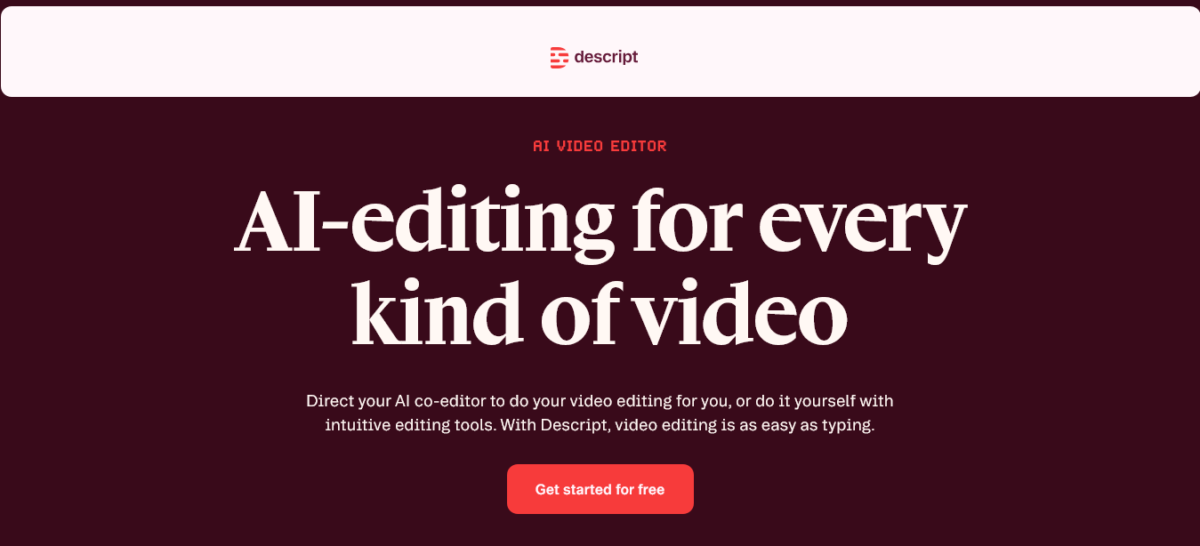
1. Descript – The Text-Based Miracle
Best for: Podcasters, YouTubers, interview content, talking-head videos
Pricing: Free plan available. Hobbyist at $16/month. Creator at $24/month. Business at $50/month.
Start Your Free Descript Trial →
Okay, so Descript changed my entire editing workflow.
The concept sounds bonkers until you try it: you edit a video by editing the transcript. It’s like editing a Word doc, except the video changes to match.
Why It’s Stupidly Good
Upload your video. Descript transcribes it automatically (shockingly accurate, even with accents). Then you just… edit the text.
Delete a sentence? That part of the video disappears. Rearrange paragraphs? The video rearranges itself. It feels like magic the first time you do it.
I used Descript for a client’s 45-minute webinar. Needed to cut it down to 8 minutes of highlights. Found all the good parts by reading the transcript, copied those sections into a new sequence, and boom, done in maybe 20 minutes.
Traditional editing would’ve taken me 4+ hours.
The Underlord AI Feature
In late 2025, Descript launched Underlord, its AI co-editor. You can literally tell it things like “make this feel more energetic” or “create a 60-second trailer”, and it handles it.
I tested this with a boring product demo video. Told Underlord to “make this engaging for TikTok.” It trimmed dead space, added b-roll suggestions, adjusted pacing, and created something truly watchable.
Not perfect, I still tweaked stuff, but it got me 80% of the way there in minutes.
Studio Sound is Unreal
One button removes background noise and echo, and makes your audio sound professionally recorded. I’ve used this on videos recorded in coffee shops, and it somehow eliminates the espresso machine sounds.
Client recordings from crappy laptop mics? Studio Sound makes them usable.
Downsides
The credit system is annoying. As of September 2025, Descript switched to “media minutes” and “AI credits.” Everything consumes credits; uploads, AI features, all of it.
Heavy users hit limits fast. The Creator plan gives you 1,800 media minutes monthly, which sounds like a lot until you’re uploading multi-camera footage.
Also, the learning curve is real. The interface is intuitive once you get it, but your first hour with Descript can feel overwhelming. There are SO many features packed in there.
Bottom line: For anyone editing spoken-word content, podcasts, interviews, tutorials, and talking-head videos, Descript is absolutely worth it. The text-based editing paradigm genuinely changes how you work. The Creator plan at $24/month is the sweet spot for most people.
Try Descript Free – No Credit Card Required →
2. CapCut – Social Media Weapon (and It’s FREE)
Best for: TikTok, Instagram Reels, YouTube Shorts, social media content
Pricing: Free (seriously). Pro at $7.99/month or $74.99/year.
CapCut is what happens when TikTok’s parent company (ByteDance) builds a video editor specifically for creators who live on social platforms.
And here’s the kicker: the free version is genuinely powerful.
Why Everyone Uses This
The template library is insane. Thousands of trending templates synced to popular sounds. You import your clips, the template does the rest: transitions, timing, effects, everything.
I’m not exaggerating when I say I’ve created entire Reels in under 5 minutes using CapCut templates. Just swap the footage, maybe tweak the text, and export.
For creators posting daily? This is a lifesaver.
AI Features That Honestly Work
CapCut’s AI auto-captions are scary accurate. Upload your video, hit one button, and you’ve got perfectly timed subtitles in seconds.
The background removal (green screen effect without the green screen) works surprisingly well for B2B content and product videos.
Auto-reframe keeps your subject centred when converting horizontal to vertical. Super helpful when repurposing YouTube content for TikTok.
Free vs. Pro: What’s the Deal?
Here’s what blew my mind: the free version exports in 1080p with NO watermark. Most “free” tools slap giant logos all over your videos. CapCut doesn’t.
The Pro version ($7.99/month) adds:
- 4K export
- Premium templates and effects
- Advanced AI tools (motion tracking, noise reduction)
- 1TB cloud storage
- Commercial music library
For casual creators? The free version is plenty. For pros? The pricing is stupid cheap compared to Adobe or Final Cut.
Problems
ByteDance owns your content. Read the terms of service; anything you create with CapCut, they technically have the right to use. Most people don’t care, but if you’re doing high-value client work, this matters.
Also, the AI credits system on mobile can be confusing. Some features consume credits that reset monthly.
And performance gets wonky with large projects. I’ve had CapCut crash on me when working with 4K footage longer than 10 minutes.
Bottom line: For social media creators who need speed and trending aesthetics, CapCut is unbeatable. The fact that it’s free makes it a ridiculous value. Upgrade to Pro only if you need 4K or advanced AI features.
3. Veed.io – Browser-Based Champion
Best for: Quick edits, teams, people who hate downloading software
Pricing: Free plan available. Paid plans start around $20/month (Creator), $44/month (Pro), and $70/month (Studio), with Enterprise pricing on request.
Try Veed.io Free – No Download Needed →
Veed.io runs entirely in your browser. No downloads. No installations. Just click and create.
Sounds simple, but this is actually genius for specific use cases.
Why I Love It (Mostly)
Collaboration features are excellent. Multiple people can work on the same project simultaneously, like Google Docs for video.
When I was freelancing for an agency, we used Veed.io because it meant designers in London, copywriters in Berlin, and clients in New York could all review and comment on videos in real-time.
No sending massive files back and forth. No version control nightmares.
AI Auto-Subtitles in 125+ Languages
Veed’s transcription engine is one of the most accurate I’ve tested. And it supports 125+ languages, which is clutch for international clients.
I used this for a client targeting the Spanish and English markets. One click, boom, subtitles in both languages. Still needed a native speaker to review, but it cut translation time by like 75%.
Magic Cut for Filler Words
The “Magic Cut” feature automatically removes “ums,” “ahs,” awkward pauses, and silence. Works pretty well, though you’ll want to review the cuts; AI sometimes removes pauses that should stay for comedic timing or emphasis.
The Annoying Parts
Performance lags with large files. If you’re editing 20+ minute videos in 4K, expect buffering and occasional crashes.
The pricing tiers are confusing. Some AI features are available on Lite, others require Pro. The website doesn’t make this clear upfront.
And honestly? Customer support is basically nonexistent. It’s an AI chatbot that can’t solve real problems. If you run into issues, you’re kinda on your own.
Bottom line: For teams needing collaborative editing or people who prefer browser-based tools, Veed.io is solid.
4. Adobe Premiere Pro with Firefly AI – Professional’s Choice
Best for: Professional editors, agencies, people already in the Adobe ecosystem
Pricing: Premiere Pro starts at $22.99/month. Firefly is included in Creative Cloud plans starting around $69.99/month, or available separately through Firefly subscriptions.
If you’re already using Adobe products, Premiere Pro’s AI features are getting genuinely impressive.
Object Masking is Black Magic
The new AI-powered Object Mask lets you hover over any object or person, click once, and Premiere creates a perfect mask that tracks through the entire clip.
I used this to remove a distracting background element from a client video. The AI tracked it perfectly through 200+ frames of camera movement. It would’ve taken me an hour manually. Took 3 minutes with AI.
Generative Fill for Video
Need to extend a clip by a few frames? Fill in a background? Firefly’s generative AI can synthesise video content that matches your footage.
It’s not perfect, generated content still looks slightly off if you’re paying attention, but for quick fixes? Absolutely usable.
Why It’s Not for Everyone
It’s expensive. And you need a beefy computer to run it smoothly.
Also Read: Best Laptops Under $500 in 2026 (Fast & Affordable Picks)
Also, there’s a learning curve. Premiere is professional software with professional complexity. If you’re just making Instagram Reels, this is overkill.
Bottom line: For professional editors who need advanced features and are already paying for Creative Cloud, Premiere’s AI tools are excellent additions. For casual creators? Way too expensive and complicated.
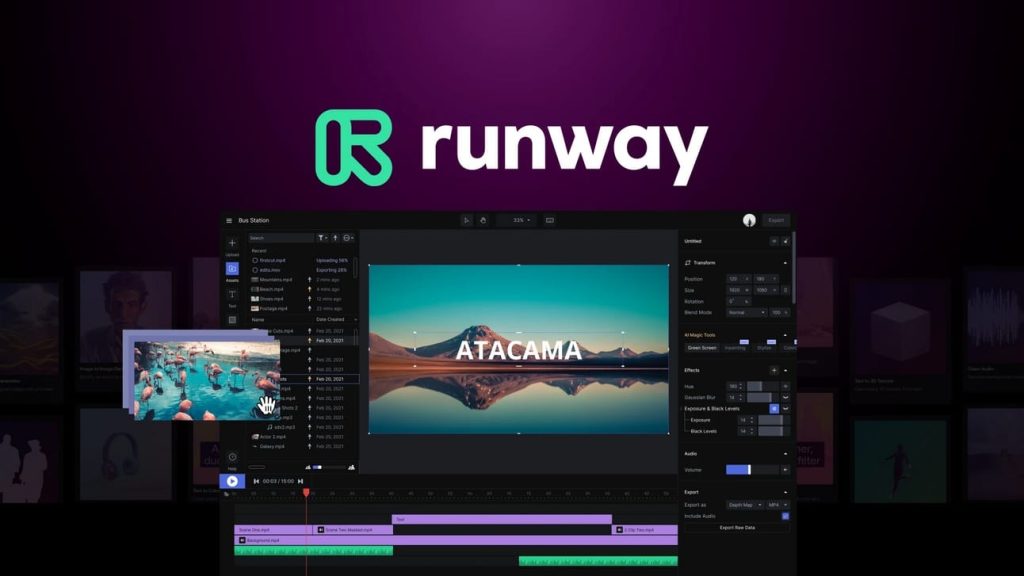
5. Runway ML – Experimental AI Playground
Best for: Creators who want cutting-edge AI features, experimental projects
Pricing: Free plan available. Standard at $12/month. Pro at $28/month. Unlimited at $76/month.
Runway is where AI video gets weird (in a good way).
This tool pushes boundaries. Text-to-video generation, AI motion tracking, rotoscoping, background removal, stuff that used to require specialised skills and expensive plugins.
Gen-3 Alpha Text-to-Video
Type a description. Runway generates video footage. The results are… honestly, hit-or-miss.
“Cinematic shot of cherry blossoms falling in rain” produced something usable for B-roll. “Person walking down city street” looked like a fever dream.
It’s not replacement-level quality yet, but as supplemental footage? Absolutely works.
Learning Curve is STEEP
Runway has so many features that figuring out what does what takes time. The interface isn’t intuitive like Descript or Veed.
Also, credits burn fast. The free plan gives you 125 credits, which sounds like a lot until you realise generating a 4-second clip costs 10 credits.
Bottom line: For experimental creators who want to play with cutting-edge AI, Runway is fascinating. For people who just need to edit videos quickly? Skip it.
6. OpusClip – Long-to-Short Converter

Best for: Repurposing long videos into social clips
Pricing: Free plan available. Starter around $15/month, Pro at $29/month, with Business/Enterprise custom pricing.
OpusClip does one thing really well: it turns long videos into short-form clips automatically.
Upload a 45-minute podcast. OpusClip’s AI identifies the most engaging moments, cuts them into 30-90 second clips, adds captions, and formats everything for vertical platforms.
I tested this with a client’s hour-long webinar. OpusClip generated 23 clips. About 12 were genuinely usable. That’s a 52% hit rate, which is actually pretty good for AI.
Manually identifying and cutting those moments would’ve taken me 3+ hours. OpusClip did it in 8 minutes.
The downside? You have limited control over what it selects. Sometimes it picks weird moments that make no sense out of context.
Bottom line: For content repurposing at scale, OpusClip is excellent. Just plan to review and delete the duds.
Other AI Video Editing Tools Worth Mentioning
7. Pictory.ai
Best for: Turning blog posts into videos
Script-to-video conversion works surprisingly well. Type or paste text, and Pictory creates a video with relevant stock footage and voiceover. Great for faceless YouTube channels.
Pricing: Starter/Standard starts around $19–$25/month (billed annually), Premium/Professional around $35–$59/month, with Teams plans starting around $99/month. Free trial available.
8. Submagic
Best for: Caption styling for single clips
If you already have your clip ready and just want professional-looking captions fast, Submagic is strong. The caption animations and styles are genuinely eye-catching.
Pricing: Free plan available. Starter starts around $12–$19/month, Pro around $23–$39/month, with Business plans going higher depending on usage.
9. Reap
Best for: Complete repurposing workflow
Similar to OpusClip but with more editing flexibility. Turns long videos into multiple shorts, adds captions, auto-formats for vertical platforms, and includes built-in scheduling.
Pricing: Free plan available. Creator starts around $9.99–$29/month, Studio around $29–$50/month, with Enterprise pricing available on request.
10. Fliki.ai
Best for: Text-to-video with AI voices
Turn articles or scripts into videos with AI-generated voiceovers in 75+ languages. The AI voices sound decent, not human, but usable.
Pricing: Free plan available. Standard starts around $21–$28/month, Premium around $66/month, with Enterprise plans on custom pricing.
How I Tested These AI Video Editing Tools
People ask me all the time: “Mia, how do you actually know if these tools work?”
Fair question. Here’s my process:
Real Projects Only
I test AI video editing tools on actual client work and content for Blog Recode. No fake test videos. If a tool can’t handle real deadlines and real requirements, it doesn’t make my list.
Time Tracking
I measure how long tasks take with AI versus manual editing. If a tool claims to “save hours” but only saves 15 minutes, that’s bullshit, and I call it out.
Output Quality Comparison
I compare AI-edited videos against manually edited versions. Sometimes AI cuts in weird places or misses context. I note all of it.
Cost-Benefit Analysis
I calculate whether the subscription price actually saves money compared to hiring editors or spending my own time.
Some expensive tools are worth it. Others charge premium prices for mediocre results.
Support Testing
I deliberately run into problems to see how support responds. Half the tools on this list have terrible support. You need to know that upfront.
Which AI Video Editing Tool Should You Use?
Here’s my honest recommendation based on what you’re doing:
If you edit podcasts, interviews, or talking-head videos:
→ Descript (Creator plan at $24/month)
The text-based editing paradigm is perfect for spoken-word content.
Start Your Descript Free Trial →
If you create daily content for TikTok, Reels, or Shorts:
→ CapCut (Free version is plenty)
Templates, speed, and the fact that it’s free make this a no-brainer.
If you work with teams or need browser-based editing:
→ Veed.io (Lite at $12/month or Pro at $24/month)
Collaboration features and no download requirement are clutch for remote teams.
If you repurpose long content into shorts:
→ OpusClip or Reap
Both automate the time-consuming work of finding and cutting highlights.
If you’re a professional editor:
→ Adobe Premiere Pro with Firefly AI
The AI features enhance professional workflows without dumbing things down.
Mistakes I Made (So You Don’t Have To)
Mistake #1: Trusting AI Blindly
Early on, I let AI make all the cuts without reviewing them. Sent a video to a client with a weird edit that removed important context.
Lesson: AI is an assistant, not a replacement for your judgment. Always review AI-generated edits before publishing.
Mistake #2: Ignoring Export Settings
Used Veed.io’s default export settings for a client video. Turns out the free plan caps resolution at 720p. Client wanted 1080p minimum.
Had to upgrade mid-project and re-export everything.
Lesson: Check export quality limits before starting projects. Don’t assume “free” or “basic” plans will meet professional requirements.
Mistake #3: Not Reading Terms of Service
Created videos with CapCut for a high-value client. Didn’t realise ByteDance’s terms give them broad usage rights to content created with their tools.
Client’s legal team was NOT happy when they found out.
Lesson: For sensitive client work, read the damn terms of service. Some AI video editing tools have the right to your content.
Mistake #4: Expecting Perfect Auto-Captions
Relied entirely on AI-generated captions for a medical video. The AI transcribed technical terms incorrectly, making the content misleading.
Lesson: Always proofread auto-generated captions, especially for technical, medical, or legal content. AI is fast but not always accurate.
Quick Comparison Table: AI Video Editing Tools
| Tool | Best For | Starting Price | Free Version | Text-Based Editing | Auto-Captions | Social Cropping | Learning Curve |
|---|---|---|---|---|---|---|---|
| Descript | Podcasts & interviews | $16/mo | Yes (limited) | ✅ Yes | ✅ Excellent | ✅ Yes | Medium |
| CapCut | Social media content | Free | ✅ Yes (full-featured) | ❌ No | ✅ Excellent | ✅ Yes | Low |
| Veed.io | Teams & quick edits | $12/mo | Yes (watermark) | ❌ No | ✅ Very Good | ✅ Yes | Low |
| Premiere Pro | Professional editing | $22.99/mo | ❌ No | ❌ No | ✅ Good | ⚠️ Limited | High |
| OpusClip | Long-to-short repurposing | $9/mo | Yes (limited) | ❌ No | ✅ Good | ✅ Yes | Low |
| Runway ML | Experimental AI features | $12/mo | Yes (credits) | ❌ No | ❌ No | ⚠️ Limited | High |
| Pictory | Script-to-video | $23/mo | Yes (limited) | ⚠️ Partial | ✅ Good | ✅ Yes | Low |
| Reap | Complete repurposing | $29/mo | Yes (limited) | ❌ No | ✅ Good | ✅ Yes | Medium |
| Submagic | Caption styling | $20/mo | Yes (limited) | ❌ No | ✅ Excellent | ✅ Yes | Low |
| Fliki | Text-to-video with AI voice | $28/mo | Yes (limited) | ⚠️ Partial | N/A | ⚠️ Limited | Low |
Final Thoughts: AI Won’t Replace You (But It’ll Make You Faster)
Look, I’ll be real with you.
AI video editing tools aren’t magic. They won’t turn terrible footage into Oscar-worthy cinema. They won’t fix fundamental storytelling problems.
But they WILL handle the tedious grunt work that eats up your time.
Cutting silence? Removing filler words? Adding captions? Reformatting for different platforms? AI crushes all of that.
The editors who embrace these tools aren’t getting replaced; they’re getting faster. They’re finishing projects in hours instead of days. They’re taking on more clients. They’re actually sleeping at night instead of pulling all-nighters to hit deadlines.
The editors who refuse to adapt? They’re spending 4 hours on tasks that AI completes in 4 minutes. And eventually, they’ll get priced out by people who work smarter.
So pick a tool from this list. Start with the free versions. Learn how to use AI as your assistant, not your replacement.
Your future self will thank you.
And you might actually get to bed before 2 AM for once. 😴
Ready to stop wasting time on manual edits?
Try Descript Free – Best for Spoken Content →
Download CapCut – Best Free Social Tool →
Try Veed.io Free – Best for Teams →
FAQs
What’s the difference between AI video editing tools and regular editing software?
AI video editing tools automate repetitive tasks using machine learning. Regular editing software requires you to manually cut, trim, add captions, and adjust everything.
AI tools handle the boring stuff automatically, removing silence, generating captions, and cropping for different platforms while you focus on creative decisions. Think of AI as an assistant that does the grunt work while you handle the creative direction.
Do I need video editing experience to use AI video editing tools?
Nope.
Tools like CapCut and Veed.io are designed for beginners. If you can use basic software, you can use these. Descript has a slightly steeper learning curve, but it is still way easier than traditional editing software like Premiere or Final Cut.
The whole point of AI video editing tools is to make editing accessible to people without technical skills.
Can AI really edit my videos automatically?
Yes and no. AI can handle specific tasks automatically, such as removing filler words, adding captions, cutting silence, and identifying highlight moments. But it can’t understand context, emotion, or storytelling nuance.
You still need to review AI-generated edits and make adjustments. AI gets you 70-80% of the way there; you handle the final 20-30% to make it actually good.
Which AI video editing tool is best for beginners?
CapCut, hands down. The free version is full-featured, the interface is intuitive, and the template library makes creating videos stupid easy. You can literally create professional-looking content in minutes with zero experience. Veed.io is also beginner-friendly if you prefer browser-based tools.
Are free AI video editing tools actually good or just demos?
CapCut’s free version is legitimately powerful: 1080p exports, no watermark, tons of features. It’s not a demo; it’s a fully functional editor. Descript and Veed.io offer free plans too, but with more limitations (watermarks, lower resolution, feature restrictions).
For most beginners, CapCut’s free version is all you need.
How accurate are AI-generated captions?
Pretty damn accurate for clear audio in English. Descript and CapCut both hit 90-95% accuracy in my testing with good audio quality. Accuracy drops with heavy accents, technical jargon, or noisy backgrounds.
You’ll always want to proofread captions, especially for professional work, but AI gets you 90% there instantly instead of spending hours typing everything manually.
Can I use AI video editing tools for client work?
Mostly yes, but read the terms of service. Some tools (like CapCut) have clauses that give the company rights to content created with their tools. For sensitive client work or high-value projects, this matters.
Descript, Veed.io, and Adobe don’t claim rights to your content. Always check before using AI video editing tools for commercial projects.
Will AI video editing tools replace human editors?
No. AI handles repetitive tasks, cutting silence, adding captions, and basic reformatting. It doesn’t understand storytelling, emotion, context, or brand voice. Good editors who use AI become faster and more efficient. Editors who refuse to adapt will struggle.
Think of AI as power tools for construction; they don’t replace carpenters, but carpenters who use power tools are way more productive than those using hand saws.
Which AI video editing tool is best for social media content?
CapCut, no question. It’s built by ByteDance (TikTok’s parent company) specifically for social platforms. The template library is constantly updated with trending formats, auto-reframe works perfectly for vertical video, and the AI features are optimised for short-form content. Plus, it’s free.
For social media creators, CapCut is unbeatable.
How much do AI video editing tools actually save in time?
Massive amounts. Tasks that take 2-4 hours manually (adding captions, removing filler words, cutting silence) take 5-10 minutes with AI. I’ve cut my editing time by about 60-70% using these tools.
A video that used to take me 6 hours now takes maybe 2 hours. That’s real time savings, not marketing hype. The ROI is insane even on cheap subscriptions.
Do I need a powerful computer to run AI video editing tools?
Depends on the tool. Descript and CapCut need decent specs (I recommend at least 16GB RAM). Veed.io runs in your browser, so computer specs matter less, but you need good internet.
Adobe Premiere requires a beast of a machine. For most AI video editing tools, a mid-range laptop from the last 3-4 years will work fine.
Can AI video editing tools handle 4K footage?
Some can, some can’t. CapCut Pro, Veed.io Pro, and Descript all support 4K exports. Free plans usually cap at 1080p. Processing 4K takes longer and uses more credits/resources. For most social media content, 1080p is plenty.
Only go 4K if you specifically need it for YouTube or professional deliverables.
What’s the best AI video editing tool for podcasts?
Descript, without question. The text-based editing paradigm was literally designed for podcast editing. You edit the conversation like a document, remove filler words with one click, and Studio Sound makes your audio professional.
The transcription accuracy is excellent for creating show notes and SEO-friendly content. Nothing else comes close for podcast workflows.
About Blog Recode: We help content creators and bloggers build smarter with AI, without the BS, guru nonsense, or make-money-fast schemes. Just honest reviews and strategies that work.
Disclosure: This article contains affiliate links. If you purchase through these links, Blog Recode earns a commission at no extra cost to you. I only recommend AI video editing tools I’ve personally tested and actually use.