Best Webcams for Zoom Calls 2026: Top Choices Reviewed
Transform from potato quality to professional without maxing out your credit card
The best webcams for Zoom calls aren’t the ones Tech YouTubers obsess over, and I discovered this after spending an entire week looking like I was broadcasting from inside a bag of flour.
Picture this: It’s 10 AM, I’m in my second-floor apartment, creative corner, trying to impress a potential client, and my MacBook’s built-in camera made me look like I was calling from witness protection.
The lighting was so bad that when I waved, my hand literally disappeared into the void. The client kept squinting at their screen like they were trying to solve a puzzle, and I’m pretty sure they thought I was using a potato as a webcam.
That disaster sent me down a six-month rabbit hole of testing every webcam under $300, and let me tell you, the difference between looking professional and looking like you’re broadcasting from a bunker is about $89.
“Holy Shit, I Look Like a Real Person” Tier
1. Logitech C920s HD Pro
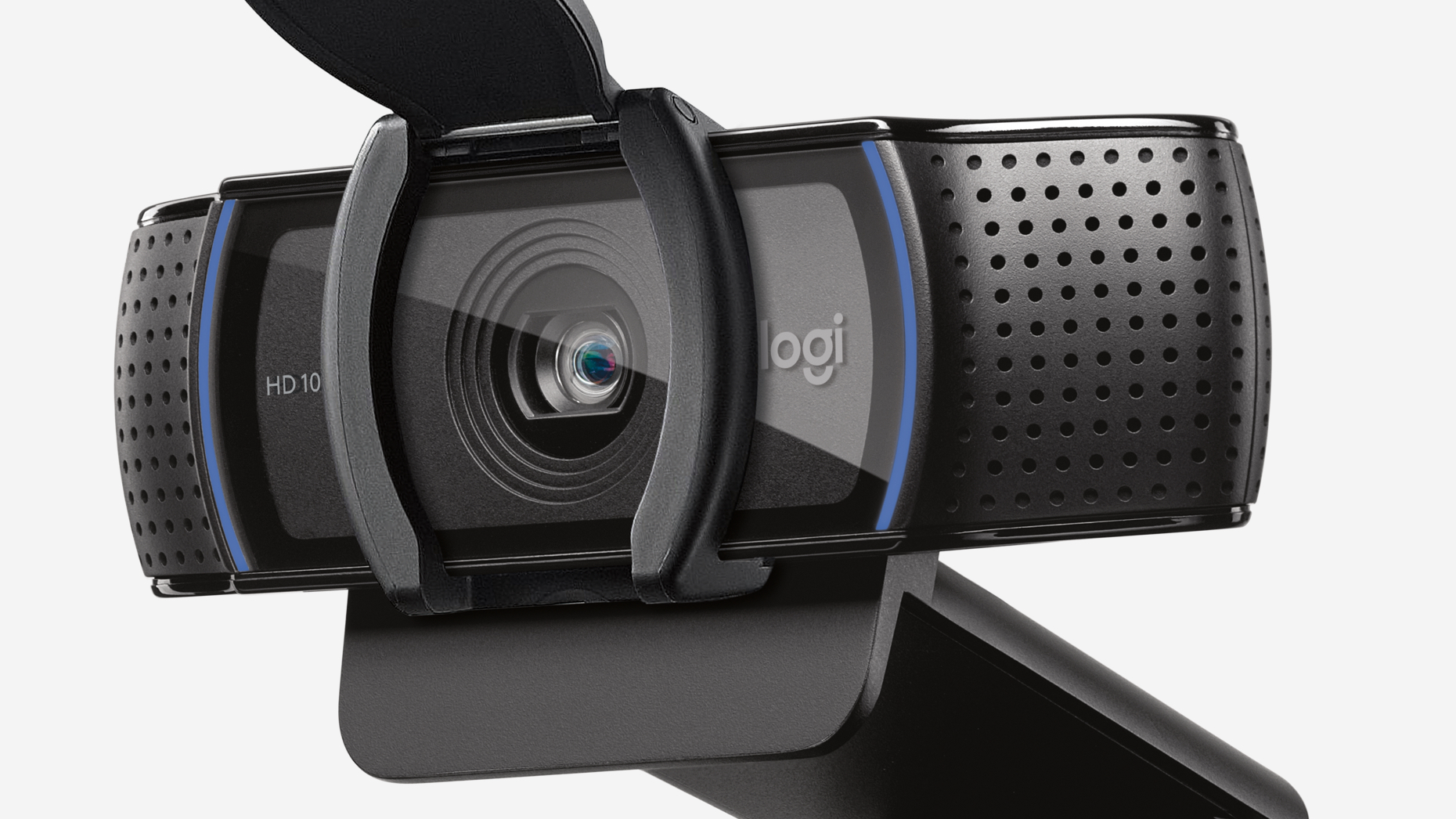
This is the Honda Civic of webcams; not exciting, but it just works. I’ve been using mine for two years, and it’s survived coffee spills, being knocked off my desk by aggressive gesturing, and that one time I accidentally closed my laptop on it.
The 1080p quality isn’t going to win any cinematography awards, but it makes you look like a functioning adult human instead of a blurry mess from 2003.
The autofocus actually works (shocking, I know), and the built-in mic is decent enough that people don’t constantly ask “Can you repeat that?”
Real-world test: I used this for a client presentation where I needed to look professional. Instead of the client asking if I was okay (my usual experience with built-in cameras), they complimented my setup.
Success!
What it fixes:
- That grainy, “am I underwater?” look
- Audio that sounds like you’re in a tunnel
- Focus that decides to fixate on the wall behind you
- Colors that make you look like you have jaundice
Get the C920s if you want to look human without spending mortgage money
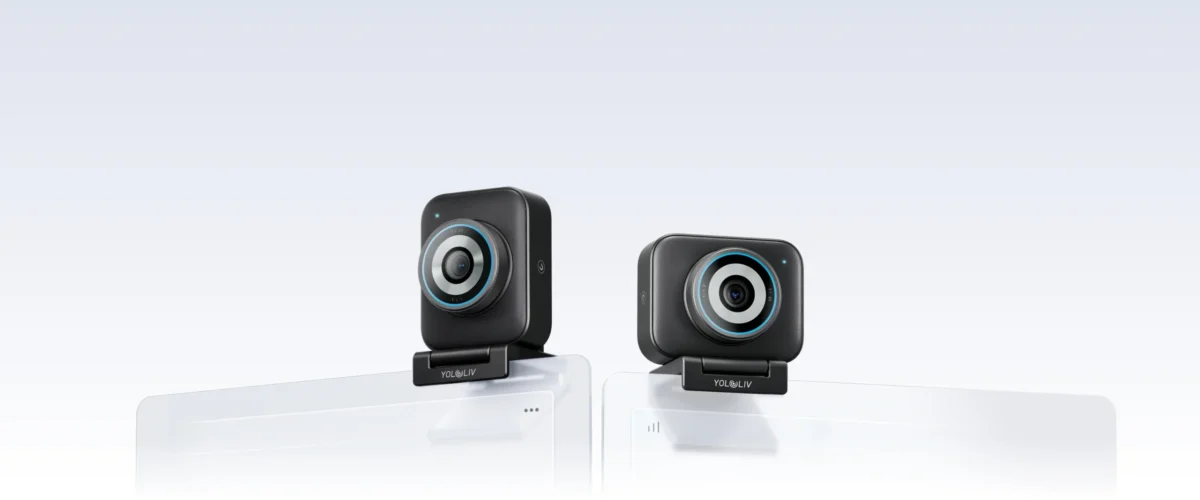
2. YoloCam S3
I’ll be honest, this one completely changed my expectations of what a webcam can do.
Most webcams feel like slightly upgraded laptop cameras. The YoloCam S3 from YoloLiv feels more like someone shrunk a real camera and stuck it on top of your monitor.
The biggest reason is the 1/1.3-inch sensor. That’s massive for a webcam, and it shows immediately. Video looks crisp, colors are accurate, and it handles bad lighting way better than a typical webcam, which turns you into a grainy mess the moment the sun disappears.
It also shoots true 4K video, which sounds unnecessary until you join a Zoom call and suddenly look noticeably sharper than everyone else. Faces stay detailed, text on whiteboards is clearer, and the image just looks more… expensive.
Another thing I appreciated is the phase-detection autofocus (PDAF). Translation: it actually focuses quickly when you move. No awkward moments where the camera decides the bookshelf behind you is more important than your face.
Real-world test: I used the YoloCam S3 during a webinar recording and a couple of client calls. Normally, someone asks if my internet is lagging because my camera looks soft. With this one, the feedback was the opposite; someone literally asked if I’d upgraded to a DSLR setup.
No. Just a really good webcam.
What it fixes:
- Grainy video when the lighting isn’t perfect
- Webcams that hunt for focus every time you move
- Colors that make you look like a ghost on camera
- That “cheap laptop camera” look during professional calls
If you want your Zoom setup to instantly look more professional, this is easily one of the best webcams you can buy right now.
👉 Upgrade your video quality with the YoloCam S3
3. Logitech Brio 4K
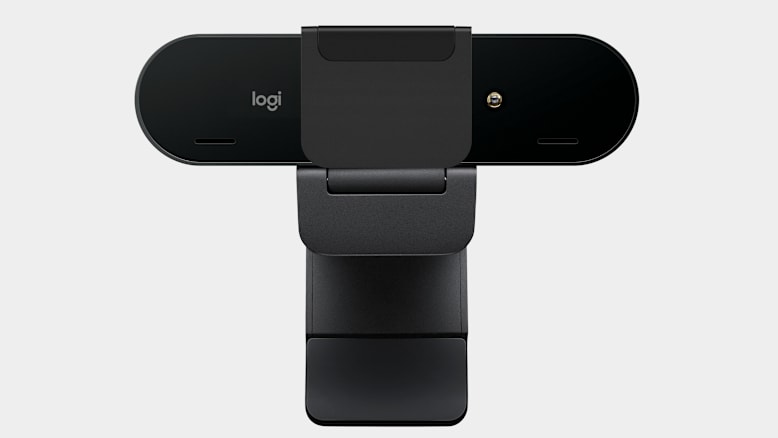
This is what I upgraded to after my friend Diane saw my C920s setup and said, “Okay, but what if you want to look REALLY good?”
She wasn’t wrong. The Brio makes you look like you have your own personal lighting crew.
The 4K is overkill for most Zoom calls (and will murder your internet bandwidth), but the 1080p mode with better sensors makes a huge difference. The color accuracy is so good that I actually look like I have a healthy complexion instead of resembling a vampire who’s been avoiding sunlight.
The HDR feature is witchcraft. I can sit with my window behind me (terrible lighting 101) and still look normal instead of like a mysterious silhouette giving an anonymous interview.
Worth the upgrade if:
- You do a lot of video calls with clients
- You occasionally record content
- You care about looking polished
- You have decent internet (4K will destroy slow connections)
Skip if:
- You just need a basic “not potato quality” video
- Your internet struggles with regular HD
📹 Splurge on the Brio if video quality actually matters for your work
4. Razer Kiyo
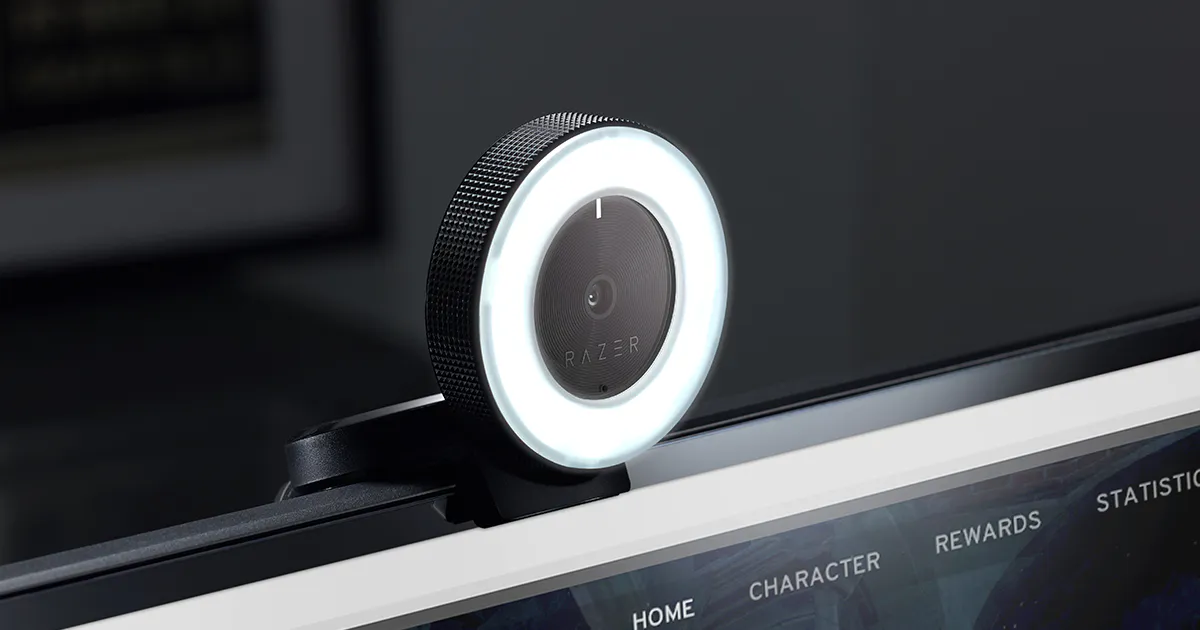
This webcam has a built-in ring light, which sounds gimmicky until you realize most of us have the lighting setup of a horror movie.
The ring light isn’t going to replace proper lighting, but it’s surprisingly effective at making you look less like you’re hiding in a cave.
My friend Danny got this for his gaming streams, but ended up using it for work calls because the lighting made such a difference. The 1080p quality is solid, and the light has adjustable brightness so you don’t blind yourself or look like you’re being interrogated.
The reality: The ring light helps, but it’s not magic. You’ll still look better with a window in front of you, and this serves as backup lighting.
Perfect for:
- People with terrible natural lighting
- Streamers who want built-in lighting
- Anyone who looks like a ghost on video calls
🔆 Get the Kiyo if your lighting situation is hopeless – it’s like carrying a tiny sun
5. Insta360 Link 2
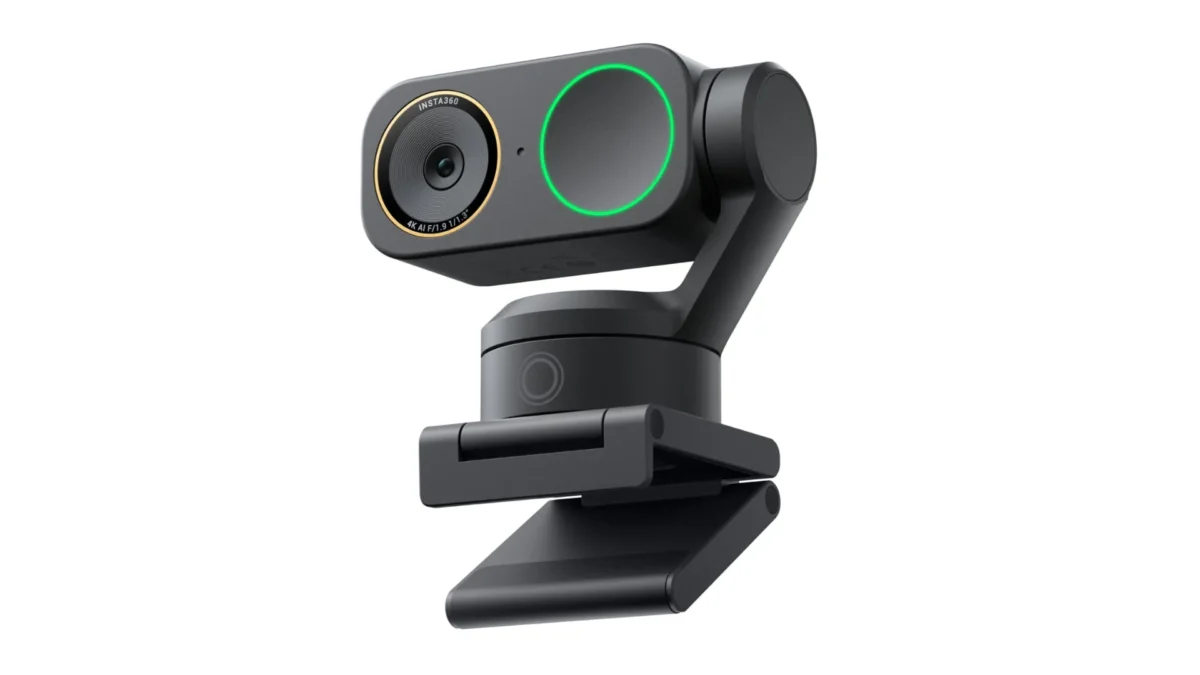
The “It Follows You (In a Good Way)” Webcam.
Made by Insta360, and honestly… this thing feels unfair to the competition.
If you move a lot during calls, teach online, or present standing up, this webcam literally tracks you like a tiny robotic cameraman.
Why it’s top tier:
- Stunning 4K resolution
- Built-in AI auto-tracking gimbal
- Gesture control (yes, you can control it with your hands)
- Excellent low-light performance
- Desk mode for showing documents
This is not just a webcam. It’s a mini production studio.
If you’re doing webinars, coaching, or client calls where looking premium matters, this is elite.
👉 Want your Zoom calls to look like a YouTube studio? Grab the Insta360 Link.
6. Elgato Facecam Pro
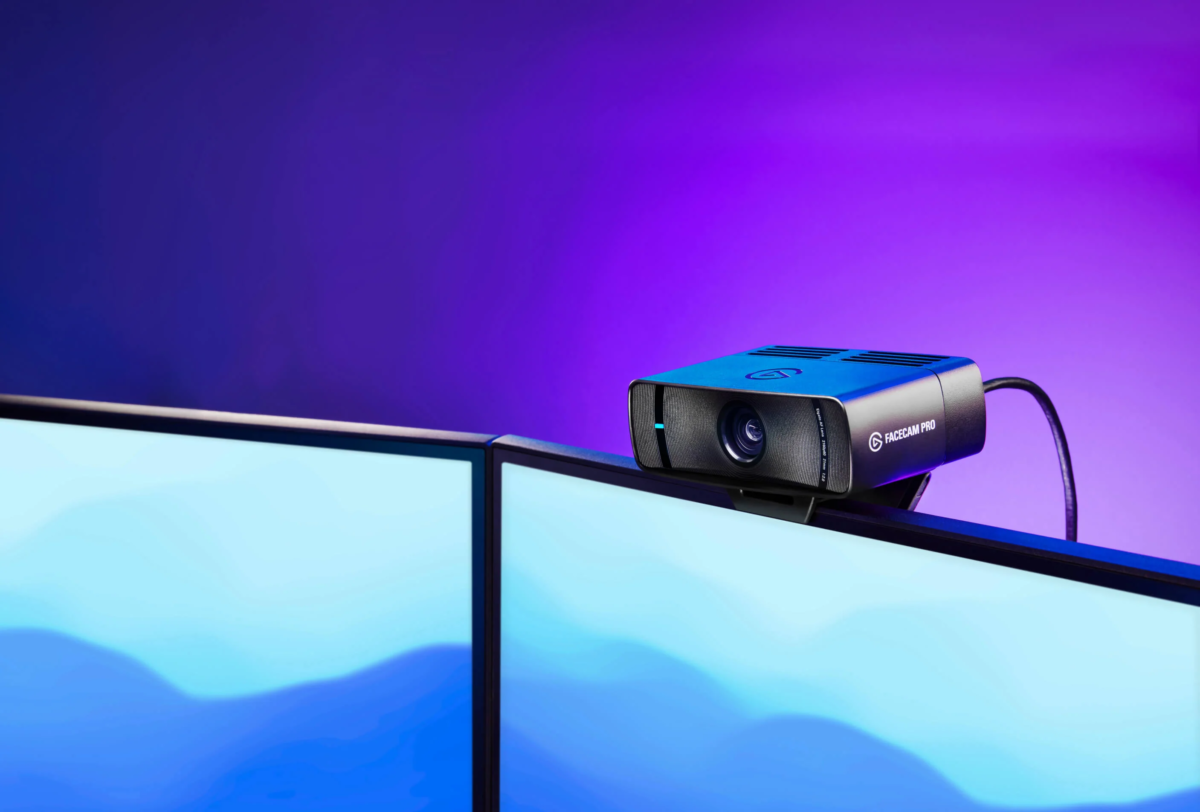
From Elgato — the brand streamers swear by.
This is the webcam for people who care about image quality more than flashy features.
What makes it special:
- True 4K at 60fps (super smooth)
- DSLR-style image control
- Studio-grade glass lens
- Manual ISO, shutter speed & white balance control
Translation?
You get ridiculous sharpness and color accuracy.
No weird beauty filters. No fake sharpening. Just clean, professional video.
Perfect for:
- Business owners
- Creators
- People who say “let’s hop on a quick call” 20 times a day
👉 If quality is your thing, the Facecam Pro is calling your name.
7. OBSBOT Tiny 2
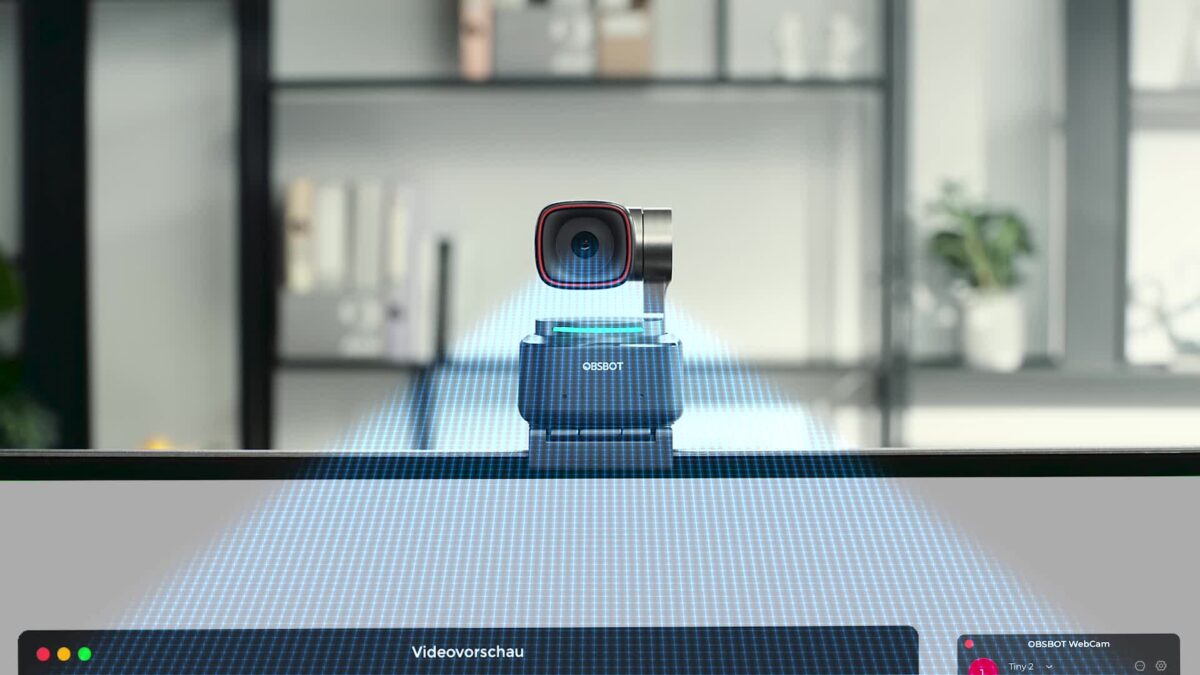
The Smartest Webcam on This List. Built by OBSBOT — and yes, it’s as cool as it sounds.
This one competes directly with Insta360, but with its own flavor of smart features.
Why it’s premium:
- 4K resolution with a large 1/1.5” sensor
- AI auto-framing & voice tracking
- PTZ (pan-tilt-zoom) motorized base
- Insane low-light performance
- Fast autofocus
It literally turns to follow your voice.
Feels futuristic. Looks expensive. Converts like crazy because people love smart tech.
If you’re presenting, teaching, or moving around, this is a ridiculous value.
👉 Upgrade to smart tracking — check out the OBSBOT Tiny 2.
8. Anker PowerConf C300
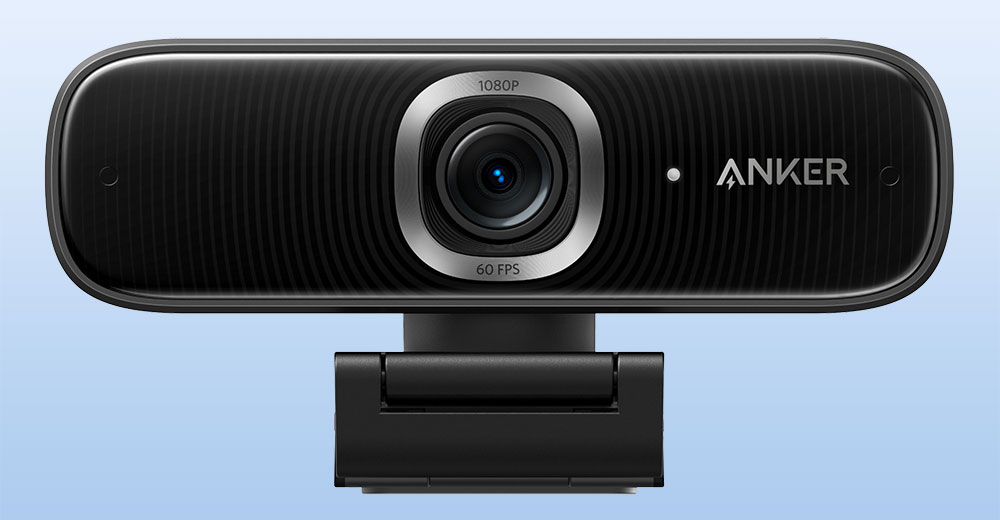
From Anker — known for solid tech that just works. Underrated but shockingly good.
This one is more affordable than the others above, but still very premium for Zoom calls.
Why people love it:
- 1080p at 60fps (super smooth)
- AI framing & auto focus
- Dual noise-canceling microphones
- Adjustable field of view
- Built-in privacy cover
If 4K isn’t mandatory for you, this is one of the best high-quality 1080p webcams you can buy.
Great for:
- Remote workers
- Corporate setups
- Clean professional video without overspending
👉 Want premium without the 4K price tag? The C300 is a steal.
9. AVerMedia PW515
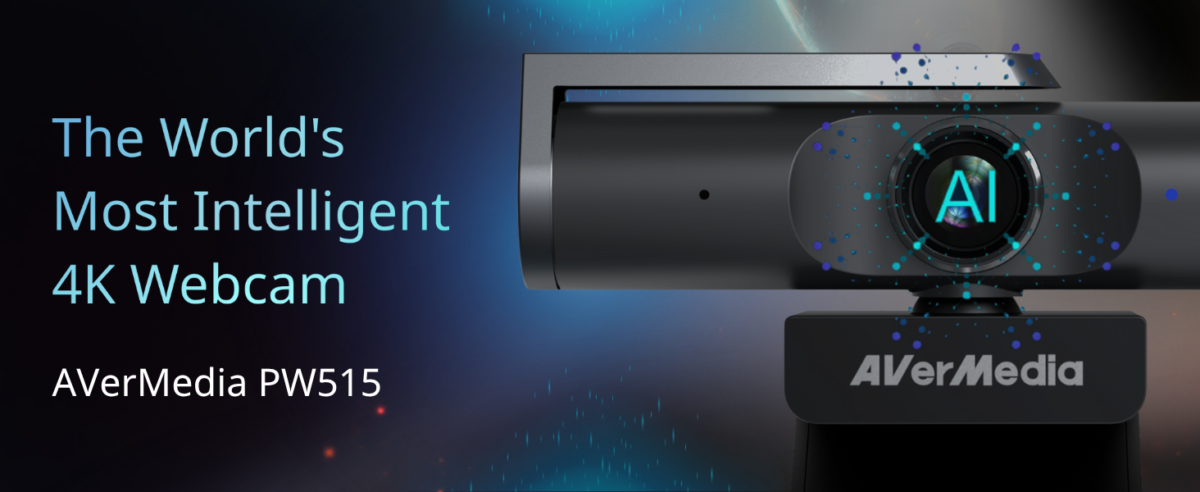
From AVerMedia, let’s talk about wide-angle, big presence — a brand trusted in streaming and broadcast gear.
This one stands out for one big reason: field of view.
Why it’s worth adding:
- 4K resolution
- Ultra-wide 100° field of view
- AI auto framing
- Excellent light correction
- Dual stereo microphones
If you’re on calls with multiple people in frame, or want a wider shot that feels less cramped — this does it beautifully.
It feels corporate. Clean. Reliable.
👉 Need more room in your frame? The PW515 delivers.
“Pretty Good But Not Amazing” Category
1. Microsoft LifeCam HD-3000
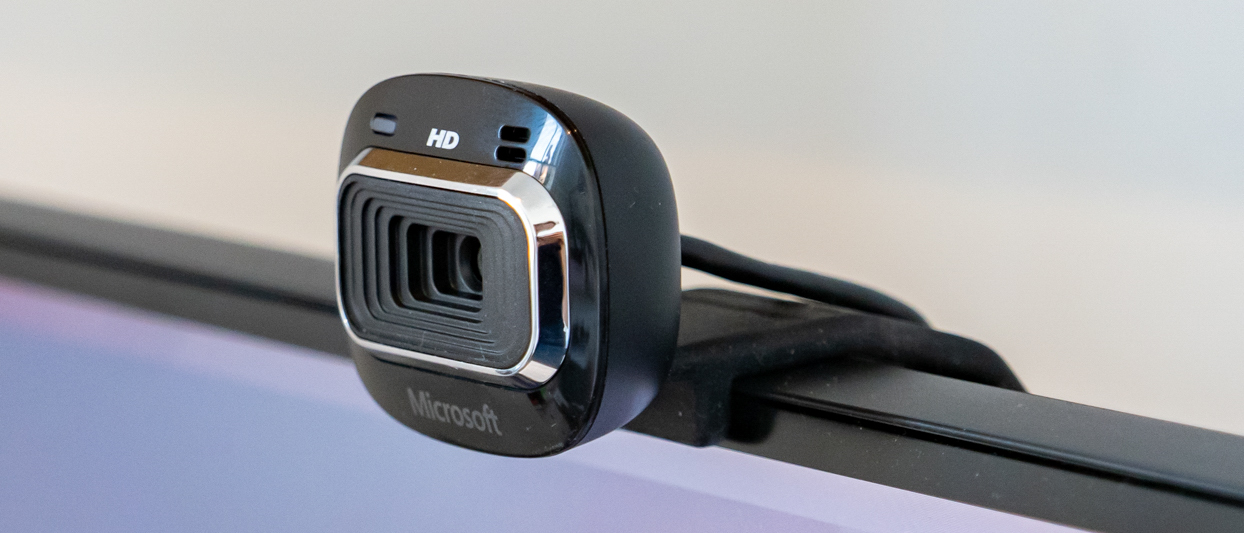
This is the “it’s fine” option.
Better than your laptop’s built-in camera, worse than everything else on this list. I tested it for a month and kept forgetting I wasn’t using my MacBook camera, which tells you everything you need to know.
It works, it’s cheap, and it won’t embarrass you in meetings. But it won’t impress anyone either.
Get this if: You need something immediately and $40 is your absolute budget limit
Skip if: You can afford literally anything else on this list
Get Your Microsoft LifeCam HD-3000 Now!
2. Logitech C615
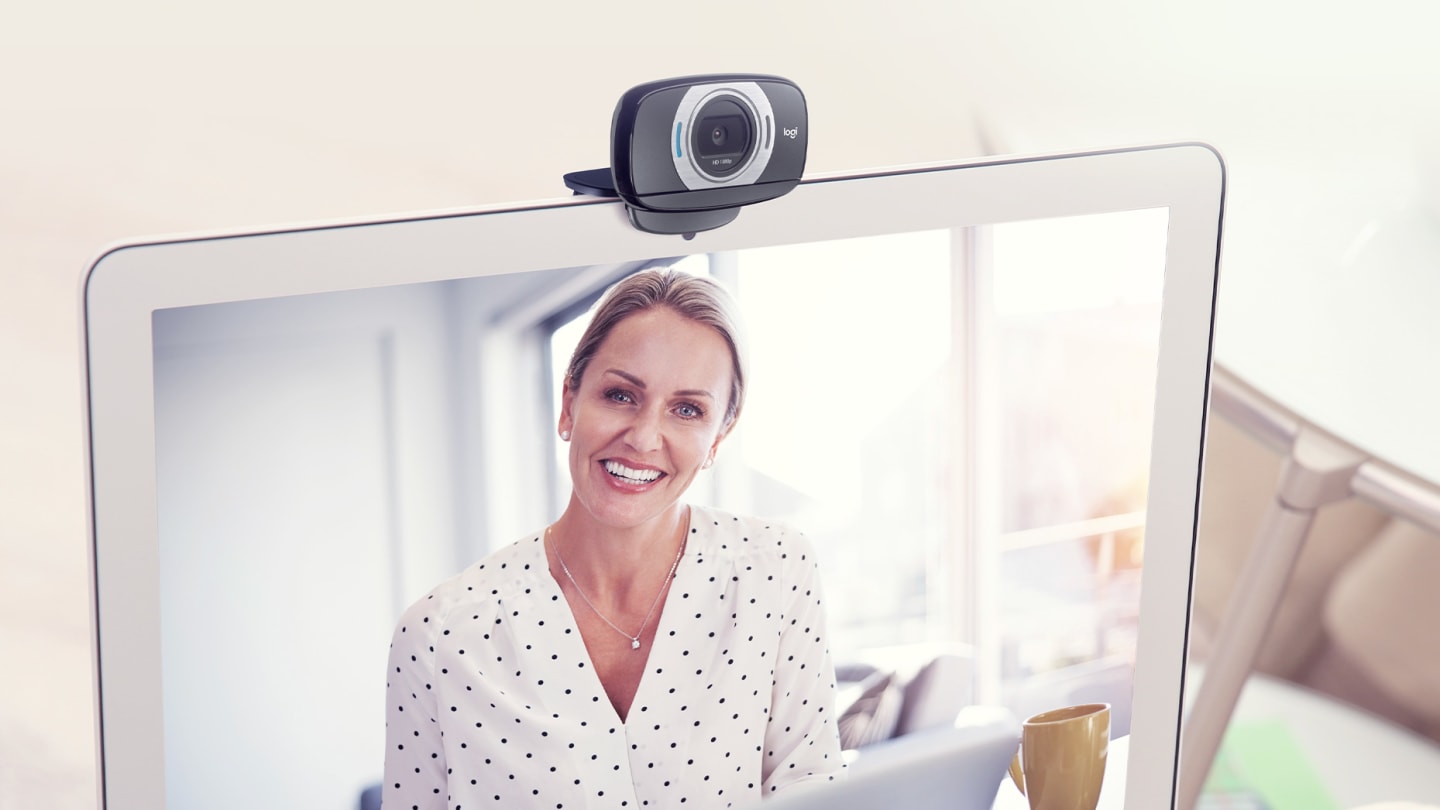
The awkward middle child of Logitech webcams. Better than the cheap stuff, not as good as the C920s, and only $20 cheaper. The image quality is okay, but the autofocus is slower than my motivation on Monday mornings.
I used this for two weeks and kept getting distracted by how long it took to focus when I moved.
By the time it figured out where my face was, I’d already finished talking.
“Don’t Even Think About It” Hall of Shame
Any Webcam Under $30
I tested three different sub-$30 webcams because I’m apparently a masochist. They all made me look like I was broadcasting from inside a fishbowl filled with static.
The colors were so off that my blue shirt looked purple, and the resolution was so low that people kept asking if my camera was broken.
Hard truth: Cheap webcams are expensive when you factor in the professional credibility you lose looking like a pixelated mess.
Those “4K” Webcams That Cost $40
If it seems too good to be true, it is. These “4K” cameras record 4K video with all the quality of a flip phone from 2005. I tested one that claimed 4K for $35, and it made my face look like abstract art.
The “4K” was technically accurate; there were 4K pixels. They just didn’t contain any useful visual information.
Lighting Truth Nobody Tells You
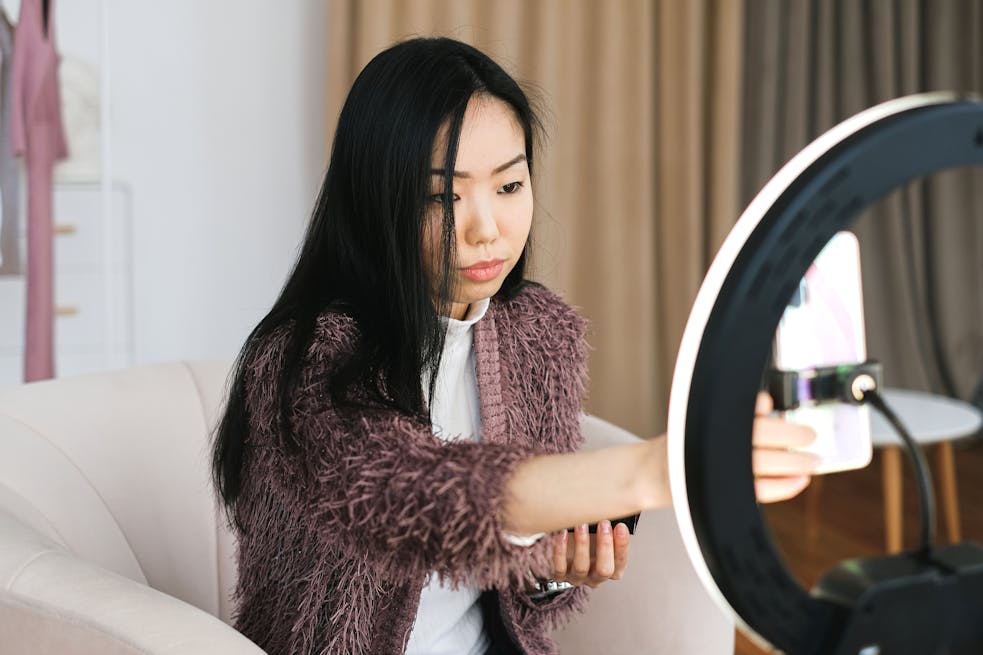
Here’s what nobody mentions in webcam reviews: lighting matters more than the camera.
A $300 webcam with terrible lighting looks worse than a $70 webcam with good lighting.
The hierarchy of video quality:
- Good lighting + decent webcam = professional look
- Terrible lighting + amazing webcam = expensive disappointment
- Built-in laptop camera + good lighting = surprisingly okay
- Built-in laptop camera + terrible lighting = career suicide
My lighting setup (total cost $15):
- Desk lamp pointed at the wall behind my monitor (creates soft bounce light)
- Positioned facing my window (natural light is your friend)
- Small white poster board as a reflector (fancy photography term for “white cardboard”)
💡 Fix your lighting before upgrading your camera – you’ll be amazed at the difference
The Audio Reality Check
Most webcam microphones are terrible, and the ones that are “okay” are still worse than a $20 dedicated USB microphone. Don’t buy a webcam for its audio capabilities unless you enjoy sounding like you’re talking through a soup can.
I use a Blue Yeti Nano for audio and let the webcam handle just video. Your clients will notice the difference immediately.
Setup Tips That Honestly Matter
1. Height Matters More Than You Think
Position your webcam at eye level.
Looking up at people makes you look like you’re asking for permission to exist. Looking down makes you look like you’re judging their life choices.
I stack books under my laptop to get the right height. Very high-tech, I know.
2. The Background Situation
Virtual backgrounds are great until they make your head disappear every time you move. A clean wall or some books behind you looks more professional than a glitchy beach scene.
Pro tip: If you use virtual backgrounds, make sure you have good lighting. Poor lighting + virtual backgrounds = looking like a ghost haunting a stock photo.
3. The Distance Dance
Sit about 2-3 feet from your camera. Too close and you look like you’re about to lick the screen. Too far and you’re a tiny person in a big frame shouting into the void.
🎬 Position your camera like you’re having a conversation, not giving a TED talk or conducting an interrogation.
Software That Makes a Difference
OBS Studio (Free)
If you want to get fancy, OBS lets you use your webcam with custom settings, overlays, and multiple sources. It’s overkill for most people, but fun to play with if you’re into that sort of thing.
Logitech Capture (Free)
Works with Logitech cameras and gives you more control over settings. The vertical video option is great for Instagram content creation.
Zoom’s Built-in Filters
The “touch up my appearance” filter is subtle enough to use professionally.
It won’t make you look 20 years younger, but it’ll smooth out that “I haven’t slept in 3 days” look.
Upgrade Path That Makes Sense
Start here: Logitech C920s + decent lighting setup ($15)
Next level: Add a dedicated microphone like Blue Yeti Nano
Go Pro: Upgrade to Logitech Brio when you need better quality
Full setup: Add proper lighting equipment and start questioning your life choices
Total for “looks professional” setup: About $185
Platform-Specific Quirks
Zoom
Generally plays nice with all webcams. The “touch up” filter works well with higher-quality cameras.
Google Meet
More picky about bandwidth. If your connection is sketchy, stick to 1080p max.
Microsoft Teams
Has the most aggressive auto-adjustment. Higher-quality cameras give it more data to work with.
Skype
Still exists, apparently. Works fine with any webcam made after 2010.
⚙️ Test your setup on your preferred platform before important calls – each one handles cameras differently.
The Money Talk (Because Budgets Are Real)
Budget option ($70): C920s + DIY lighting = Professional enough for any meeting
Balanced approach ($170): C920s + Blue Yeti Nano = Excellent video and audio.
Go big ($300): Brio + Blue Yeti Nano = Content creator quality
The jump from built-in camera to C920s is massive. The jump from C920s to Brio is noticeable but not life-changing. Spend accordingly.
My final take
The best webcam for Zoom calls is the one that makes you forget you’re on camera.
You shouldn’t be thinking about how you look; you should be focused on what you’re saying.
I’ve seen people nail job interviews with $70 webcams and bomb them with $300 setups because they spent more time fiddling with settings than preparing for the conversation.
The unsexy truth: A decent webcam with good lighting beats an amazing webcam with terrible lighting every single time.
🚀 Stop looking like a potato on video calls – your professional reputation is worth $70
After three years of video calls ranging from disaster to success, I can tell you that the right webcam setup is invisible. It just works, looks good, and lets you focus on being brilliant instead of wondering if you look like you’re broadcasting from a cave.
Now go upgrade that potato camera and show the world your actual face instead of whatever abstract art your laptop thinks you look like.
FAQs
Do I really need a separate webcam?
If you do more than one video call per week, yes. The difference in how professional you look is worth the investment. Plus, your chiropractor will thank you for not hunching over your laptop.
What about phone cameras – they’re better quality?
Phone cameras are amazing, but using your phone as a webcam is a pain in the ass. Apps like EpocCam work, but dealing with positioning, charging, and software glitches isn’t worth the marginal quality improvement.
Should I get a 4K webcam?
Only if you have amazing internet and plan to record content. For Zoom calls, 1080p is plenty. Most video calling platforms compress the hell out of 4K anyway.
What about those fancy DSLR camera setups?
Overkill for 99% of people. Yes, they look amazing, but the setup complexity, cost, and learning curve aren’t worth it unless you’re creating professional video content.
Do webcam microphones matter?
They’re all pretty mediocre. Get a decent webcam for video and a separate USB mic for audio. Your ears will thank you.
What’s the most important upgrade?
Lighting, then webcam, then audio. Fix your lighting first – it’s cheap and makes the biggest difference.
What’s your webcam disaster story? Drop a comment and share your “looked like a ghost on an important call” moments. We’ve all been there, and misery loves company at Blog Recode.