I Built a Blog on WordPress.com in 2026: My Honest Experience

I expected a simple blogging platform. Instead, I spent a week clicking every button, breaking a few things, and discovering what WordPress.com actually gets right.
Building a blog on WordPress.com in 2026 is not the same experience it was three years ago. The platform has changed. A lot. And the advice floating around online? Still catching up.
So I did what I always do when I can’t find a straight answer: I just went and built the thing myself.
I spent adequate time setting up a WordPress.com blog from scratch. Logged in, picked a plan, chose a theme, wrestled with the block editor, published posts, and paid attention to every detail that most reviewers gloss over.
This isn’t a comparison of feature lists I pulled from their marketing page. This is what I noticed while actually using it.
Here’s my honest, unfiltered experience.
Disclosure: This post contains affiliate links. If you buy through them, I may earn a commission — at no extra cost to you. I only recommend what I’ve actually used.
Why I Decided to Build a WordPress.com Blog in 2026
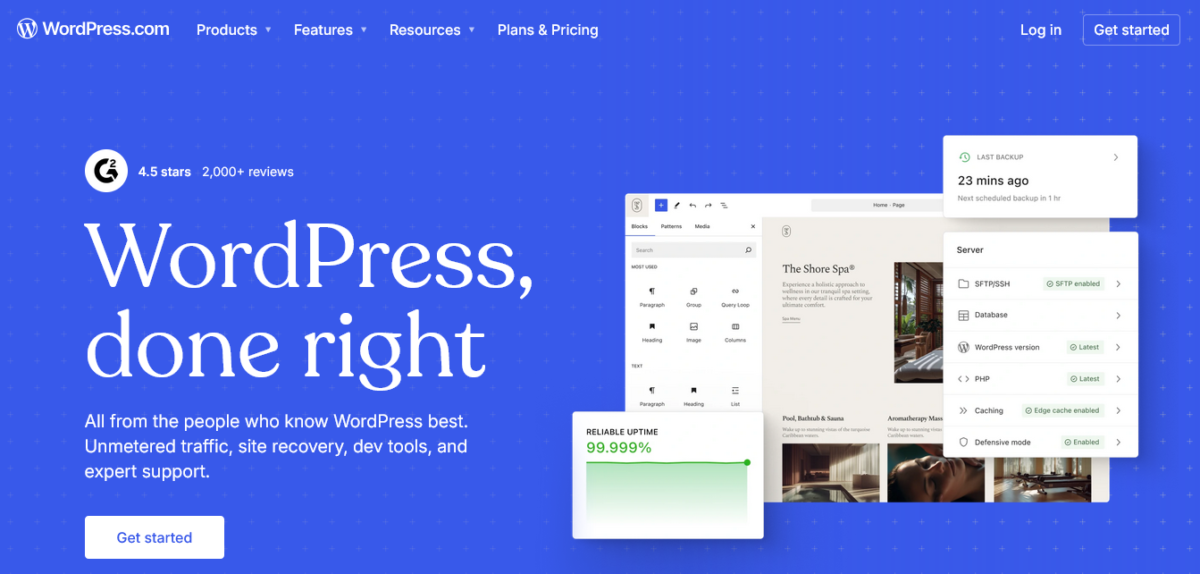
A client of mine — Diane’s colleague, actually, a solo creator in Hong Kong – was asking whether WordPress.com was still worth it in 2026, or if she should just go self-hosted from day one. I gave her my gut answer but realized I hadn’t personally touched WordPress.com in a while.
Things had changed.
Additionally, the rise of AI website builders has made hosted platforms more competitive. WordPress.com now has an AI-assisted setup flow. I wanted to see if it actually helped or just added noise.
So I created a fresh account, picked a blogging niche for the test site, and committed to documenting everything.
Get your blog online in minutes with WordPress.com →
Setting Up the WordPress.com Blog: The First Hour
The signup process is fast.
You put in your email, choose a site name, and WordPress.com walks you through an onboarding flow. They now have a guided website builder that uses an AI chat interface to help you get started.
Honestly?

The AI onboarding flow surprised me. You tell it what your site is about, and it generates a starting layout and suggests a theme. For someone who’s never used WordPress before, this removes much of the initial paralysis. For me, it was a little too hand-holdy, so I skipped ahead.
Choosing a domain was easy. Annual plans come with a free custom domain for the first year, which is a real perk. I picked a .com domain during setup with no extra payment step — it just applied to the plan.
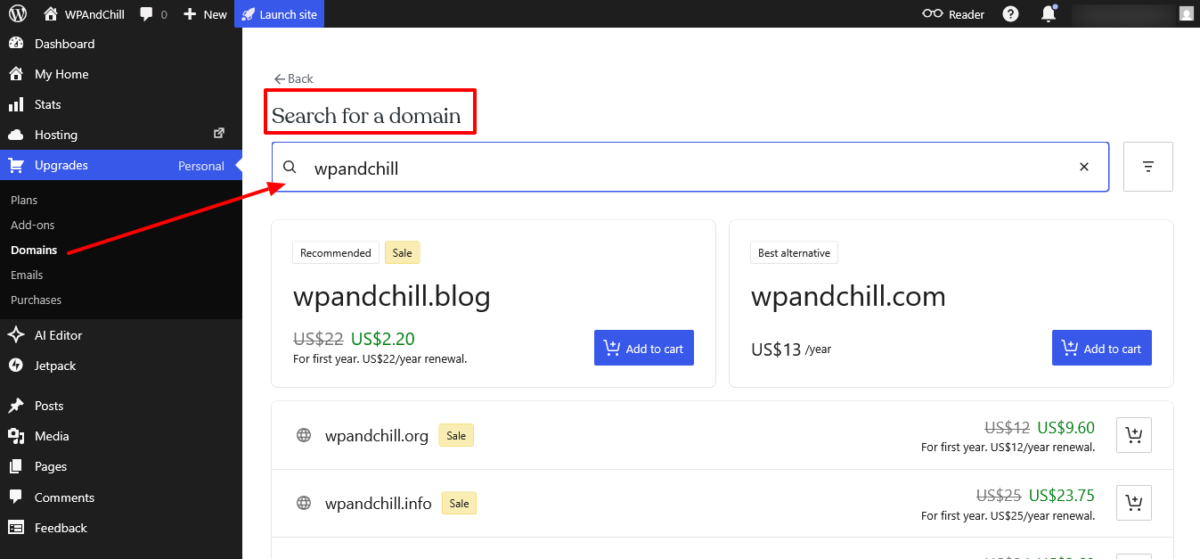
The dashboard is clean.
The left sidebar gives you access to posts, pages, media, and settings. Nothing felt buried. Within about 20 minutes, I had a site with a theme applied, a homepage drafted, and my first post structure roughed out.
That said, here’s something worth noting: the experience feels deliberately simplified. If you’re used to a self-hosted WordPress.org dashboard with WooCommerce, Elementor, and fifteen plugins installed, WordPress.com’s interface might feel a little stripped back at first.
That’s intentional. It’s a trade-off I’ll come back to.
The Block Editor Experience in 2026
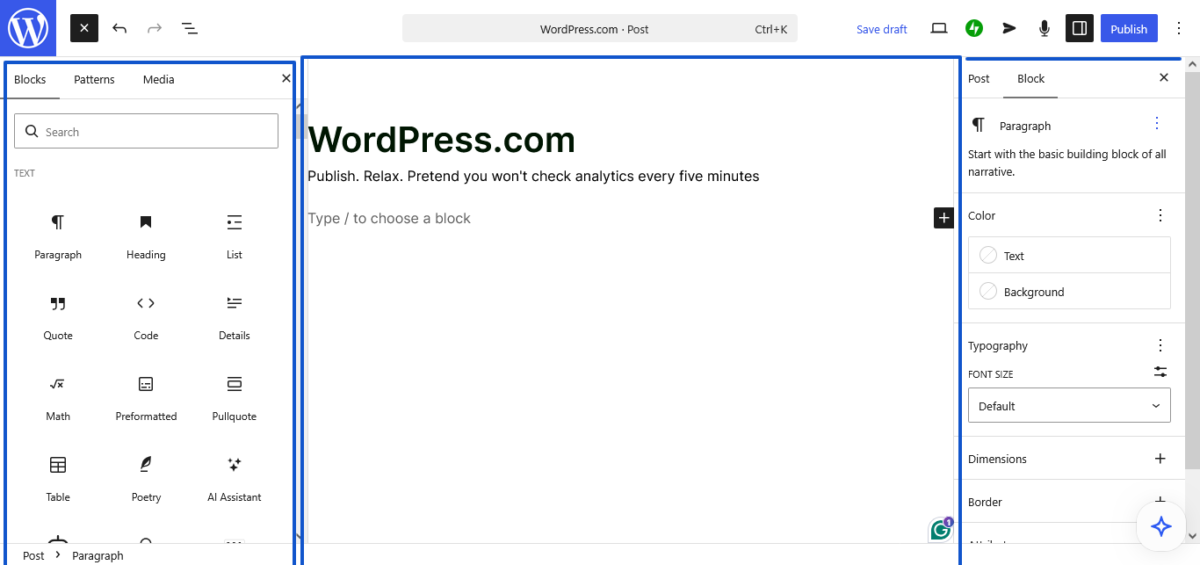
The WordPress block editor (Gutenberg) powers everything on WordPress.com, and in 2026 it’s genuinely good for blogging.
Writing posts felt fluid. Adding images, headings, pull quotes, and columns is all drag-and-drop with blocks. I found the editor responsive and not laggy, even with media-heavy posts.
A few things I noticed that most reviewers don’t mention:
The AI writing assistant is built in.
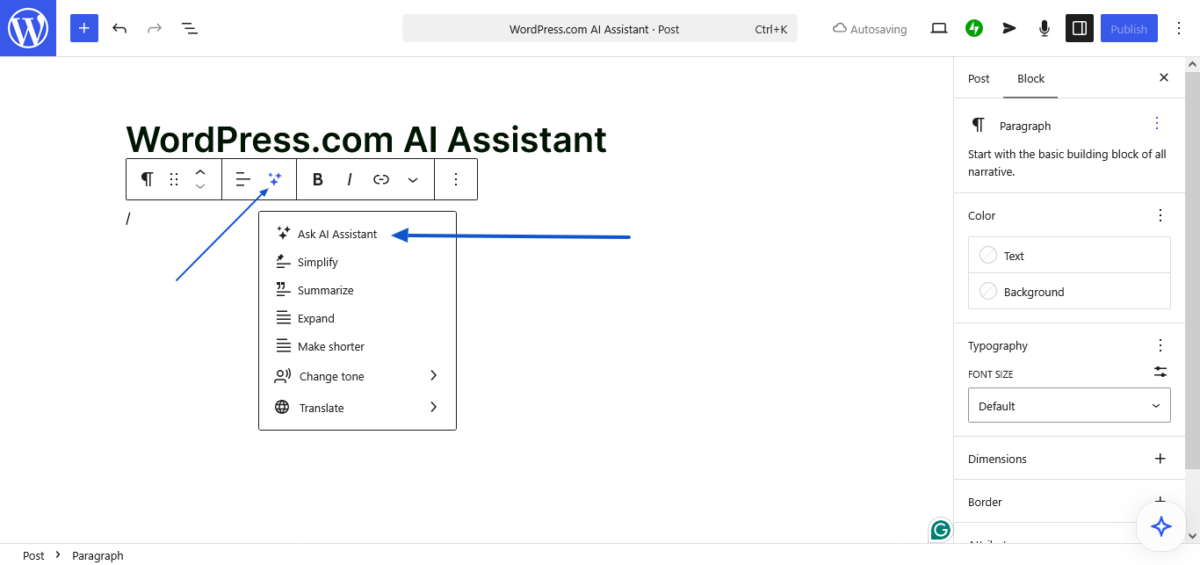
On paid plans, you get an AI assistant inside the editor that can help generate paragraphs, rewrite sections, or summarize content. I tested it a few times. It’s useful for overcoming blank-page syndrome, but it’s not replacing your voice, and it shouldn’t.
The AI has usage limits depending on your plan tier, so it’s not unlimited.
Revision history is available on all plans. This matters more than people realize. I accidentally deleted a whole section of a draft at 12pm on a Saturday, panicked, and then used revision history to get it back in 30 seconds. Bless whoever built that.
The full-site editor (FSE) is accessible. You can edit your site’s header, footer, and global styles directly through the editor. For a hosted platform, this level of design control is genuinely impressive. I adjusted my font stack and color palette without touching a line of CSS.
One gripe: switching between the editor and the site preview felt slightly disjointed. You sometimes have to click through a couple of screens to see exactly how a block looks on mobile. It’s not a dealbreaker, but it adds a few extra steps.
Stop researching. Start publishing →
Themes and Design — What You Get
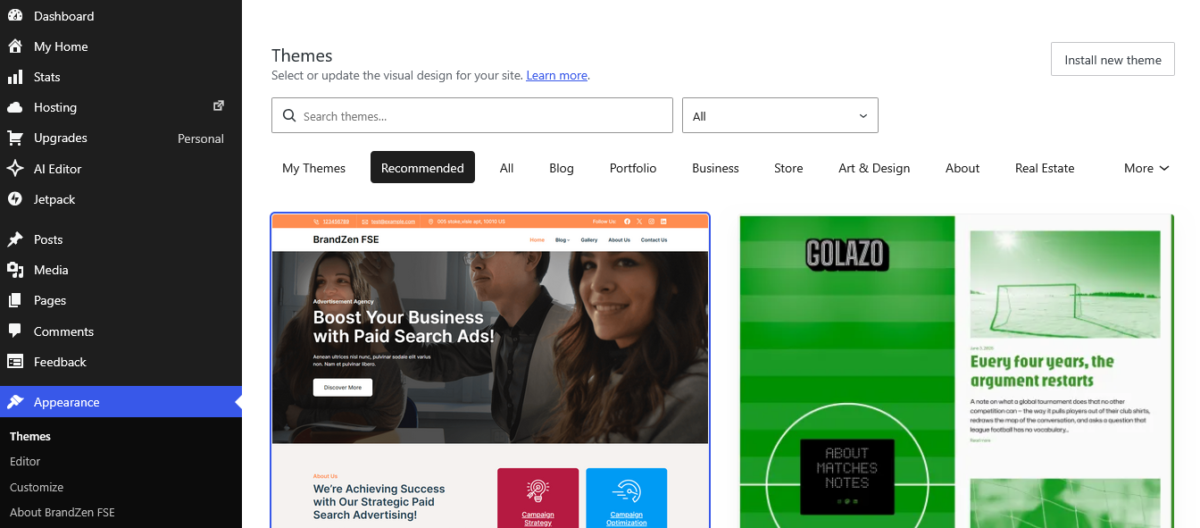
This is where the plan you choose matters a lot.
On the Personal plan, you get access to dozens of premium themes from the WordPress.com marketplace. On Premium and above, you unlock all premium themes.
The difference in selection is real; I counted significantly more options at the Premium tier.
The free themes available across all plans are genuinely well-designed.
Block-based themes like Blockbase, Mayland, and Pendant gave me clean, fast-loading starting points. I used a theme called Mayland for my test blog and customized the homepage layout through the full-site editor without needing to install any additional plugins.
One thing that stood out: the Patterns library.
WordPress.com has a growing library of pre-built section patterns: hero sections, about blocks, testimonial layouts that you drag right into any page. This sped up my design work considerably. I built a full landing page for the blog in under an hour using patterns.
Custom fonts and colors are available on all paid plans through the site editor. No CSS required for basic customization. However, if you want to add custom CSS for more granular tweaks, that’s available on Personal and above.
Turn that blog idea into something your mom can finally visit online →
WordPress.com Pricing: What Each Plan Really Costs
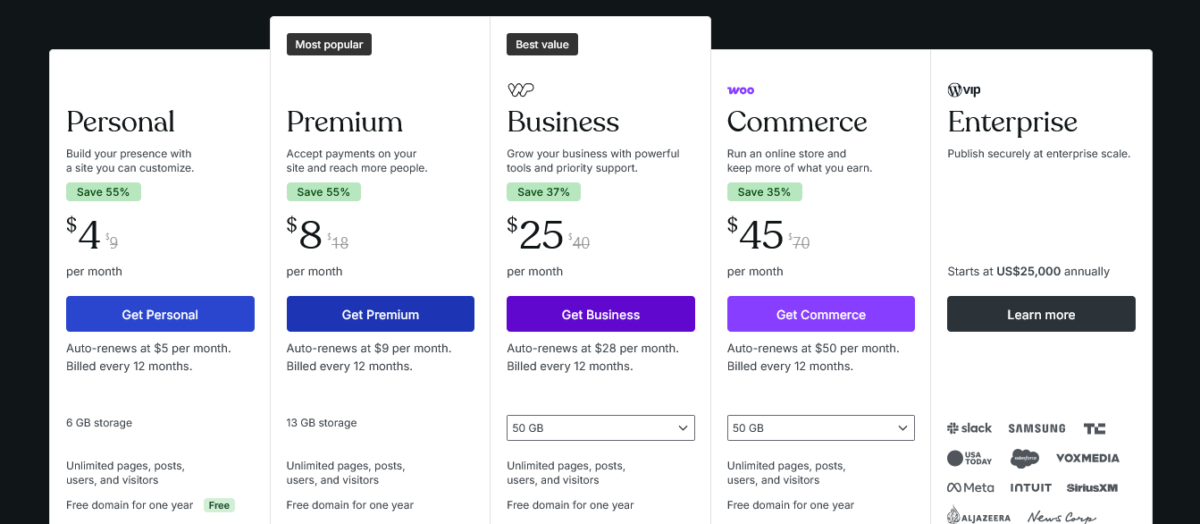
Let me give you the current, accurate pricing — pulled directly from WordPress.com in June 2026.
| Plan | Monthly Billing | Annual Billing |
|---|---|---|
| Personal | $9/mo | $4/mo |
| Premium | $18/mo | $8/mo |
| Business | $40/mo | $25/mo |
| Commerce | $70/mo | $45/mo |
All annual plans include a free custom domain for the first year. The free plan exists but uses a WordPress.com subdomain and shows ads to visitors.
For a new blogger, the Personal plan at $4/month (billed annually) is the entry point that actually makes sense. You get:
- A custom domain (free for year one)
- Plugin installation (yes, all 50,000+ plugins — this is a recent change)
- No ads shown to your visitors
- 6 GB of storage
- Basic premium theme access
- Free support
The Premium plan at $8/month annually adds video uploads, payment buttons, and access to all premium themes, worth it if you plan to monetize or care about design variety.
For serious bloggers running a growing content business, the Business plan at $25/month annually is where things open up. You get SFTP/SSH access, WP-CLI, GitHub Deployments, 50 GB storage, 24/7 priority support, and real-time backups. That’s a solid managed hosting package.
One important note: plugin installation is now available on ALL paid plans, starting from Personal. This used to be a Business-only feature. That change matters a lot for bloggers who want to add SEO plugins, forms, or email opt-ins without jumping to a higher tier.
Create your blog today and let WordPress.com handle the rest →
Where WordPress.com Shines for Bloggers
After spending adequate time actually using it, here’s where WordPress.com genuinely delivers:
Zero Hosting Headaches
WordPress.com handles hosting, SSL, security updates, malware scanning, DDoS protection, and WordPress core updates. Automatically. You don’t configure a server, you don’t manage PHP versions, you don’t get 4am emails about your site going down.
For someone who just wants to write and not manage infrastructure, this is huge. I’ve spent more hours than I’d like to admit debugging server configurations on self-hosted setups. None of that exists here.
Speed That’s Truly Good
The platform runs on a global CDN with caching built in. My test blog loaded fast across different connection types. WordPress.com uses high-frequency CPUs and automated data center failover — meaning your site stays up even if one data center has issues.
For a hosted platform, performance is genuinely strong.
Built-In Newsletter and Subscriber Tools
Every WordPress.com blog comes with a built-in newsletter feature. Readers can subscribe to your content and receive new posts by email, automatically. No plugin needed, no third-party setup. For a blogger just starting to build an audience, this removes one entire layer of technical setup.
Additionally, if you’re on the Business or Commerce plan, you get email marketing built in via MailPoet — up to 500 subscribers from your dashboard.
The SEO Tools Are Decent
WordPress.com has built-in Jetpack-powered SEO tools. You can set custom meta titles and descriptions per post, control indexability, and generate XML sitemaps.
It’s not as granular as RankMath or Yoast on a self-hosted site, but for a new blogger getting started, it covers the basics well.
If you want more advanced SEO control, which, honestly, you probably will as you grow, you can now install plugins like RankMath directly from the Personal plan upward. That’s a game changer compared to how WordPress.com worked even two years ago.
See what you can build with WordPress.com in an afternoon →
The Real Drawbacks
Alright, voici le moment de vérité, here’s the truth part.
Storage Limits on Lower Plans
The Personal plan gives you 6 GB of storage. The Premium plan gives you 13 GB. That sounds like a lot until you start uploading high-resolution images for every post. If you’re a photography blogger or you upload a lot of media, you’ll feel this ceiling sooner than you’d expect.
The Business plan jumps to 50 GB, which is much more comfortable.
The AI Builder Has Usage Limits
The AI assistant inside the editor is limited depending on your plan. On the free plan, you get 20 requests. On paid plans, usage limits apply (though they don’t publish exact numbers publicly). If you start relying on it heavily for content, you may hit a wall.
It’s a nice tool, but don’t make it a core part of your workflow without understanding the limits.
You’re on WordPress.com’s Infrastructure
This is mostly a positive, but it’s worth being honest about. You cannot switch to a different hosting provider while staying on WordPress.com. If you ever want to move your site to a self-hosted server or another managed host, you’ll need to export your content and rebuild.
It’s doable, but it’s not a one-click move. WordPress.org gives you more portability.
The Free Plan Is More of a Teaser
The free plan has a WordPress.com subdomain, shows ads to visitors, gives you only 1 GB storage, and limits your stats to 7 days. It’s fine for testing the interface, but it’s not a real blog setup. Budget for at least the Personal plan if you’re serious.
Email Marketing Has a Subscriber Cap
The built-in MailPoet email marketing on Business and Commerce plans caps at 500 subscribers. After that, you need to upgrade your MailPoet plan separately or integrate a third-party tool like Kit (formerly ConvertKit). Something to plan for as you grow.
Drawbacks not a problem? Then get started with WordPress.com →
WordPress.com vs. WordPress.org: Honest Difference
People ask this constantly, so let me address it clearly.
WordPress.com is a hosted service. Everything is managed for you. You pay a monthly or annual fee, and you get hosting, security, backups, and WordPress software bundled together. You don’t need to choose a hosting provider or manage server settings.
WordPress.org is free software you install on your own hosting. You choose and pay for your own hosting, manage your own updates, and handle your own security. It gives you more control and more flexibility, but it also means more maintenance.
For new bloggers who want to start writing and not manage a server: WordPress.com is the smarter starting point. The learning curve is gentler, the setup is faster, and you can now install plugins starting at the Personal plan; so you’re not locked out of important tools.
For experienced bloggers who need full server access, custom server configurations, or want to host on infrastructure they control: WordPress.org with a managed host is still the power-user choice.
The gap between the two has narrowed a lot. But it hasn’t fully closed.
My Take and Rating
After building a real WordPress.com blog in 2026 and using it thoroughly, here’s where I land:
WordPress.com is a genuinely solid platform for bloggers in 2026.
It’s fast, well-maintained, and the decision to make plugins available on all paid plans was a smart move that removes the biggest historical objection. The block editor is mature and capable. The AI tools are useful without being overbearing.
The pricing is fair, especially at the annual rates. For $4/month, you get a custom domain, plugin access, no ads, and a clean, fast-hosted WordPress site. That’s a reasonable value.
The limitations are real but manageable: storage caps on lower plans, infrastructure lock-in, and the email marketing subscriber ceiling are the main ones to plan for.
If you’re a blogger starting out or a creator who wants a professional content platform without the overhead of managing your own server, WordPress.com earns a strong recommendation.
My Rating: 8/10 ⭐⭐⭐⭐⭐⭐⭐⭐
👉 Try WordPress.com here — plans start at $4/month billed annually.
Partying Shot
Building a WordPress.com blog in 2026 was a better experience than I expected, honestly. The platform has matured. The editor is solid, the performance is strong, and the pricing makes sense at every tier.
If you’ve been sitting on the fence about starting your blog, the barrier to entry really is lower than it’s ever been. You don’t need to configure a server. You don’t need to worry about SSL. You don’t need to update WordPress manually.
WordPress.com takes all of that off your plate so you can focus on what actually matters — writing.
Questions about the setup process or which plan to start on? Drop them in the comments. I read every one.
FAQs
Is WordPress.com good for blogging in 2026?
Yes. WordPress.com is a capable, well-maintained platform for bloggers. The Personal plan ($4/month billed annually) gives you a custom domain, plugin access, no visitor ads, and solid performance.
The block editor has matured significantly and is a good writing environment for bloggers at any level.
What is the cheapest WordPress.com plan for a real blog?
The Personal plan at $4/month (billed annually) is the entry-level paid plan that actually makes sense for a real blog. It removes ads, gives you a free custom domain for the first year, 6 GB of storage, and access to over 50,000 plugins.
The free plan exists but uses a WordPress.com subdomain and shows ads to visitors.
Does WordPress.com include hosting?
Yes. Hosting is bundled into every WordPress.com plan, including the free tier. You don’t purchase hosting separately. All plans include SSL, a global CDN, DDoS protection, malware scanning, and automated WordPress updates.
Can I install plugins on WordPress.com?
Yes.
Plugin installation is available on all paid WordPress.com plans — Personal, Premium, Business, and Commerce. You get access to over 50,000 plugins. This used to be restricted to the Business plan, but WordPress.com has since opened plugin access to all paid tiers.
What is the difference between WordPress.com and WordPress.org?
WordPress.com is a hosted service — your site’s hosting, security, and software are all managed for you. WordPress.org is free software you install on your own hosting server. WordPress.com is easier to start with. WordPress.org gives you more control and portability.
The gap has narrowed in 2026, largely because WordPress.com now allows plugins on all paid plans.
How much does WordPress.com cost per month?
As of June 2026, WordPress.com pricing is: Personal at $9/month (monthly) or $4/month (annually); Premium at $18/month or $8/month annually; Business at $40/month or $25/month annually; Commerce at $70/month or $45/month annually.
Annual billing saves significantly, and all annual plans include a free custom domain for the first year.
Does WordPress.com have an AI website builder?
Yes. WordPress.com has an AI-guided onboarding flow that helps you set up your site by chatting with an AI assistant. It suggests themes and layouts based on what your site is about. There’s also an AI writing assistant built into the block editor on paid plans, with usage limits that vary by tier.
What are the limitations of WordPress.com for bloggers?
The main limitations are storage caps on lower plans (6 GB on Personal, 13 GB on Premium), the subscriber cap on built-in email marketing (500 subscribers on Business and Commerce plans), and the fact that you’re tied to WordPress.com’s infrastructure.
If you want full server control or to migrate your hosting easily, a self-hosted WordPress.org setup gives more flexibility.
Can I use WordPress.com for a professional blog?
Yes, absolutely. Many professional bloggers and content creators run their sites on WordPress.com. The platform supports custom domains, plugin installation, custom CSS, and professional themes.
For content-heavy blogs that don’t require heavy custom development, WordPress.com is a practical and cost-effective choice.
Does WordPress.com include email marketing?
Business and Commerce plans include built-in email marketing via MailPoet, supporting up to 500 subscribers from your WordPress dashboard. For larger lists, you’d need to upgrade your MailPoet subscription separately or integrate a dedicated email marketing tool.
About Me: I’m Mia Elvasia, a professional blogger, SEO content writer, and affiliate marketer running Blog Recode, my no-nonsense corner of the internet where I cut through blogging fluff and share what actually works for creators building with AI. Over the years, I’ve tested more hosting platforms, WordPress tools, and content creation tools than I can reasonably justify, mostly as part of my freelance career, which sometimes feels like one long experiment in clicking buttons and hoping nothing explodes.