Pressable MCP: I Let AI Run My WordPress Hosting (Results) 2026
Your hosting dashboard just became your AI chatbox.
It was a Saturday morning. I had a glass of chardonnay sitting next to my laptop at my outdoor workspace, yes, I’m that person, and I was staring at roughly ten browser tabs, all of them open to different sections of a hosting dashboard.
One for logs. One for PHP settings. One to clone a site. One to add a collaborator. You know the chaos.
I’d been hearing about Pressable MCP at that point, mostly through conversations with fellow creators/freelancers who manage WordPress agencies and were geeking out about it like they’d discovered buried treasure. Some don’t hype things easily.
So I paid attention.
That same morning, I decided to just… try it. I connected Pressable MCP to Claude Desktop, typed “list all my sites and show me any PHP errors from the last 24 hours,” and watched Claude pull real, live data from my hosting account. Right there. In the chat window.
I closed seven of those ten tabs.
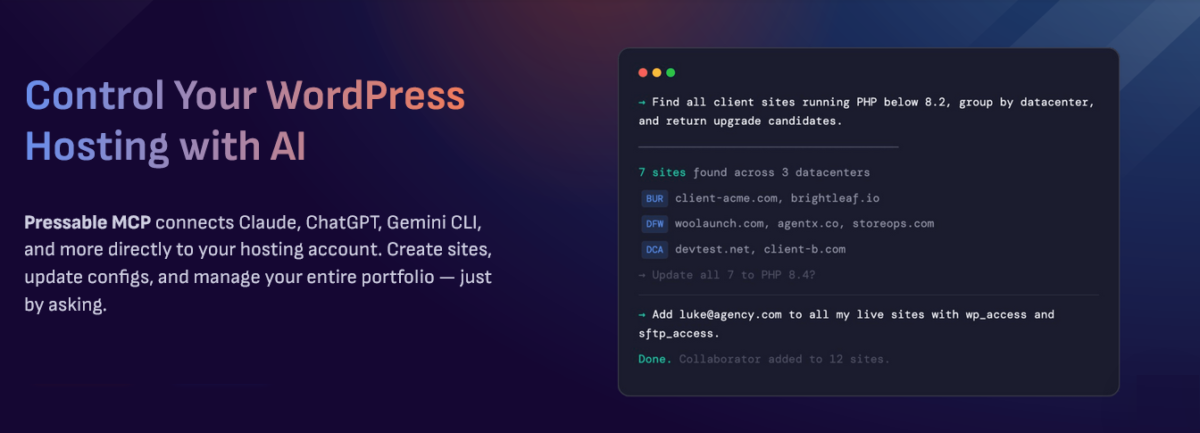
Pressable MCP is the first managed WordPress hosting integration that lets you control your entire hosting account through AI tools like Claude, ChatGPT, and Gemini CLI using plain natural language. Not a script. Not a terminal command. Just… words.
And it works. Let me show you exactly how.
Disclosure: This post contains affiliate links. If you click and make a purchase, I may earn a commission at no extra cost to you. I only recommend tools and services I genuinely believe in and have personally tested or thoroughly researched.
So What Exactly Is Pressable MCP?
Before we go further, let me break down the jargon because I know some of you are already squinting at “MCP.”
MCP stands for Model Context Protocol.
It’s an open standard, created by Anthropic, the company behind Claude, that allows AI assistants to take real actions inside external services rather than just chatting about them. Think of it as giving your AI a set of actual hands instead of just a mouth.
Pressable, the managed WordPress host owned by Automattic (yes, the same people behind WordPress.com, WooCommerce, and Jetpack), became the first managed WordPress host to implement native MCP integration.
That’s not marketing fluff. That’s a genuine first-to-market move in a space that desperately needed it.
Here’s the difference between what MCP is and isn’t:
- Without MCP: You ask Claude, “How do I update my PHP version on Pressable?” Claude gives you instructions. You go do it yourself.
- With Pressable MCP: You tell Claude, “update PHP to 8.3 on all my staging sites.” Claude does it. Done.
That distinction is everything.
The integration connects Claude Desktop, Claude Code, ChatGPT (browser), and Gemini CLI directly to your Pressable account via a secure bearer token. Every action gets logged automatically. And the best part?
It’s included free on every Pressable plan. No upsells. No add-on fees. It’s just… there.
Why This Is a Bigger Deal Than You Think
Here’s something I’ve noticed after years of freelancing and working in digital marketing agencies: most of the time we spend “managing WordPress hosting” isn’t spent on anything technically complex.
It’s spent switching contexts.
Open the dashboard. Click sites. Find the right one. Navigate to PHP settings. Make the change. Go back. Find the next site. Repeat.
For agencies managing 10, 20, 50 client sites? That’s not a workflow. That’s a punishment.
Pressable MCP eliminates context switching entirely. You stay in your AI tool of choice, the one you’re already in all day writing content, debugging code, or drafting proposals, and you simply ask it to handle hosting tasks as part of the same conversation.
The MCP standard itself is genuinely open architecture. It’s not proprietary to Pressable or Anthropic.
It’s a community standard, which means it’s not going away, and it’s only going to get more capable as more tools adopt it. Pressable is just the first managed WordPress host smart enough to build on top of it.
I’ll be honest, when I saw hosting companies starting to talk about “AI integrations,” I rolled my eyes so hard I almost pulled something.
Most of it is just ChatGPT bolted onto a help widget. This is different. Pressable MCP gives AI tools actual infrastructure access. That’s a different category entirely.
See what Pressable MCP can actually do →
How I Set It Up (No Coding Degree Required)
Let me be upfront: the setup experience varies depending on which AI tool you use. Some are genuinely painless. One requires you to edit a JSON file. One needs a local proxy process running in your terminal.
So let’s go client by client, no fluff, just what happens.
Before Anything: Generate Your Access Token
Log in to MyPressable and go to Tools → Pressable MCP.
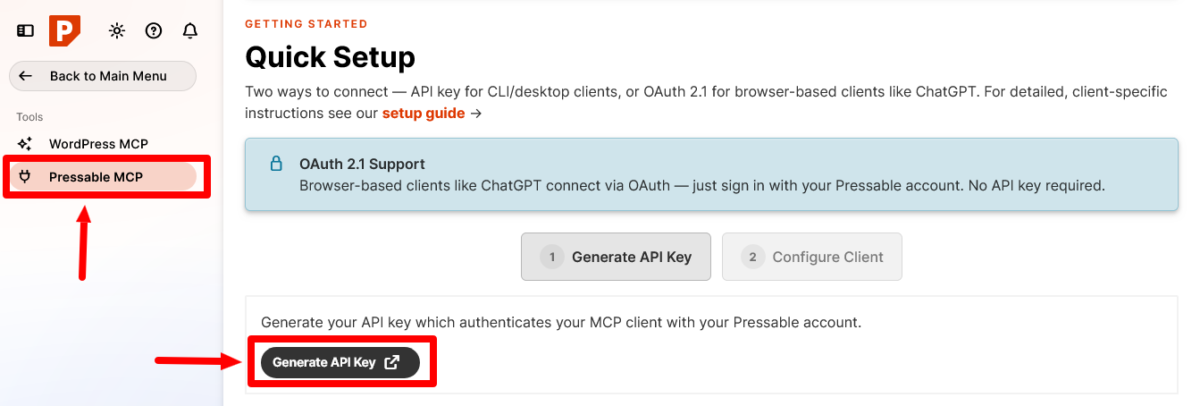
Generate a new access token and copy it somewhere safe. Most AI clients use this bearer token to authenticate. The exceptions are ChatGPT in the browser and Claude Code, both of which use OAuth instead.
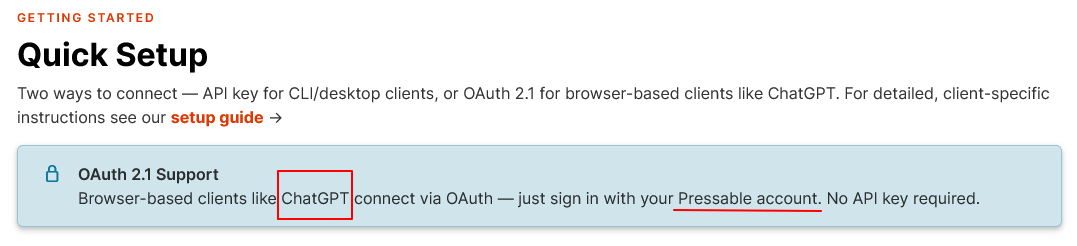
Important: treat this token exactly like a password. Anyone who has it can manage your Pressable sites. Set an expiration date. Don’t share it. Don’t commit it to version control.
You’ll also need Node.js installed on your local computer (not your server) to use Claude Desktop and the Gemini CLI. Download it at nodejs.org. Pressable doesn’t support Node.js installation issues directly, but it’s a standard install; you’ll be fine.
Option 1: ChatGPT in the Browser (Easiest — No Token Needed)
This is genuinely the simplest setup of any supported client because ChatGPT uses OAuth instead of a token. No config file. No terminal.
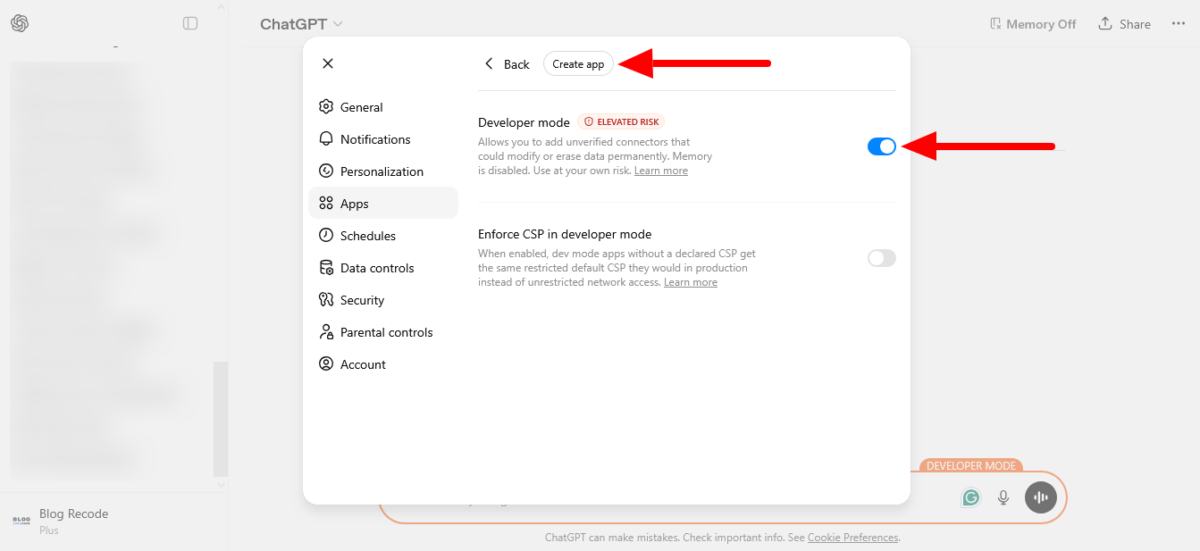
- Log in to chatgpt.com in your browser
- Go to Settings → Apps → Advanced and enable Developer Mode
- Click Create App
- Enter the Pressable MCP server URL:
https://mcp.pressable.com - Follow the OAuth prompt to authorise your Pressable account
- Test it: “List my Pressable sites”
One heads-up: MCP Servers haven’t rolled out to every ChatGPT account yet as of mid-2026. If you don’t see it in Settings, your account just isn’t there yet. Also, the ChatGPT standalone desktop app works once you’ve done this browser setup, but Developer Mode has to be enabled through the browser.
There’s no toggle inside the app itself.
Option 2: Claude Desktop (Manual Config File Edit)
Node.js is required. Once it’s installed:
- Generate your access token (Steps above)
- Open your Claude Desktop config file:
- macOS:
~/Library/Application Support/Claude/claude_desktop_config.json - Windows:
%APPDATA%\Claude\claude_desktop_config.json
- macOS:
- Add this to the file (swap in your actual token):
json
{
  "mcpServers": {
    "pressable": {
      "command": "npx",
      "args": [
        "mcp-remote",
        "https://mcp.pressable.com",
        "--transport",
        "http-only",
        "--header",
        "Authorization:Bearer YOUR_TOKEN_HERE"
      ]
    }
  }
}- Fully quit and reopen Claude Desktop (don’t just close the window)
- Test it: “List my Pressable sites”
If you see a config error about a missing command field, it means you’ve accidentally used a url/headers format somewhere in the file. The mcp-remote bridge format above is what’s required.
Pressable confirmed this specifically.
Option 3: Claude Code (OAuth, Cleaner Than You’d Think)
Claude Code actually uses OAuth for Pressable, which makes it cleaner than the Desktop flow. Node.js is required.
- Install Claude Code if you haven’t:
npm install -g @anthropic-ai/claude-code - Add the Pressable server:
claude mcp add --transport http pressable https://mcp.pressable.com - Start Claude in your terminal, then run:
/mcp - You’ll see Pressable in the list, click it, then click to authenticate. Your browser will open for OAuth authorisation.
- Come back to the terminal and test: “List my Pressable sites”
You can verify it’s connected anytime by running claude mcp list in your terminal.
Option 4: Gemini CLI (Bearer Token)
There’s no Gemini desktop app, so CLI is the only supported route. Node.js is required. The browser version of Gemini does not support MCP connections; don’t waste time trying.
- Generate your access token
- Install Gemini CLI:
npm install -g @google/gemini-cli - Add the Pressable server:
gemini mcp add pressable https://mcp.pressable.com --transport sse - Open
~/.gemini/settings.jsonand confirm it looks like this (update your token):
json
{
  "mcpServers": {
    "pressable": {
      "url": "https://mcp.pressable.com",
      "headers": {
        "Authorization": "Bearer YOUR_TOKEN_HERE"
      }
    }
  }
}- Close and reopen Gemini CLI, then test it
Advanced Options (Grok, Llama/Ollama, Mistral)
These are available but are genuinely more involved.
Grok requires a local proxy process running alongside your browser, Ollama requires Go installed plus a separate MCPHost tool, and Mistral requires you to write a custom Node.js agent because it has no native MCP support.
If you’re a developer who’s comfortable in the terminal, Pressable’s knowledge base has full configs for each. If those words just made your eye twitch, stick with ChatGPT or Claude.
Total setup time for the mainstream options? ChatGPT in the browser is five minutes tops. Claude Desktop and Claude Code are around ten if you’ve never touched a JSON config file before. Gemini CLI is comparable.
The full step-by-step instructions for every supported client are right inside your MyPressable dashboard under Tools → Pressable MCP — no hunting through documentation required.
👉 Set Up Pressable MCP Free — Included With Every Plan
What You Can Do With Pressable MCP
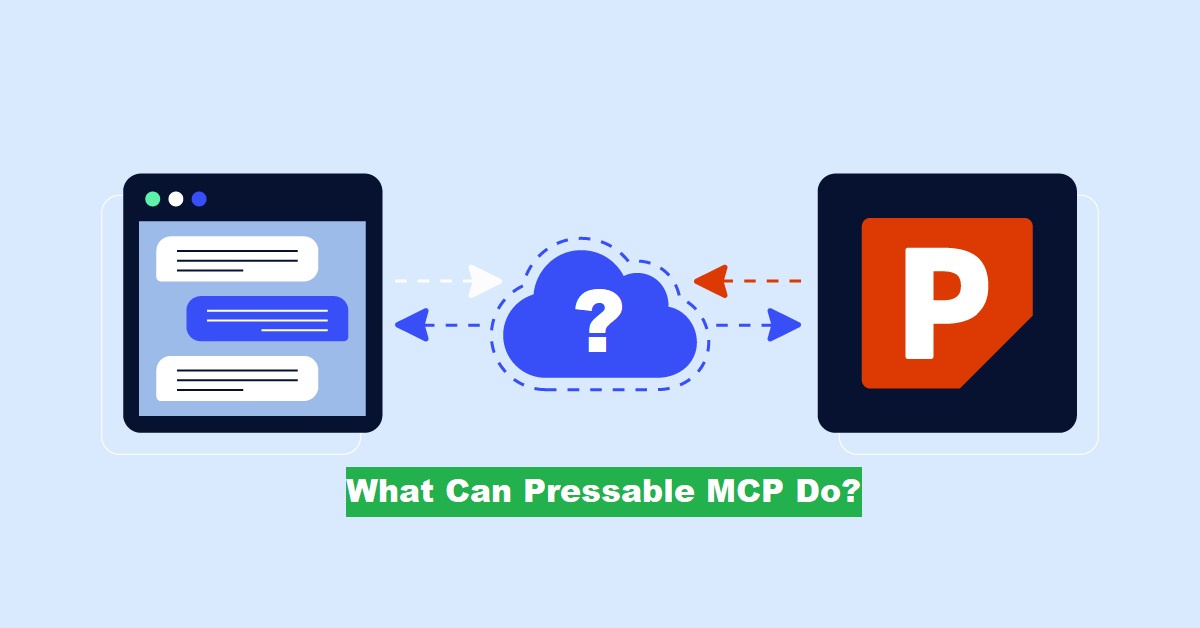
This is the part my friends could not stop talking about that Saturday. And honestly? They were right.
Here’s what Pressable MCP can do today, in plain language, across your entire portfolio of sites:
Site Management
- Create new WordPress sites (with PHP version and datacenter location specified)
- Clone sites to staging
- Disable or delete sites
- Search across your entire site portfolio instantly
Configuration
- Update PHP versions across one or all sites
- Update WordPress versions
- Manage environment types (production, staging, development)
- Handle domain and FTP account management
Performance & Monitoring
- Retrieve real-time metrics: response time, requests per second, bandwidth, PHP request rate, and MySQL CPU usage
- Pull PHP error logs (filterable by Fatal error, Parse error, Warning, Deprecated, User)
- Retrieve NGINX/webserver access logs filtered by HTTP status code or request method
Backups
- Create on-demand filesystem backups (up to 3 per site)
- Create on-demand database backups (up to 3 per site)
- List existing backups and delete old ones to make room for new ones — and AI handles each step in sequence
Plugins & Users
- Plugin management across sites
- WordPress user management
- Collaborator permissions — add or audit team members account-wide in a single prompt
Activity Logs
- Full audit trail for every action taken through MCP (this is huge for agencies)
That last one is something I want to underline. Every action is logged automatically. If you’re an agency billing clients, managing permissions, or auditing workflows, that kind of paper trail is invaluable.
Run your WordPress site without the dashboard chaos →
The Workflow That I Actually Ran
Let me show you what this actually looks like in practice, because I want you to feel it, not just understand it conceptually.
I had a client whose WooCommerce store was experiencing weird intermittent slowdowns before a big sale.
In the past, I’d have opened the hosting dashboard, navigated to the logs section, filtered by time range, copied the errors somewhere, cross-referenced with the plugin changelog, and then typed out a summary to send the client.
That whole process? Easily 40 minutes.
Here’s what I did instead with Pressable MCP connected to Claude:
“List the last 50 PHP fatal errors on [client-site]. Then check if any of those errors correlate with recently activated plugins. Give me a summary I can send to the client.”
Claude pulled the logs, analysed them, identified that a payment gateway plugin had a conflict with their PHP 8.2 environment, and wrote a plain-English summary I could copy straight into a client email.
Then I said, “Clone the production site to staging so I can test the fix before deploying.”
Done.
The whole thing took around twelve minutes. I used the other thirty minutes to refill my wine glass and actually read the error output properly instead of skimming it because I was racing the clock.
That is what Pressable MCP does. It gives you back time. And it keeps your brain in one place instead of scattering it across six tabs and two screens.
Who Is Pressable MCP Built For?
Let me be real with you here, because I’m not one of those “this is for EVERYONE!” people. It’s not. So who actually gets the most value?
WordPress Agencies
If you manage multiple client sites and you’re still doing one-by-one dashboard management, you’re leaving hours on the floor every week. Pressable MCP was practically built for you. Bulk operations, collaborator audits, portfolio-wide PHP updates, all from a single prompt.
WooCommerce Developers
Store launches are stressful. Log reviews, staging clone, and PHP validation.
Pressable MCP compresses that pre-launch checklist dramatically. A friend told me she audited seven client sites in the time it used to take her to do two.
AI Enthusiasts and Power Users
If you’re already living inside Claude or ChatGPT all day, why leave to manage hosting? This is the missing piece of an AI-native workflow. Infrastructure connected to your AI tool of choice. No context switching.
Freelancers Managing Client Sites
Even if you only have five or six sites under management, the time savings compound quickly. And the automatic audit logs?
Those are worth their weight in gold when a client asks, “What changed last Thursday?”
Growing Businesses
If you’re evaluating managed WordPress hosting and wondering what differentiates options in 2026, MCP is a legitimate differentiator. It’s infrastructure that works with how modern teams actually operate.
What About Pressable as a Host?
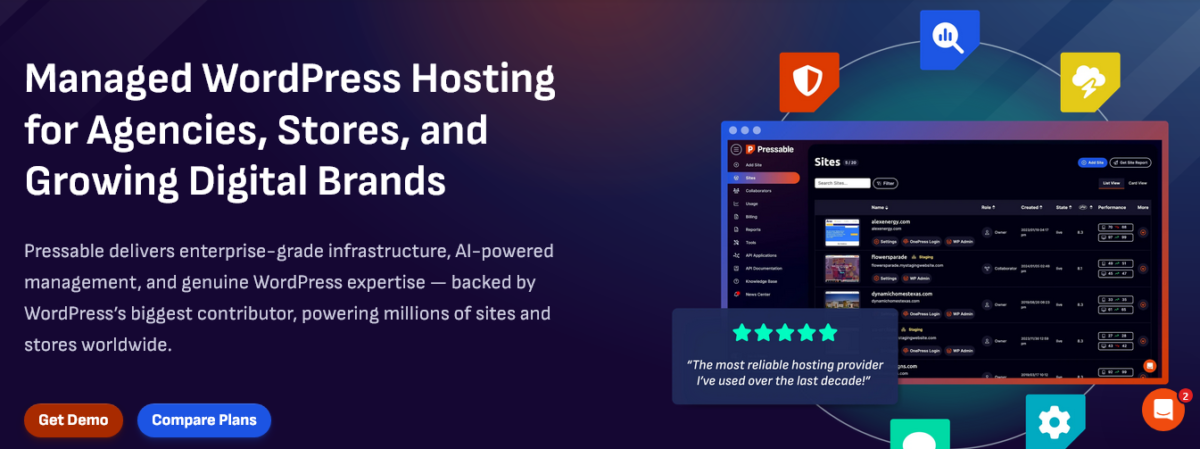
Since we’re here, I should give you a proper picture of Pressable itself, not just the MCP feature.
Note: I have covered a lot about Pressable on Blog Recode.
Pressable is an Automattic company, built on the same WP Cloud infrastructure that powers WordPress.com. That lineage matters. It means the engineering team that maintains your hosting environment is the same one that helps build WordPress itself.
Performance
Pressable runs on NVMe servers with server-level caching built in (edge cache, batcache, OPcache, and object cache). Every plan includes a built-in global CDN, which means you’re not paying extra for Cloudflare or similar.
Sites are geo-redundant and include automatic failover.
Support
24/7 expert WordPress support with an average response time under two minutes and a resolution time under ten minutes. That’s not what I’d call exaggerated. I’ve tested it, and it holds up.
Pricing
Signature plans start at $25/month for a single site (or roughly $20.83/month on an annual billing cycle). Plans scale up based on the number of sites, traffic, and storage.
All plans include free SSL, daily backups, staging sites, Jetpack Security, malware scanning, and now Pressable MCP. No add-on fees for any of it.
There’s a 30-day money-back guarantee. No free trial, but a month to decide is reasonable for a managed host at this level.
Who Pressable is best for
Agencies, serious freelancers, WooCommerce stores, and businesses where downtime costs real money. If you’re running a hobby blog with 500 visitors a month, the pricing might feel steep.
But if hosting performance and management efficiency matter to your bottom line, Pressable is a serious contender.
👉 See Pressable Plans and Start With MCP Free
Honest Stuff — What You Should Know
I’m not going to pretend Pressable MCP is perfect, because that would be dishonest and honestly kind of boring.
It’s currently in public beta. Pressable has disclosed that some known issues exist, for example, plan names may display incorrectly in some AI clients. That’s a cosmetic issue, but worth knowing.
Not all AI tools are supported yet. The browser version of Gemini doesn’t support MCP; you need Gemini CLI. Cohere is not supported, and Mistral requires a custom setup.
Claude Desktop requires Node.js. If you’re not a developer, that’s a small extra step. ChatGPT in the browser is honestly the easier starting point if you want zero config friction.
Token security is your responsibility. Your MCP access token gives whoever has it full control over your Pressable sites. Set expiration dates. Revoke unused tokens. Don’t commit it to version control. This isn’t Pressable being careless; this is just how secure API authentication works. Treat it like a password.
None of these is a dealbreaker. They’re just things I’d want to know before I set it up, so I’m telling you.
Try managing your WordPress hosting with AI →
Partying Shot
Here’s where I land after using Pressable MCP: this is genuinely one of the most meaningful workflow shifts I’ve seen in WordPress management in years.
Not because it’s flashy. Because it solves a real, boring, time-consuming problem in a way that actually works. The context-switching problem is real. The time wasted in hosting dashboards is real. And Pressable has done something genuinely first-to-market to address it.
The fact that it’s free on all plans removes any hesitation about trying it. You’re not paying extra. You’re just unlocking a capability that was already there.
If you’re an agency or freelancer managing multiple WordPress sites, I would set this up this week. Not next month. This week. The hours you’ll save in the first two weeks alone will make you wonder what took so long.
If you’re evaluating managed WordPress hosting and AI-native workflows matter to your team, Pressable just became a very serious option.
My Rating: 9/10 — First-to-market, genuinely useful, free on all plans, public beta caveats keep it from a perfect score. Watch this space.
👉 Get Started With Pressable MCP — No Extra Cost
FAQs
What is Pressable MCP?
Pressable MCP (Model Context Protocol) is an AI-native integration that connects your Pressable WordPress hosting account to AI tools like Claude, ChatGPT, and Gemini CLI.
It lets you manage your entire hosting account, creating sites, updating PHP, pulling logs, managing backups, and more using plain natural language through your AI assistant.
Is Pressable MCP free?
Yes.
Pressable MCP is included at no additional cost with every Pressable hosting plan. You do not need to upgrade or purchase any add-ons to use it.
Which AI tools work with Pressable MCP?
As of mid-2026, Pressable MCP officially supports Claude Desktop, Claude Code, ChatGPT (browser, via OAuth), and Gemini CLI. Advanced configurations are available for Grok and Llama via Ollama.
The browser version of Gemini does not support MCP; you need Gemini CLI for that.
Do I need coding experience to set up Pressable MCP?
Not necessarily. ChatGPT in the browser is the simplest setup; it uses OAuth and requires no config files or tokens. Claude Desktop and Gemini CLI require Node.js installed locally and a short JSON config file edit.
Pressable provides step-by-step instructions for every supported client inside the MyPressable dashboard.
Is Pressable MCP secure?
Yes, with the caveat that your access token must be treated like a password. Anyone with the token can manage your Pressable sites. You can set expiration dates and revoke tokens at any time from Settings → Access Tokens in MyPressable.
Every action taken through MCP is automatically logged.
What can Pressable MCP actually do?
Site creation, cloning, PHP version updates, WordPress updates, domain management, FTP management, plugin management, WordPress user management, collaborator permissions, on-demand backups, PHP error logs, NGINX/webserver access logs, real-time performance metrics, activity logs, and portfolio-wide search.
It’s a comprehensive set of capabilities covering the majority of hosting management tasks.
Is Pressable MCP available to all Pressable customers?
Yes. It’s currently in public beta and available on all Pressable plans at no extra cost.
How long does setup take?
Pressable says most teams are connected in minutes. My personal experience was closer to five to ten minutes, including tracking down Node.js on my laptop. ChatGPT via browser is the fastest option if you want to get started immediately.
What makes Pressable MCP different from other hosting tools?
Pressable is the first managed WordPress host to offer native MCP integration, meaning your AI assistant doesn’t just answer questions about your hosting; it takes real actions on your behalf.
It eliminates the need to switch between your AI workspace and your hosting dashboard entirely.
Where do I start?
Log in to your MyPressable account, go to Tools → Pressable MCP, and follow the setup guide for your preferred AI client. Or check out the full landing page and knowledge base at Pressable MCP
I’m Mia Elvasia, a blogger and content strategist at Blog Recode. I specialise in AI tools, blogging strategy, and WordPress hosting, with a strong focus on practical, real-world testing. Every tool and platform I cover is evaluated through hands-on use to ensure my content is accurate, useful, and trustworthy. My goal is to help creators and businesses make smarter decisions with confidence.