WordPress.com Hidden Features To Level Up Your Blog in 2026
Unlock WordPress.com’s power features that transform blogging from basic to brilliant.
Disclosure: This article is sponsored by WordPress.com, but every feature mentioned here is real, tested, and available right now.
So, Here’s The Deal
WordPress.com’s hidden features go way beyond basic posting and page creation.
Most bloggers stick to the obvious stuff: writing posts, picking themes, maybe adding a plugin or two. Meanwhile, there’s an entire arsenal of productivity tools, AI capabilities, and collaboration features buried in the interface that can cut your workflow time in half.
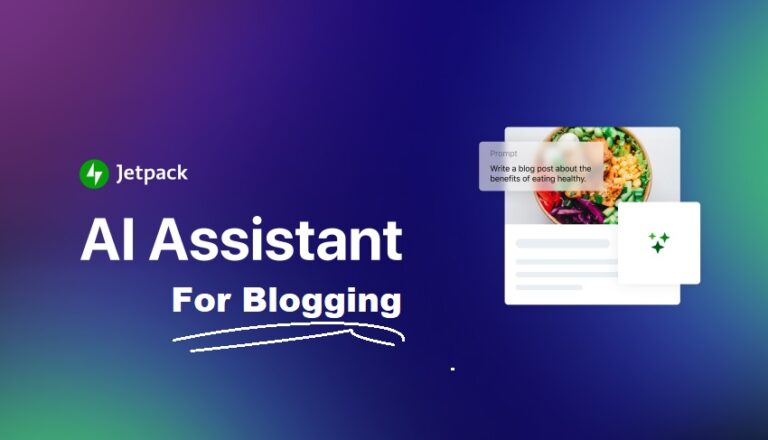
The WordPress AI Assistant (launched February 17, 2026) works inside your editor and media library at no extra cost on Business plans.
Block Notes let you collaborate with teammates directly in the editor.
Slash commands speed up content creation.
Viewport visibility controls show/hide blocks based on user conditions. One-click site restore happens without accessing your dashboard.
Below, I’ll walk you through the WordPress.com hidden features that are crucial in 2026; the ones that save time, improve content quality, and make managing your blog feel less like work.
Launch Your Blog on WordPress.com
Why Most People Miss These Features (And Why That’s Costing You Time)

I have listened to numerous complaints about tools, services, and more from fellow bloggers, but one was unique. This beginner started venting about spending 45 minutes trying to resize an image for his blog post.
“Did you try the AI image editor in your Media Library?” I asked.
Blank stare.
Turns out he’d been paying for Canva Pro ($120/year) to edit images when WordPress.com’s built-in AI image generation and editing was sitting right there in her Media Library. Included. Free on his Business plan.
That’s the problem with WordPress.com hidden features; they’re not actually hidden, they’re just buried under layers of interface where nobody thinks to look.
So what features are these? Let’s find out.
Switch to WordPress.com to Find Out
WordPress AI Assistant: The Feature Everyone Should Know About
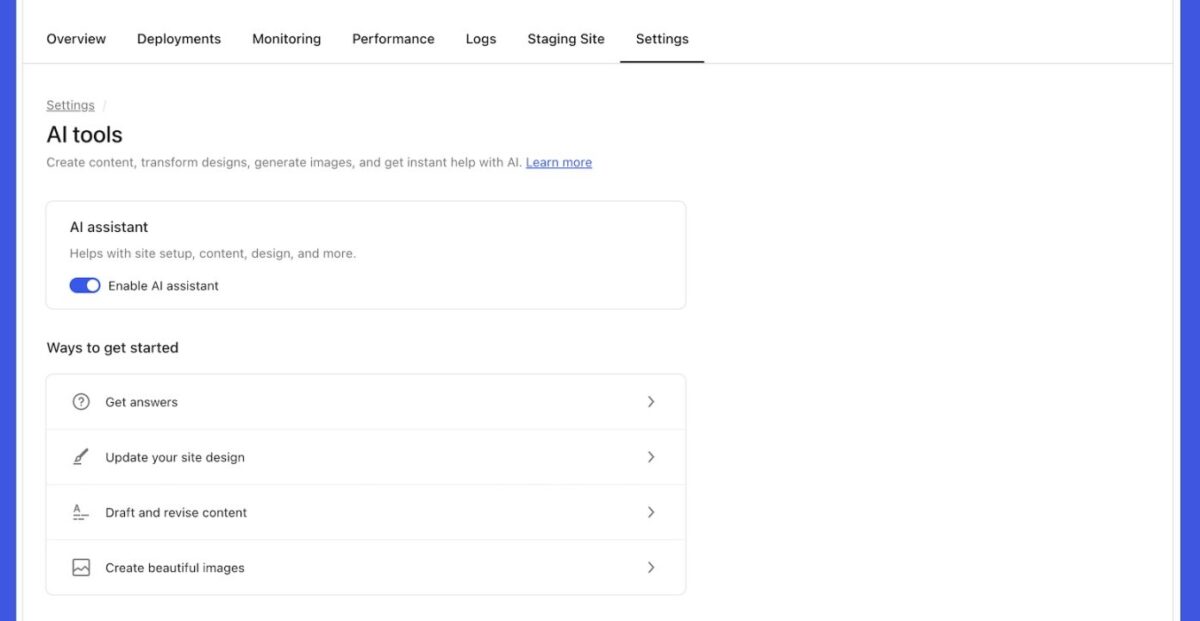
On February 17, 2026, WordPress.com launched the WordPress AI Assistant built directly into Business and Commerce plans at zero extra cost.
This isn’t some clunky chatbot bolted onto the side of your dashboard. It’s integrated into your editor, your Media Library, and your Block Notes collaboration system.
What the AI Assistant Does
Site-wide design changes: Tell it “make this section feel more modern and spacious” or “change my site colors to be brighter and bolder” and watch your layout adjust in real-time.
Content editing and refinement: Ask it to “rewrite this bio to sound more confident” or “translate this section into Spanish” without leaving your editor.
AI image generation and editing: Create images from text prompts directly in your Media Library using Nano Banana models. Update existing images with commands like “make this black and white” or “replace these pancakes with waffles.”
Block Notes AI integration: Tag @ai in your team collaboration notes to get contextual feedback, fact-checking, or headline suggestions.
How to Enable the WordPress AI Assistant
Navigate to your WordPress.com dashboard, go to Settings → AI Tools, and toggle the AI Assistant on.
If you built your site using WordPress.com’s AI website builder, it’s enabled automatically.
Important limitation: The AI Assistant works best with block themes. If you’re using a classic theme, it won’t appear in the editor (though image generation still works in Media Library).
My Testing Results
I spent two weeks using the AI Assistant on a client blog. Here’s what worked and what didn’t:
What impressed me:
- Generated three different homepage layouts in under 10 minutes
- Translated blog posts into French and Portuguese accurately
- Created featured images that actually looked professional (not obviously AI-generated garbage)
- Edited existing photos without needing Photoshop
What fell short:
- Couldn’t handle complex structural changes (like rebuilding entire page templates)
- Sometimes misunderstood vague design requests
- Image generation occasionally produced weird artifacts (extra fingers, distorted faces—classic AI problems)
Bottom line: For 80% of design tweaks, content refinement, and image work, this thing is a massive time-saver. For complex custom builds, you still need a developer.
My Rating: 8.5/10 (Genuinely useful, occasionally glitchy)
Block Notes: True Collaboration Inside WordPress
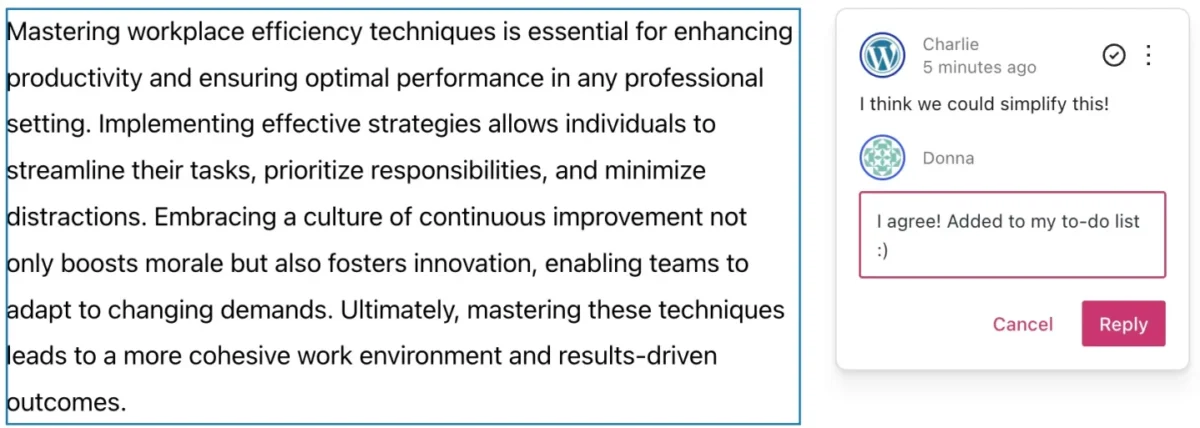
WordPress 6.9 introduced Block Notes in December 2025, and it’s changed how editorial teams work.
What Block Notes Are
Comments attached directly to blocks inside the editor. Your designer can leave a note saying “this heading needs to be bigger.” Your editor can flag content that’s not ready. Your client can request changes without starting an email thread.
Everything stays in context. No more “the third paragraph” confusion.
The @ai Integration Nobody Talks About
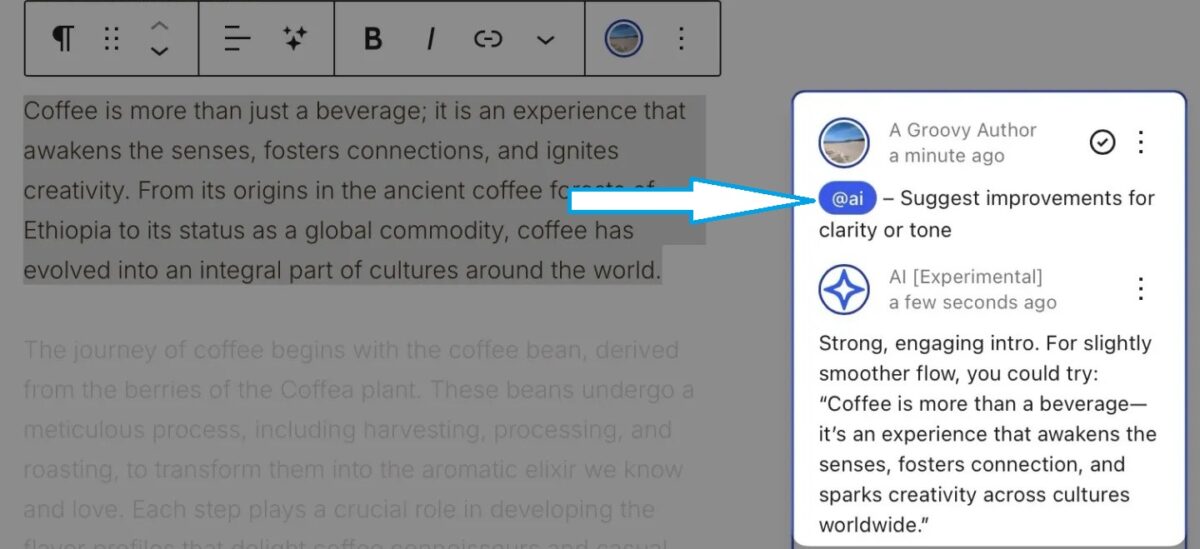
Here’s where it gets wild: you can tag @ai in Block Notes to pull the AI Assistant into your collaboration workflow.
Example use cases:
- “@ai, check if these statistics are still accurate.”
- “@ai suggest three alternative headlines for this section.”
- “@ai does this tone match our brand voice?“
The AI responds directly in the note thread with context-aware answers.
Why This Matters for Teams
I helped a client’s marketing team switch from Google Docs + WordPress to using Block Notes exclusively. Feedback rounds dropped from 3-4 days to same-day turnarounds because nobody had to context-switch between platforms.
Approval workflows got faster. Miscommunication dropped. Everyone stopped hating the review process.
Slash Commands: Keyboard Shortcut You’re Ignoring
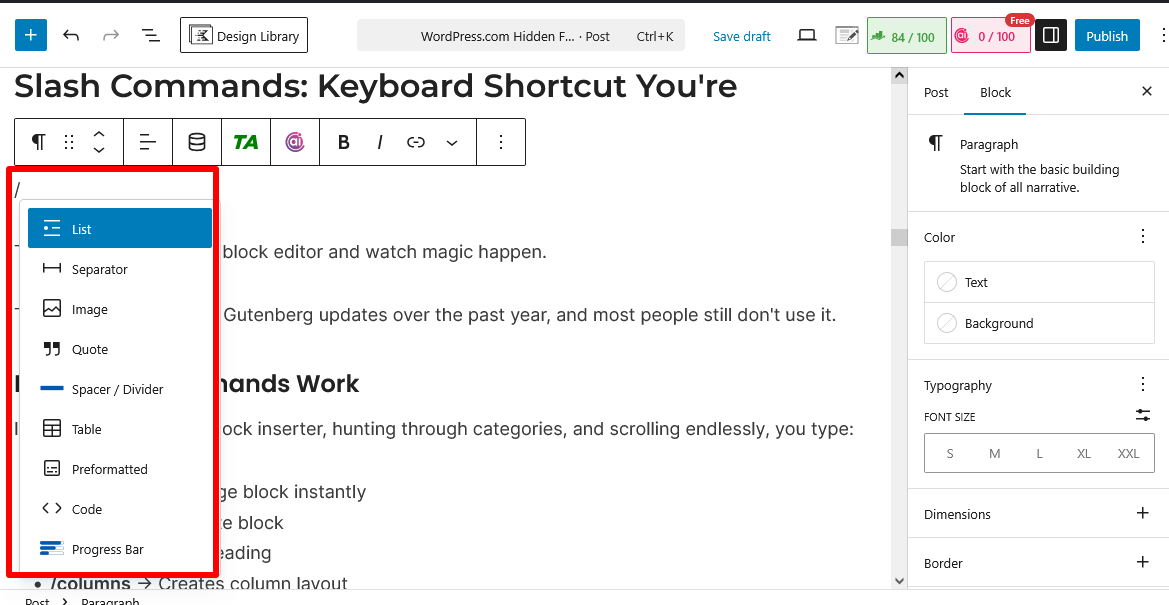
Type / in the WordPress block editor and watch magic happen.
This feature launched in Gutenberg updates over the past year, and most people still don’t use it.
How Slash Commands Work
Instead of clicking the block inserter, hunting through categories, and scrolling endlessly, you type:
- /image → Adds image block instantly
- /quote → Adds quote block
- /heading → Adds heading
- /columns → Creates column layout
- /table → Inserts table
Works with any block type. Saves ridiculous amounts of time once you build muscle memory.
My Workflow Change
Before slash commands, I’d add maybe 4-5 different block types in a typical blog post. Now I average 8-10 because it’s so frictionless.
More varied content structure = better reader engagement = longer time on page = better SEO signals.
Use Slash Commands on WordPress
Viewport Visibility Controls: Show/Hide Blocks Without Deleting Them
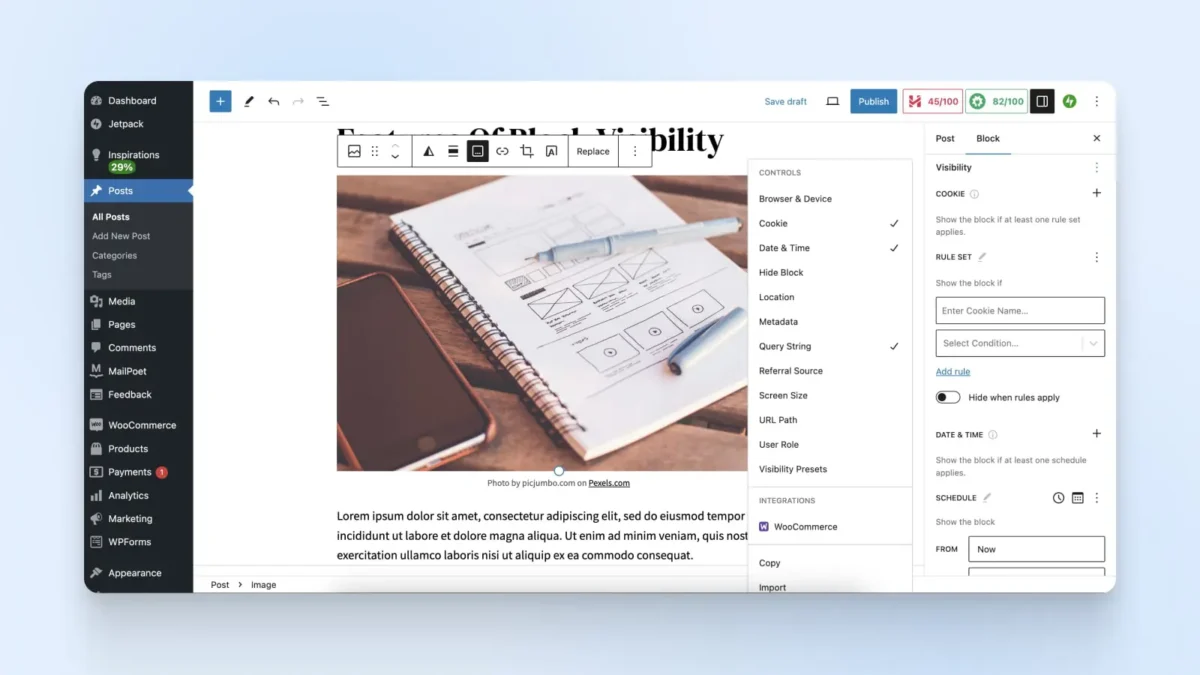
This feature rolled out in WordPress 6.9, and it’s criminally underused.
What Viewport Visibility Does
Hide or show specific blocks based on conditions like:
- User role (show premium content only to subscribers)
- Time-based visibility (seasonal promotions, holiday banners)
- Device type (desktop vs mobile)
You maintain the block in your template but toggle visibility without recreating it every time.
My latest Application
I run limited-time promotions on Blog Recode. Instead of manually adding and removing banner blocks every few weeks, I create them once with visibility conditions set.
- Black Friday banner appears November 20-30.
- Christmas promotion December 10-25.
- New Year messaging December 27-January 5.
Set it once, forget it, blocks appear and disappear automatically.
Time saved: Probably 2-3 hours per month, not manually updating promotional content.
Screen Options: The Tab Everyone Ignores
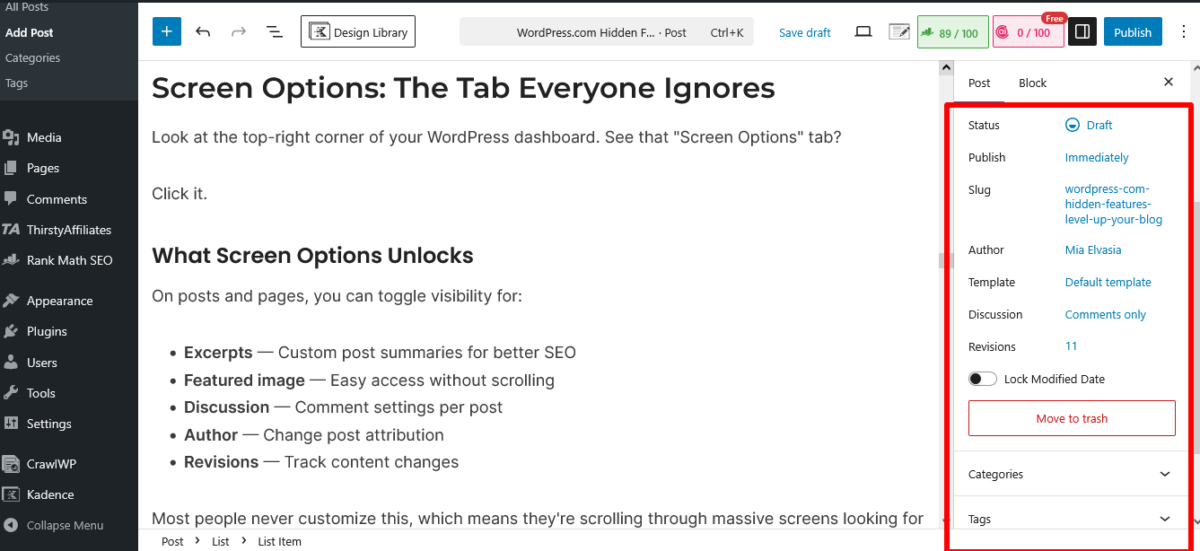
Look at the top-right corner of your WordPress dashboard. See that “Screen Options” tab?
Click it.
What Screen Options Unlocks
On posts and pages, you can toggle visibility for:
- Excerpts — Custom post summaries for better SEO
- Featured image — Easy access without scrolling
- Discussion — Comment settings per post
- Author — Change post attribution
- Revisions — Track content changes
Most people never customize this, which means they’re scrolling through massive screens looking for features that could be right there at the top.
My Custom Setup
I have excerpts, featured image, categories, and tags visible by default. Everything else is hidden. My post editor is clean, focused, and fast.
Takes 30 seconds to configure. Saves minutes every single post.
Spotlight Mode + Docked Toolbar: Focus Tools That Work
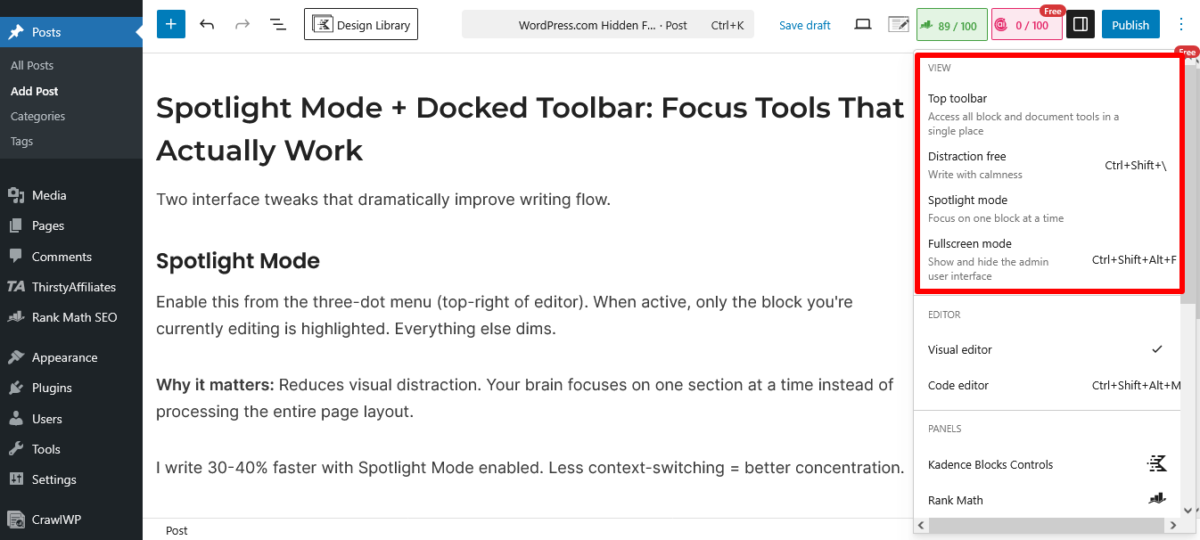
Two interface tweaks that dramatically improve writing flow.
Spotlight Mode
Enable this from the three-dot menu (top-right of editor). When active, only the block you’re currently editing is highlighted. Everything else dims.
Why it matters: Reduces visual distraction. Your brain focuses on one section at a time instead of processing the entire page layout.
I write 30-40% faster with Spotlight Mode enabled. Less context-switching = better concentration.
Docked Toolbar
By default, the WordPress block toolbar floats over content. Annoying as hell when you’re editing intensively.
Enable “Top Toolbar” from the same three-dot menu to dock it at the top permanently.
Fixed position = you always know where editing controls are = faster workflow.
Custom Excerpts + Read More Tags: SEO Features Hiding in Plain Sight
These have been in WordPress forever, but most bloggers don’t use them correctly.
Custom Excerpts
WordPress auto-generates post excerpts (the preview text on archive pages and RSS feeds). They’re usually terrible, just the first 55 words of your post, whether they make sense or not.
Use the Excerpt field in Screen Options to write custom summaries optimized for SEO and click-through rates.
Before (auto-excerpt): “I have listened to numerous complaints about tools, services, and more from fellow bloggers, but one was unique……..”
After (custom excerpt): “Discover 7 WordPress.com hidden features that cut blog management time in half and boost SEO rankings.”
Which one would you click?
Read More Tags
Place the <!--more--> tag in your post content to manually control preview cutoff points on archive pages.
Why bother? You control exactly what readers see before clicking through. End your preview on a cliffhanger or a compelling question instead of mid-sentence.
SEO impact: Better click-through rates from archives and category pages = more pageviews = stronger engagement metrics.
One-Click Site Restore (Without Dashboard Access)
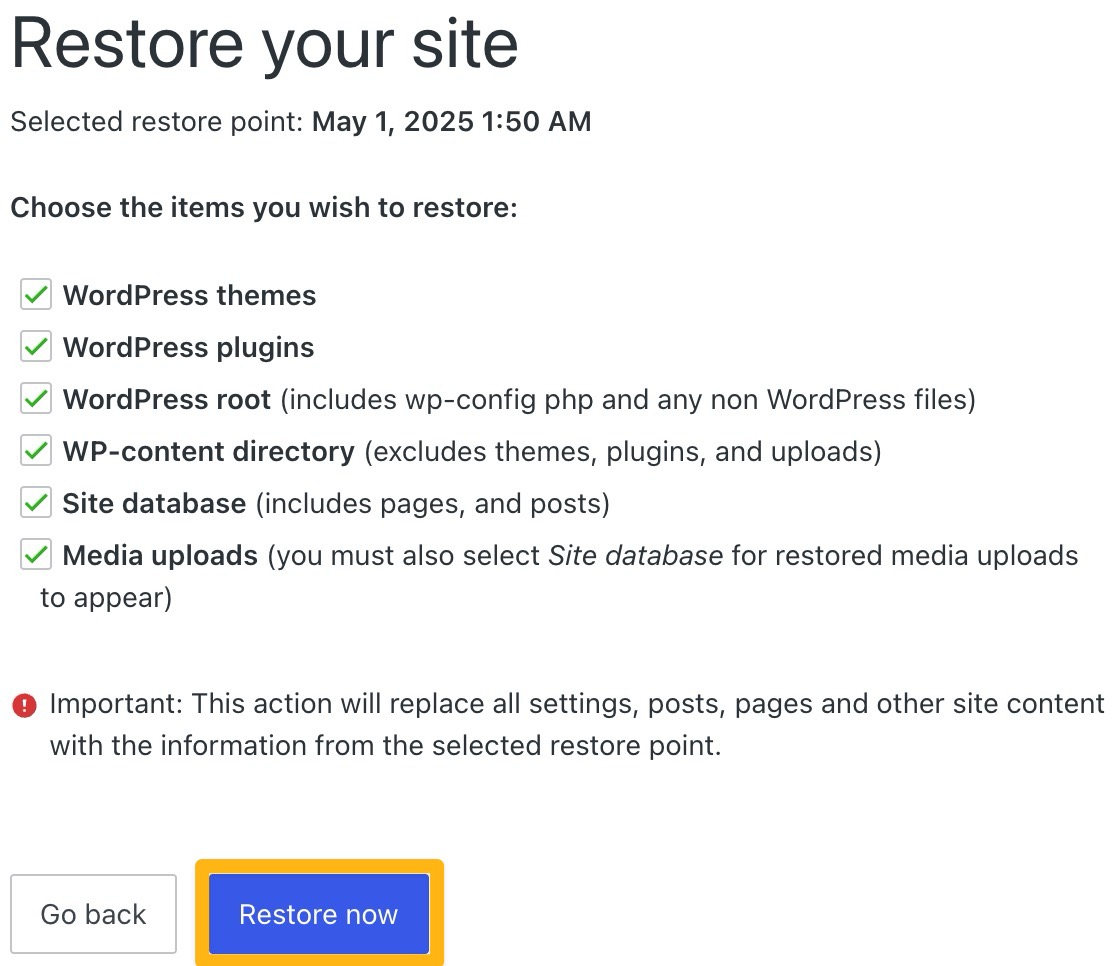
This WordPress.com hidden feature is a lifesaver when things break.
On Business and Commerce plans, you can restore your entire site with one click from outside your WordPress dashboard.
How It Works
Log into WordPress.com (not your site admin), go to Jetpack → Backups, and restore from any backup point, even if your site is completely broken and you can’t access wp-admin.
No server access needed. No technical knowledge required. Just click restore and wait.
When This Saved My Ass
A client site broke after a plugin update. Dashboard unreachable. White screen of death everywhere.
Logged into WordPress.com, restored from a backup taken 2 hours earlier, site back online in 4 minutes.
If that had been a self-hosted site? I’d have needed SFTP access, database backups, and probably an hour of troubleshooting.
Launch Your Blog with WordPress.com
Automatic Core, Plugin, and Theme Updates
WordPress.com handles all your updates automatically, including WordPress core, plugins, themes, and even PHP versions.
What This Actually Means
On self-hosted WordPress, you’re responsible for:
- Checking for updates weekly
- Testing updates before applying
- Rolling back if something breaks
- Monitoring compatibility issues
WordPress.com does all of this automatically, coordinated to reduce compatibility conflicts.
Time saved: 1-2 hours per month, not babysitting updates.
Security benefit: Zero-day vulnerabilities get patched immediately without you doing anything.
The Control You Still Have
On Business and Commerce plans, you can switch PHP versions from Settings → Hosting Configuration without server access.
Want to test your site on PHP 8.2 before committing? Toggle it, test, toggle back if needed.
WordPress Studio: Local Development That Syncs to Live Sites
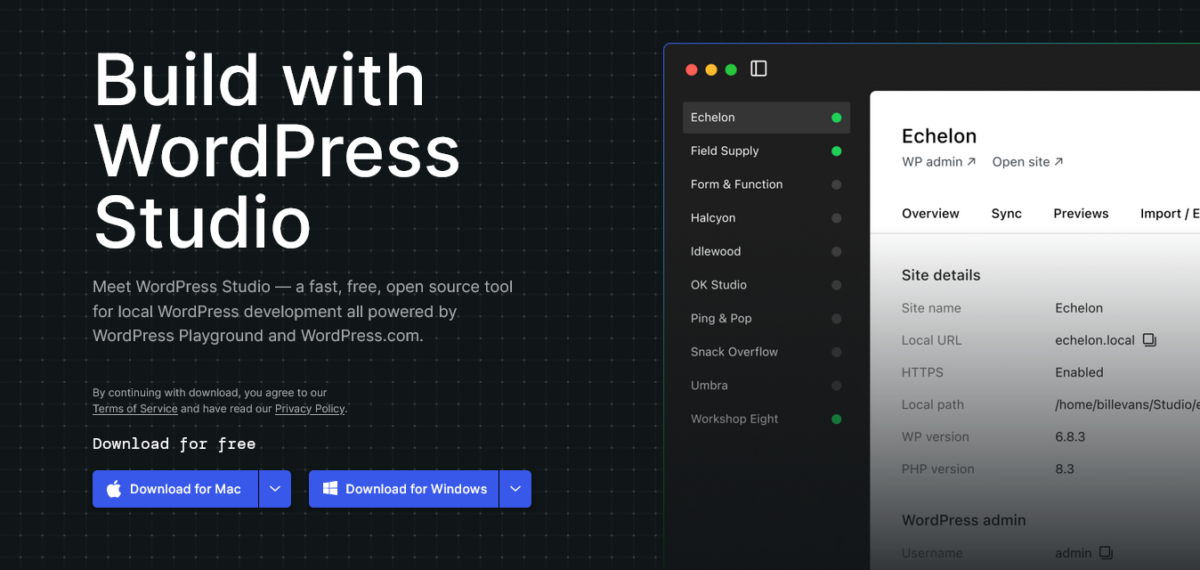
WordPress Studio lets you test changes locally (on your computer) in the exact environment your live site uses, then sync when ready.
Why This Matters
- Test new designs without affecting live traffic
- Experiment with plugins safely
- Try major structural changes risk-free
- Sync updates when you’re confident they work
It’s like having a staging site that actually matches your production environment.
Developer benefit: Works with AI coding tools like Claude Code and Cursor for AI-assisted development workflows.
Jetpack’s Hidden Productivity Features (Already Included)
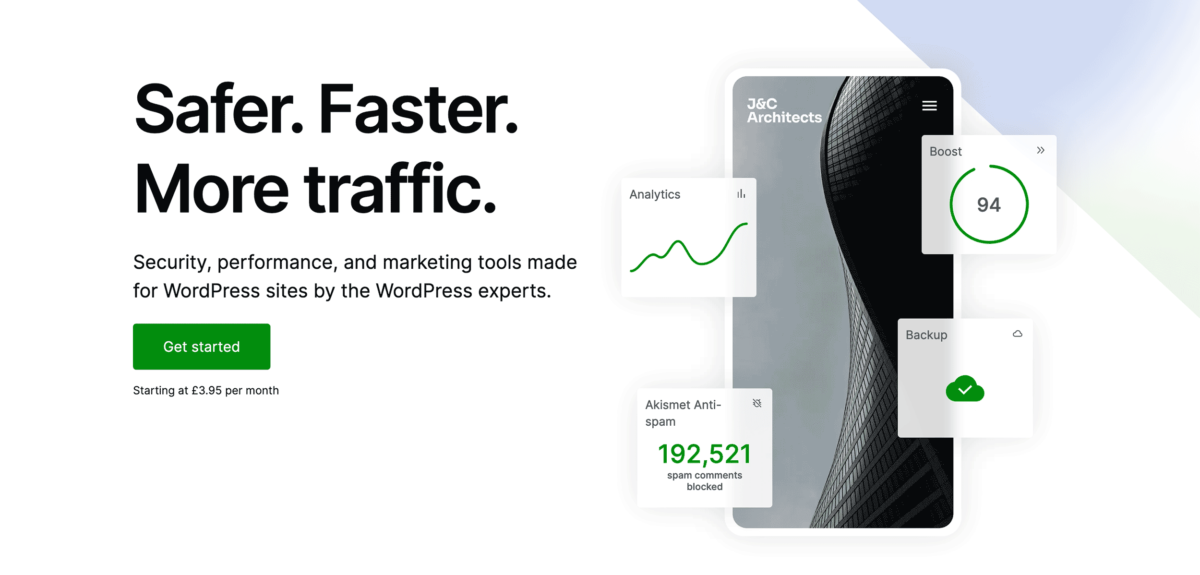
All WordPress.com sites come with Jetpack pre-installed. Most people ignore 80% of its features.
Jetpack Features You’re Probably Not Using
Site Stats: Real-time analytics without loading Google Analytics. See what’s working right now.
Downtime Monitoring: Get notified instantly if your site goes offline. I’ve caught hosting issues before readers even noticed because of this.
Security Scanning: Automatic malware and vulnerability scans. Runs in the background, alerts you if problems appear.
Image CDN: Automatically serves images from Jetpack’s global CDN. Faster load times, no configuration needed.
Related Posts: Shows contextually relevant posts automatically. Increases pageviews per session by 15-25%.
Newsletter Integration: Build an email list and send newsletters directly from WordPress without third-party tools.
All this is included. Free. You just have to activate the features.
Also Read: Jetpack Tools Every Blogger Should Be Using in 2026
Multi-Data Center Support + Global CDN (Performance You Don’t See)
This isn’t something you interact with directly, but it’s a massive WordPress.com hidden feature for performance.
What’s Happening Behind the Scenes
Your site is cached globally across multiple data centers. When someone in Tokyo visits your blog, they’re served from Asia-Pacific servers. European visitors hit European servers. US visitors get US servers.
Result: Faster load times everywhere, regardless of where your actual hosting server is located.
Why This Beats Basic Hosting
Most shared hosting serves everything from a single server location. If you’re hosted in Los Angeles and someone visits from London, they’re waiting for data to travel 5,000+ miles.
WordPress.com’s global CDN eliminates that delay automatically.
Unlimited Bandwidth with No Overage Fees (Hidden Cost Savings)
Every WordPress.com plan includes unlimited bandwidth with a 99.999% uptime target.
What This Means
Your post goes viral and hits the front page of Reddit? No extra fees. No traffic throttling. No emergency upgrade required.
On most hosting plans, sudden traffic spikes either:
- Crash your site (shared hosting can’t handle the load)
- Trigger overage fees (you pay per GB over your limit)
- Force emergency upgrades (you scramble to upgrade mid-traffic spike)
WordPress.com handles traffic surges automatically with no penalty.
Cost Comparison
I migrated a client from SiteGround to WordPress.com last year. Their hosting cost was similar ($25/month), but they’d been hit with three overage charges totaling $180 when blog posts went viral.
On WordPress.com? Same traffic levels, zero extra charges.
Annual savings: $180-300, depending on traffic patterns.
Features I Wish Existed (But Don’t Yet)

Let’s be real about what WordPress.com’s hidden features are still missing:
Real-time collaborative editing: Google Docs-style simultaneous editing. Supposedly coming soon.
Advanced redirect management: You can install redirect plugins on Business plans, but there’s no native redirect tool built in.
A/B testing capability: Want to test two headlines? You need third-party tools or plugins. No native split-testing.
Enhanced media organization: The Media Library desperately needs folders or better tagging for sites with thousands of images.
Better mobile app: The WordPress mobile app is functional but clunky. Managing complex sites from mobile is still frustrating.
Which WordPress.com Hidden Features Matter?
Not all hidden features are created equal. Here’s my priority ranking:
Must use immediately:
- WordPress AI Assistant (Business plans)
- Slash commands
- Custom excerpts
- Spotlight Mode
- Screen Options customization
Use if relevant to your workflow: 6. Block Notes (teams only) 7. Viewport visibility controls (seasonal content) 8. One-click restore (peace of mind)
Nice to have but not essential: 9. Jetpack stats (if you’re not using Google Analytics) 10. WordPress Studio (developers only)
How to Start Using These Features

Here’s your action plan:
This week:
- Enable WordPress AI Assistant (Settings → AI Tools)
- Customize Screen Options on the post editor
- Start using slash commands (just type / in editor)
- Enable Spotlight Mode for your next writing session
This month:
- Write custom excerpts for your top 10 posts
- Set up Block Notes if you work with a team
- Explore Jetpack features you’ve been ignoring
- Test viewport visibility for seasonal content
This quarter:
- Audit Jetpack productivity features
- Consider WordPress Studio if you’re doing development work
- Review backup/restore capabilities
Value: Time Saved vs. Features Learned
I track my blogging workflow obsessively. Since implementing these WordPress.com hidden features over the past three months:
Time saved per blog post: 35-40 minutes
Productivity increase: About 30%
Frustration decrease: Massive (hard to quantify but very real)
That’s 6-7 hours saved monthly. Almost an entire workday is spent every month just from using features that were already there.
Final Word: WordPress.com Is More Powerful Than You Think
WordPress.com’s hidden features don’t get the attention they deserve because they’re not flashy.
There’s no marketing campaign for “we built Block Notes collaboration” or “slash commands are now a thing.”
But these quiet productivity improvements compound over time. Faster workflows. Better content quality. Less time troubleshooting. More time actually creating.
The WordPress AI Assistant alone justifies the Business plan price for most content creators. Add in automatic updates, global CDN, unlimited bandwidth, and one-click restores? You’re getting enterprise-level infrastructure with consumer-friendly pricing.
Stop using WordPress.com like it’s 2015. The platform has evolved dramatically. The tools are there. You just have to use them.
Now go enable that AI Assistant and see what you’ve been missing.
Explore WordPress.com Business Plans
FAQs
What are the most useful WordPress.com hidden features in 2026?
The WordPress AI Assistant (launched February 2026) is the most impactful hidden feature for Business plan users. It handles content editing, design changes, and AI image generation directly in your editor and Media Library.
Other crucial features include Block Notes collaboration, slash commands for faster block insertion, viewport visibility controls for conditional content display, and one-click site restore without dashboard access.
Is the WordPress AI Assistant free on WordPress.com?
Yes, the WordPress AI Assistant is included at no extra cost on WordPress.com Business and Commerce plans ($300/year and up). Free, Personal, and Premium plans don’t have access to the AI Assistant.
If you built your site using WordPress.com’s AI website builder, the assistant is enabled automatically regardless of plan.
How do I enable slash commands in WordPress?
Slash commands are enabled by default in the WordPress block editor (Gutenberg). Just type “/” anywhere in your post or page, and you’ll see a menu of available blocks.
Type “/image” for image blocks, “/heading” for headings, “/quote” for quotes, etc. This works on all WordPress.com plans and self-hosted WordPress sites using Gutenberg.
What’s the difference between Block Notes and regular WordPress comments?
Block Notes appear directly inside the WordPress editor attached to specific blocks, visible only to users who can edit the content. They’re designed for editorial collaboration and team feedback.
Regular WordPress comments are public-facing, appear below published posts, and are for reader engagement. Block Notes integrate with the AI Assistant via @ai tagging for contextual suggestions.
Can I use viewport visibility controls on the Free plan?
No. Viewport visibility controls (showing/hiding blocks based on user role, time, or device) require WordPress 6.9 or higher and work best on Business plans, where you can install conditional visibility plugins.
The feature is built into the block editor, but advanced conditions require plugins that aren’t available on Free, Personal, or Premium plans.
Does WordPress.com automatically back up my site?
Yes, all WordPress.com plans include automatic daily backups. Business and Commerce plans get real-time backups with one-click restore capability accessible even when your site dashboard is broken.
You can restore from WordPress.com’s main interface without needing site access, SFTP, or technical knowledge.
What are Screen Options, and why should I care?
Screen Options is a tab in the top-right of most WordPress admin screens that lets you customize which features are visible. On the post editor, you can toggle on/off excerpts, featured images, discussion settings, categories, tags, and more.
Customizing Screen Options declutters your workspace and puts frequently used features within easy reach, significantly speeding up your workflow.
How does WordPress.com’s global CDN improve my blog performance?
WordPress.com automatically caches and serves your content from data centers worldwide. When someone visits your blog from Tokyo, they get content from Asia-Pacific servers. European visitors hit European servers.
This reduces latency and improves load times globally without you configuring anything. Most basic hosting serves everything from a single geographic location, causing slower load times for distant visitors.
Can I still use these hidden features if I’m on the Personal plan?
Some features, like slash commands, Spotlight Mode, Docked Toolbar, and Screen Options customizatio,n work on all plans, including Free.
However, the WordPress AI Assistant, advanced Jetpack features, plugin installation, one-click restore, and many productivity tools require Business plans ($300/year) or higher.
Check WordPress.com’s plan comparison page for specific feature availability.
Is WordPress Studio only for developers?
WordPress Studio is primarily designed for developers who want to test changes locally before pushing to live sites.
However, technically-minded bloggers who want to experiment with major design changes, test plugins safely, or work offline can benefit from it.
The tool syncs with your live WordPress.com site and works with AI coding assistants like Claude Code and Cursor for enhanced productivity.
Keep In Mind: This article is sponsored by WordPress.com, but everything here is based on real testing, actual feature documentation, and honest assessment. These WordPress.com hidden features genuinely save time; I use them daily on Blog Recode and client sites.