Smarter Way to Start a Blog with WordPress.com in 2026
The $300+ mistake I made because I overthought everything (and how you’ll skip it)
Answered: Should You Start a Blog with WordPress.com in 2026?
Absolutely, (for beginners and serious creators)
Let me wirecut. If you want to start a blog with WordPress.com in 2026, you’re making the right choice.
But 90% of people mess it up by either overthinking or underthinking the setup.
I launched Blog Recode in 2022 after spending over $300 on a “perfect” setup that wasn’t perfect at all. Wrong hosting choice, wrong theme, wrong plugins, wrong everything.
If I could go back and start a blog with WordPress.com the smart way, here’s what I’d do differently:
Why WordPress.com in 2026 is brilliant:
- AI-powered tools built in (content generation, image creation, SEO optimization)
- Block editor that actually makes sense now (unlike 2020)
- Plans starting at $4/month (or free to test)
- No hosting headaches (they handle security, updates, backups)
- WordPress 7.0 is coming in April 2026 with real-time collaboration
- 43% of the internet runs on WordPress
The truth: You can start a blog with WordPress.com today and have publishable content live in under 2 hours. Not “someday when it’s perfect.” Today.
Disclosure: This article is sponsored by WordPress.com, but everything I’m sharing is based on real experience, real mistakes, and real wins from running Blog Recode and several client sites on WordPress.
Why I Almost Didn’t Start a Blog (And Why That Would’ve Been Stupid)

Before I could start a blog with WordPress.com, I had to get over my own bullshit. I wrote about it here.
It was March 2022. I can even remember the exact day.
I’m at my studio apartment, staring at my laptop for the third weekend in a row, paralyzed by decisions.
Self-hosted or WordPress.com?
Which theme?
What niche?
What if nobody reads it?
What if people DO read it and I suck?
My long friend Diane (love you girl) finally did put sense in me: “Girl, just pick something and hit publish. You’re bi*ching research (not my words), not making actual progress.” Like for real.
She was right. Putain, she was always right.
I had spent months “researching” (read: avoiding action). Watched 100s YouTube videos. Read 100s blog posts about blogging. Joined numerous Facebook groups where everyone argued about hosting.
Meanwhile? Zero published posts.
That’s when I decided to start a blog with WordPress.com using the Personal plan ($4/month), picked a free theme, and published my first terrible post that same day.
Three years later, Blog Recode is making money, helping thousands of creators each month, and I’m writing this sponsored post for the same platform I started on.
The lesson? Starting imperfectly beats waiting for perfect.
WordPress.com vs WordPress.org: The Difference Nobody Explains Right

Before you start a blog with WordPress.com, let me clear up the confusion that trips up 90% of beginners.
WordPress.org (Self-Hosted)
What it is: Free software you install on hosting you buy separately.
Pros:
- Total control over everything
- Install any plugin or theme
- Monetize however you want
Cons:
- You handle security, backups, and updates
- Need technical knowledge (or willingness to learn)
- Costs add up (hosting, domain, plugins, themes)
Real cost: $150-800/year minimum
WordPress.com (Managed Hosting)
What it is: Hosted WordPress platform with everything managed for you.
Pros:
- Zero technical maintenance
- Built-in security and backups
- Fast, reliable hosting included
- AI tools integrated
- Support team available
Cons:
- Limited plugin access on lower plans (sweethearts Please)
- Some customization requires paid plans
- Small commission on WooCommerce sales (2-3%)
Real cost: Free to $300/year
Which Should You Choose?
Start a blog with WordPress.com if:
- You’re new to blogging
- You want to focus on content, not tech
- You value reliability over tinkering
- You’d rather pay monthly than deal with hosting issues
Choose WordPress.org if:
- You’re technically confident
- You need specific plugins not available on WordPress.com
- You want zero restrictions
- You enjoy (or don’t mind) managing servers
I started with WordPress.com, learned the ropes, and later moved some client sites to self-hosted when they needed custom functionality.
There’s no wrong choice. Just different priorities.
2026 Advantage: Why Starting Now Is Smarter Than Ever

Here’s what makes it easier to start a blog with WordPress.com in 2026 versus when I started in 2022:
1. AI Integration Everywhere
WordPress.com now has native AI features:
- Jetpack AI Assistant: Generate content directly in the editor
- AI image generation: Create featured images without stock photos
- SEO optimization: AI-powered keyword suggestions
- Content improvement: AI editing and tone adjustment
When I started? I wrote everything manually, sourced images myself, and guessed at SEO.
Now? AI handles the grunt work while you focus on ideas.
2. Block Editor Maturity
The WordPress block editor (Gutenberg) was clunky in 2022. In 2026? It’s actually good. Kindly comment and tell me whether it’s better than the competitors?
Okay. I know what you’re thinking. Look what you’re getting…
New features:
- Drag-and-drop layouts that perform
- Pattern library: Pre-designed sections you customize
- Style variations: Change your entire site’s look in one click
- Full Site Editor: Control headers, footers, everything visually
No coding required.
3. WordPress 7.0 (April 2026)
The upcoming WordPress 7.0 release brings:
- Real-time collaboration: Edit with team members simultaneously
- AI Abilities API: More AI features built into the core
- Admin redesign: First major refresh since 2013
- Better mobile editing: Create content from your phone
Starting now means you’ll get these features automatically.
4. Better Learning Resources
In 2022, I learned blogging from scattered YouTube videos and outdated articles.
In 2026, there are:
- Official WordPress tutorials
- AI-powered help assistants
- Community forums with useful answers
- Updated documentation
Much easier to start a blog with WordPress.com when help actually exists.
Step-by-Step: How to Start a Blog with WordPress.com (The Smarter Way)
Let me walk you through exactly how to start a blog with WordPress.com without wasting money or time on mistakes. Bookmark this shit.
Step 1: Sign Up (Takes 2 Minutes)

Action:
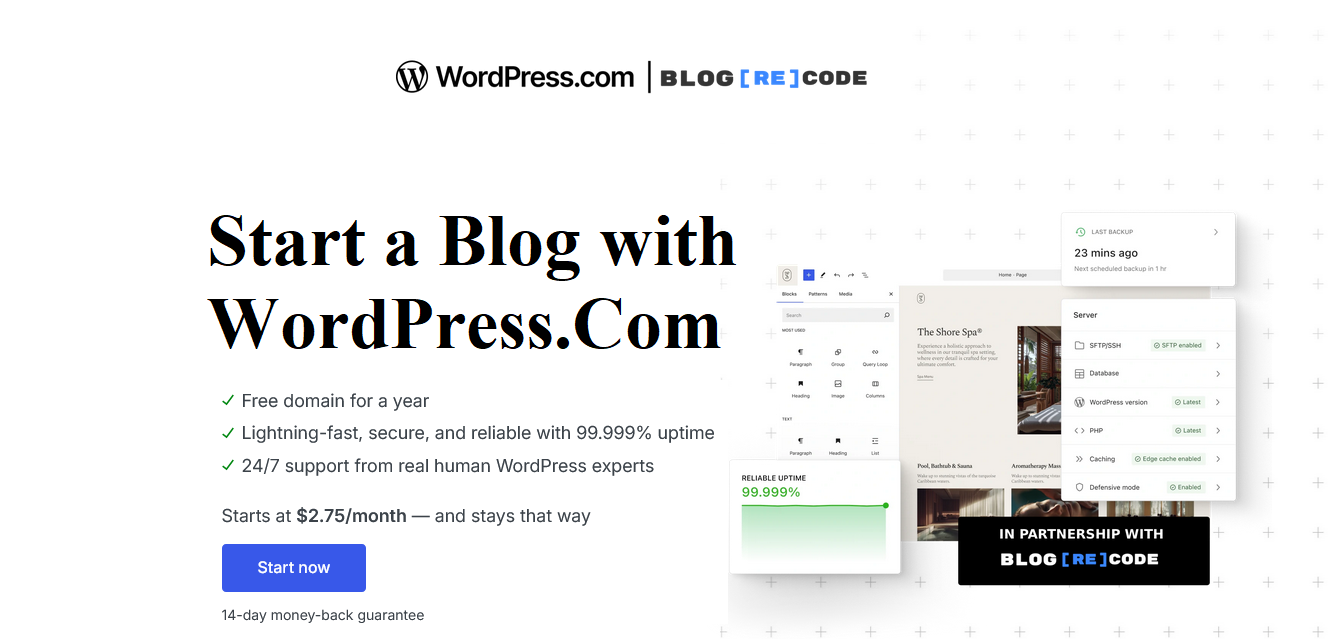
- Go to WordPress.com or click the above image.
- Click “Start your website.”
- Enter your email and choose a password
- Pick a username (this becomes yourname.wordpress.com initially)
Pro tip: Don’t stress the username. You’ll add a custom domain later.
Cost: $0
Step 2: Choose Your Path (Free or Paid)
WordPress.com offers multiple plans. Here’s what I actually recommend:
| Plan | Price | Best For | What You Get |
|---|---|---|---|
| Free | $0 | Testing, learning | Subdomain (yourname.wordpress.com), 1GB storage, basic features |
| Personal | $4/month ($48/year) | Beginners, hobby bloggers | Custom domain (free 1 year), ad-free, email support |
| Premium | $8/month ($96/year) | Serious bloggers | Everything in Personal + premium themes, monetization tools |
| Business | $25/month ($300/year) | Businesses, power users | Plugins, custom themes, advanced SEO, 200GB storage |
| Commerce | $45/month ($540/year) | Online stores | WooCommerce, payment integrations, premium extensions |
My recommendation:
- Start with Free if you’re testing the waters (upgrade later)
- Go Personal if you’re serious ($4/month is a coffee)
- Skip Business unless you need specific plugins
I started on Personal, upgraded to Business after 5 months when I needed custom plugins.
Step 3: Pick Your Blog’s Focus (The Part Everyone Overthinks)
You don’t need a perfect niche to start a blog with WordPress.com.
You need direction. I give you that. That’s why I’m writing this.
Questions to ask:
- What do people ask you about?
- What frustrates you that you’ve figured out?
- What could you talk about for hours?
My niche decision: I noticed bloggers struggling with AI tools and getting misleading advice. I had experience from agency work. Boom. Blog Recode was born.
Bad niche choices:
- “Lifestyle blog” (too vague)
- “Make money online” (oversaturated)
- Topics you don’t care about (you’ll quit)
Good niche choices:
- “WordPress security for non-technical people”
- “Meal prep for busy parents”
- “Digital art tools I use”
Your test: If you can write 50 post ideas in 20 minutes, your niche is a good fit.
Step 4: Choose Your Domain Name (Make It Count)
When you start a blog with WordPress.com on a paid plan, you get a free custom domain for one year.
Domain naming rules:
- Short and memorable (Blog Recode, not BlogAboutCodingAndRecodeAndStuff)
- Easy to spell (avoid clever misspellings)
- .com if possible (other extensions work, but .com is trusted)
- No hyphens or numbers (harder to remember and say)
My process:
- Brainstormed 20 names
- Checked availability on WordPress.com domain search
- Picked one that wasn’t taken
- Bought it
Cost: Included free for one year with Personal+ plans ($15-20/year after)
Pro tip: If your perfect .com is taken, try:
- Adding “blog” or “hub” (MarketingBlog.com)
- Using .co, .io, or .ai (creative but less familiar)
- Slight variation (TheRecoded.com instead of Recode.com)
Step 5: Pick a Theme (Faster Than You Think)
WordPress.com offers thousands of themes. Don’t spend a week choosing.
For 2026, I recommend block themes:
- Astra (free, fast, customizable)
- Kadence (modern, feature-rich)
- GeneratePress (lightweight, developer-ready)
How to choose:
- Go to Appearance → Themes
- Filter by “Block Themes”
- Preview 3-5 that match your style
- Pick one and customize it
You can change themes later. Don’t obsess.
I’ve changed Blog Recode’s theme three times. Not a big deal.
Customization:
- Use the Site Editor (Appearance → Editor)
- Adjust colors, fonts, spacing
- Add your logo
- Done
Time spent: 30-60 minutes max.
What I did wrong: Spent several hours customizing my first theme, then switched themes two weeks later. Wasted time.
For a deep dive on themes, check out our guide on the best WordPress.com themes for minimalist creators.
Step 6: Essential Settings (Stuff That Matters)
Before you start a blog with WordPress.com and publish content, configure these settings:
Site Identity (Settings → General)
- Site title: Your blog name
- Tagline: Short description (appears in search results)
- Timezone: Your local timezone (affects post scheduling)
Reading Settings (Settings → Reading)
- Homepage displays: Your latest posts (or a static page)
- Blog pages show at most: 10 posts (default)
- Search engine visibility: UNCHECKED (so Google can find you)
Discussion Settings (Settings → Discussion)
- Default post settings: Check “Allow comments.”
- Comment moderation: Check “Comment must be manually approved.”
- Comment blacklist: Add spam phrases later
Permalinks (Settings → Permalinks)
- Choose “Post name” structure
- Example: yourblog.com/how-to-start-blog (not yourblog.com/?p=123)
Time spent: 10 minutes
Impact: Huge. Wrong permalink structure screws up SEO.
Step 7: Install Essential Plugins (Business Plan Only)
If you’re on the Business plan ($25/month), you can install plugins.
My must-haves:
- Rank Math SEO or SureRank: Best free SEO plugin
- ThirstyAffiliate: Manage affiliate links
- Site Kit: Google Analytics made simple
- FastPixel: Speed optimization (premium, worth it)
If you’re on Free/Personal/Premium: WordPress.com includes similar features built in:
- Jetpack (SEO, security, stats)
- Akismet (spam protection)
- Jetpack AI (content generation)
You don’t NEED plugins to start a blog with WordPress.com successfully.
Step 8: Create Your First 5 Posts (Before Launch)
Don’t launch with zero content. Write 3-5 posts first.
My strategy:
- Introduction post: “Why I started this blog.”
- How-to post: Solve one specific problem
- List post: “X tools/tips I use for Y.”
- Personal story: Share a relevant experience
- Resource guide: Helpful links, books, whatever
Why 5 posts?
- Shows you’re serious (not abandoned)
- Gives visitors content to explore
- Helps you establish voice and structure
I launched Blog Recode with 4 posts. Wish I’d had 10.
Post creation workflow:
- Draft in WordPress editor
- Use Jetpack AI to improve headlines (if available)
- Add featured image (AI-generated or free from Unsplash)
- Format with headings (H2, H3)
- Add meta description (Jetpack SEO)
- Schedule or publish
Time per post: 2-4 hours for quality
Step 9: Set Up Email Subscribers (Don’t Skip This)
When you start a blog with WordPress.com, email is your most valuable asset.
Built-in option (Free on all plans): WordPress.com has native email subscription features:
- Subscription blocks
- Newsletter features
- Email sending included
Action:
- Add “Subscribe” block to sidebar or footer
- Enable email notifications in Jetpack
- Start collecting emails from day one
Why it matters:
- You own your email list (social media can disappear)
- Email converts better than any other channel
- It’s free real estate for promoting content
I ignored the email for 6 months. Huge mistake. Lost thousands of potential subscribers.
For advanced strategies, read our guide on growing with WordPress.com tools.
Step 10: Launch and Promote (The Fun Part)
You’re ready. Hit publish.
Launch checklist:
- ✅ 3-5 posts published
- ✅ About page created
- ✅ Contact page added
- ✅ Email subscription enabled
- ✅ Social sharing buttons active
- ✅ Site tested on mobile
Promotion strategy:
- Share on existing social media (if you have it)
- Tell friends and family (yes, really)
- Comment on related blogs (with thoughtful comments, not spam)
- Join niche communities (Reddit, Facebook groups)
- Guest post (after you have 10+ quality posts)
What I did:
- Posted on Twitter (3 followers cared)
- Shared in a blogging Facebook group (got 47 visitors)
- Emailed 5 friends (2 read it)
Humble beginnings.
First month expectations:
- 50-500 visitors (if you promote)
- 0-5 email subscribers
- Zero income
Don’t quit. Everyone starts here.
2026 Secret Weapons: AI Tools You Must Use

When you start a blog with WordPress.com in 2026, you have AI tools that I wish existed in 2022.
Jetpack AI Assistant
What it does:
- Generates blog post drafts from prompts
- Improves existing content (tone, clarity, length)
- Creates meta descriptions
- Suggests headlines
How to use it:
- Type
/aiin the WordPress editor - Describe what you want
- AI generates content
- Edit and refine
Cost: Free tier + paid credits
My take: Saves 2-3 hours per post on initial drafts.
AI Image Generation
What it does: Creates featured images and graphics from text prompts.
Action:
- Upload media → Generate with AI
- Describe the image (“minimalist blog header, teal and white”)
- Generate, download, use
Cost: Included in some plans, credits on others
Why it matters: No more stock photo hunting.
Kadence AI / Essential Blocks AI
What they do: Generate layouts, content, and designs within the block editor.
Use cases:
- Build landing pages fast
- Create pricing tables
- Generate testimonial sections
Cost: Free versions available, Pro unlocks more
Rank Math Content AI (Business Plan)
What it does: SEO optimization while you write.
Features:
- Keyword suggestions
- Content analysis
- Readability scores
- Real-time feedback
My workflow:
- Write naturally first
- Run through Rank Math AI
- Adjust based on suggestions
- Publish
Time saved: 30 minutes per post on SEO.
For more on AI blogging, see our piece on creating with AI on WordPress.
Pricing Breakdown: What It Costs to Start a Blog with WordPress.com
Let me show you actual costs because blog posts lie about this constantly.
Year One: Minimal Setup
| Item | Cost |
|---|---|
| WordPress.com Personal plan | $48/year |
| Custom domain (included free) | $0 |
| Email subscribers (built-in) | $0 |
| Total Year One | $48 |
Year One: Serious Setup
| Item | Cost |
|---|---|
| WordPress.com Business plan | $300/year |
| Custom domain (included free) | $0 |
| Professional email (Titan, 3 months free) | $0-42/year |
| Premium plugins (if needed) | $0-200/year |
| Total Year One | $300-542 |
Year Two+ (Renewals)
| Item | Cost |
|---|---|
| WordPress.com plan renewal | $48-300/year |
| Domain renewal | $15-20/year |
| Email service | $42/year |
| Total Annual | $105-362/year |
My actual costs (Blog Recode):
- Year 1: $300 (Business plan)
- Year 2: $320 (renewal + domain)
- Year 3: $300 (locked in pricing)
Compared to self-hosted:
- Hosting: $80-300/year
- Domain: $15/year
- Security plugin: $99-199/year
- Backup service: $50-100/year
- Total: $244-614/year
WordPress.com is actually competitive (and less headache).
Common Mistakes When You Start a Blog with WordPress.com (I Made All of These)

Mistake #1: Overthinking the Niche
I spent 6 weeks researching niches. Wasted time.
Fix: Pick something, start writing, adjust as you go.
Mistake #2: Perfectionism Before Publishing
My first post sat in drafts for 3 weeks while I “perfected” it.
Fix: Done is better than perfect. Publish and improve.
Mistake #3: Ignoring Email From Day One
Started collecting emails after 6 months. Lost thousands of potential subscribers.
Fix: Enable subscriptions immediately.
Mistake #4: No Content Calendar
Published randomly whenever I felt inspired. Inconsistent as hell.
Fix: Plan 4 posts ahead, publish weekly minimum.
Mistake #5: Comparing to Established Blogs
Compared Blog Recode to blogs with 50,000 monthly visitors. Got discouraged.
Fix: Compare to yourself last month, not others.
Mistake #6: Not Backing Up Content
WordPress.com handles backups, but I still export monthly.
Fix: Tools → Export once per month to local storage.
Mistake #7: Ignoring Analytics
Didn’t check stats for the first 3 months. Had no idea what worked.
Fix: Check Jetpack Stats weekly, Google Analytics monthly.
How to Make Money (Because Let’s Be Honest, That’s Why Most Start)

When you start a blog with WordPress.com, monetization options depend on your plan.
Free Plan Monetization
- WordAds (limited, low earnings)
- Affiliate links (allowed)
- Sponsored posts (allowed)
Personal Plan+
- Google AdSense (after approval)
- Affiliate programs
- Sponsored content
- Digital products (via payment buttons)
Business Plan+
- Everything above
- WooCommerce (sells both digital and physical products)
- Membership sites
- Course platforms
My monetization timeline:
- Month 1-6: $0 (building audience)
- Month 7: First $47 from affiliate link
- Month 12: $380/month (affiliates + sponsored posts)
- Month 24: $1,200/month (diversified income)
- Month 36: $2,100/month (this article is sponsored content)
Timeline expectations:
- 0-6 months: Focus on content, not money
- 6-12 months: Start monetizing with affiliates
- 12-24 months: Add sponsored posts, products
- 24+ months: Diversify income streams
Don’t expect immediate income. It takes time.
Growth Strategy: From Zero to 10,000 Monthly Visitors

Here’s how to grow after you start a blog with WordPress.com:
Months 1-3: Foundation
- Publish 2-3 posts weekly
- Build 15-20 quality posts
- Set up social media (if desired)
- Join niche communities
- Comment on related blogs
Goal: 100-500 monthly visitors
Months 4-6: Consistency
- Publish 1-2 posts weekly
- Guest post on 2-3 blogs
- Start email newsletter
- Engage with the audience
- Optimize top posts for SEO
Goal: 500-2,000 monthly visitors
Months 7-12: Acceleration
- Publish 1 weekly (quality over quantity)
- Run WordPress Blaze ads ($25-50/month)
- Collaborate with other bloggers
- Create lead magnets
- Update old content
Goal: 2,000-5,000 monthly visitors
Learn more about using Blaze ads for traffic.
Months 13-24: Scale
- Focus on top-performing content
- Build backlinks strategically
- Expand to video/podcast (optional)
- Launch paid products
- Build partnerships
Goal: 5,000-10,000+ monthly visitors
Security & Maintenance: The Boring Stuff That Matters

When you start a blog with WordPress.com, security is mostly handled for you.
What WordPress.com handles automatically:
- ✅ Software updates
- ✅ Security patches
- ✅ DDoS protection
- ✅ SSL certificate
- ✅ Daily backups (paid plans)
- ✅ Spam filtering (Akismet)
- ✅ Brute force protection
What you should do:
- Use strong passwords (LastPass, 1Password)
- Enable two-factor authentication
- Export backups monthly
- Monitor site for unusual activity
I’ve run Blog Recode on WordPress.com for 3 years. Zero hacks, zero downtime.
Compare that to my self-hosted client sites: 3 hacks in 2 years before we implemented Jetpack Security.
For complete security coverage, check our Jetpack protection guide.
WordPress.com vs Competitors in 2026
WordPress.com vs Wix
Wix Pros:
- Drag-and-drop editor (beginner-friendly)
- Beautiful templates
- All-in-one simplicity
Wix Cons:
- Can’t export your site (locked in)
- Less SEO power
- Limited scalability
Verdict: Wix for simple sites, WordPress.com for growth.
WordPress.com vs Squarespace
Squarespace Pros:
- Stunning designs
- Easy to use
- Great for portfolios
Squarespace Cons:
- $16-$49/month (more expensive)
- Limited customization
- Smaller ecosystem
Verdict: Squarespace for aesthetics, WordPress.com for flexibility.
WordPress.com vs Medium
Medium Pros:
- Built-in audience
- Zero setup
- Clean reading experience
Medium Cons:
- No custom domain on free
- No control over design
- Limited monetization
- Algorithm changes affect reach
Verdict: Medium for testing, WordPress.com for building owned property.
WordPress.com vs Self-Hosted WordPress.org
Self-Hosted Pros:
- Total control
- Any plugin/theme
- No restrictions
Self-Hosted Cons:
- Technical knowledge required
- More expensive over time
- You handle security/backups
Verdict: WordPress.com for beginners, self-hosted for advanced users.
Let’s Talk: Is It Worth It to Start a Blog with WordPress.com in 2026?
After running Blog Recode for years and managing several client WordPress.com sites, here’s my honest answer:
Yes, if:
- You want to focus on content, not tech
- You’re willing to be consistent (1+ posts weekly)
- You’re patient (results take 6-12 months)
- You value reliability over tinkering
No, if:
- You expect overnight success
- You’re not willing to write regularly
- You need super-specific plugins only available elsewhere
- You want total control over every technical detail
The reality: Starting a blog in 2026 is easier than ever (AI tools, better editor, more resources), but also more competitive (everyone can start easily).
Success comes down to:
- Consistency
- Quality
- Patience
- Promotion
The platform matters less than your commitment.
WordPress.com removes technical barriers. The rest is up to you.
Your 30-Day Action Plan to Start a Blog with WordPress.com

Week 1: Setup
- Day 1-2: Sign up, choose a plan, pick a domain
- Day 3-4: Select theme, customize basics
- Day 5-6: Configure settings, create pages (About, Contact)
- Day 7: Set up email subscriptions
Week 2: Content Creation
- Day 8-10: Research and outline 5 posts
- Day 11-13: Write first 3 posts
- Day 14: Create About and Contact pages
Week 3: Content Completion
- Day 15-17: Write posts 4-5
- Day 18-19: Create featured images
- Day 20-21: Optimize all posts for SEO
Week 4: Launch
- Day 22-23: Final review, mobile testing
- Day 24: LAUNCH (publish all posts)
- Day 25-27: Promote on social, communities
- Day 28-30: Engage with comments, plan next posts
End of month goal: Live blog with 5 posts, email system active, promotion started.
Final Thoughts: Just Start
Listen, I’ve written 4,000+ words about how to start a blog with WordPress.com because I want you to avoid the mistakes I made.
But here’s the truth: all the research in the world means nothing if you don’t actually start.
Three years ago, I:
- Had zero audience
- Didn’t know SEO
- Sucked at writing headlines
- Made every mistake in this guide
Today:
- Blog Recode reaches thousands monthly
- I write sponsored content for WordPress.com
- I run a profitable blog helping creators
- I still make mistakes, but I’m learning
The difference? I started. Imperfectly. Scared. Not ready.
You’ll never feel completely ready. Technology will always change. Competition will always exist.
But if you want to start a blog with WordPress.com in 2026, the absolute best time is today.
Not Monday. Not next month. Not “when I have more time.”
Today.
Pick a plan. Choose a domain. Write your first post. Hit publish.
Everything else figures itself out along the way.
FAQs
How much does it cost to start a blog with WordPress.com?
It costs $0 to start a blog with WordPress.com on the free plan, or $48/year ($4/month) for the Personal plan with a custom domain included free for one year.
Business plans start at $300/year with plugin access.
Can I make money on WordPress.com?
Yes, you can make money on WordPress.com through affiliate marketing, sponsored posts, Google AdSense (Personal plan+), selling digital products, and WooCommerce (Business plan+). Monetization options increase with paid plans.
Do I need technical skills to start a blog with WordPress.com?
No, you don’t need technical skills to start a blog with WordPress.com. The platform handles hosting, security, and updates automatically.
The block editor is visual and requires zero coding knowledge.
How long does it take to start a blog with WordPress.com?
You can start a blog with WordPress.com in under 2 hours (signup, setup, basic customization). However, creating quality content and building an audience takes 6-12 months of consistent work.
Can I switch from free to paid plans later?
Yes, you can upgrade from the free WordPress.com plan to paid plans anytime. Your content, settings, and design transfer automatically.
You can also downgrade or cancel plans if needed.
Does WordPress.com include hosting?
Yes, WordPress.com includes hosting in all plans (even free). You don’t need to buy separate hosting. They handle servers, security, backups, and uptime automatically.
Can I use a custom domain on WordPress.com?
Yes, custom domains are included free for one year with Personal plans and above. On the free plan, you use a subdomain like yourname.wordpress.com. After the first year, domains cost $15-20/year to renew.
What’s the difference between WordPress.com and WordPress.org?
WordPress.com is a hosted platform where they manage everything (hosting, security, updates). WordPress.org is software you install on your own hosting.
WordPress.com is easier but less flexible; WordPress.org requires more technical knowledge but offers total control.
How many posts should I publish before launching?
Publish 3-5 quality posts before you launch your blog with WordPress.com. This shows commitment, gives visitors content to explore, and helps establish your voice and topic focus.
Can I migrate from WordPress.com to a self-hosted site later?
Yes, you can export your content from WordPress.com and import it into self-hosted WordPress.org anytime. The migration process is straightforward, though some customizations may need to be recreated.
P.S. – Still overthinking this? You’re procrastinating. I did it too. The cure is action, not more research. Open WordPress.com in a new tab right now and just create an account. See how easy it is. You can delete it later if you hate it (you won’t).
P.P.S. – When you publish your first post, tag Blog Recode or email me. I read every message, and I actually respond. I’ll be your first reader. That’s a promise. Good luck.
Stop planning. Start publishing. 🚀